How to Assign a Task to Staff in kidsday (new feature)
Category:
 Planner
Useful for:
This new feature in Kidsday allows administrators to assign tasks to staff in an organized and clear way. Each staff member knows exactly what task they have, when it needs to be completed, and who is responsible.
Why is it important?
-
Better work organization – all tasks are recorded and visible in one place.
-
Deadline control – you can set the time and date of the task.
-
Easier collaboration – each staff member knows their assigned responsibility.
-
Less confusion – reduces the risk of forgetting or overlapping tasks.
Steps to use
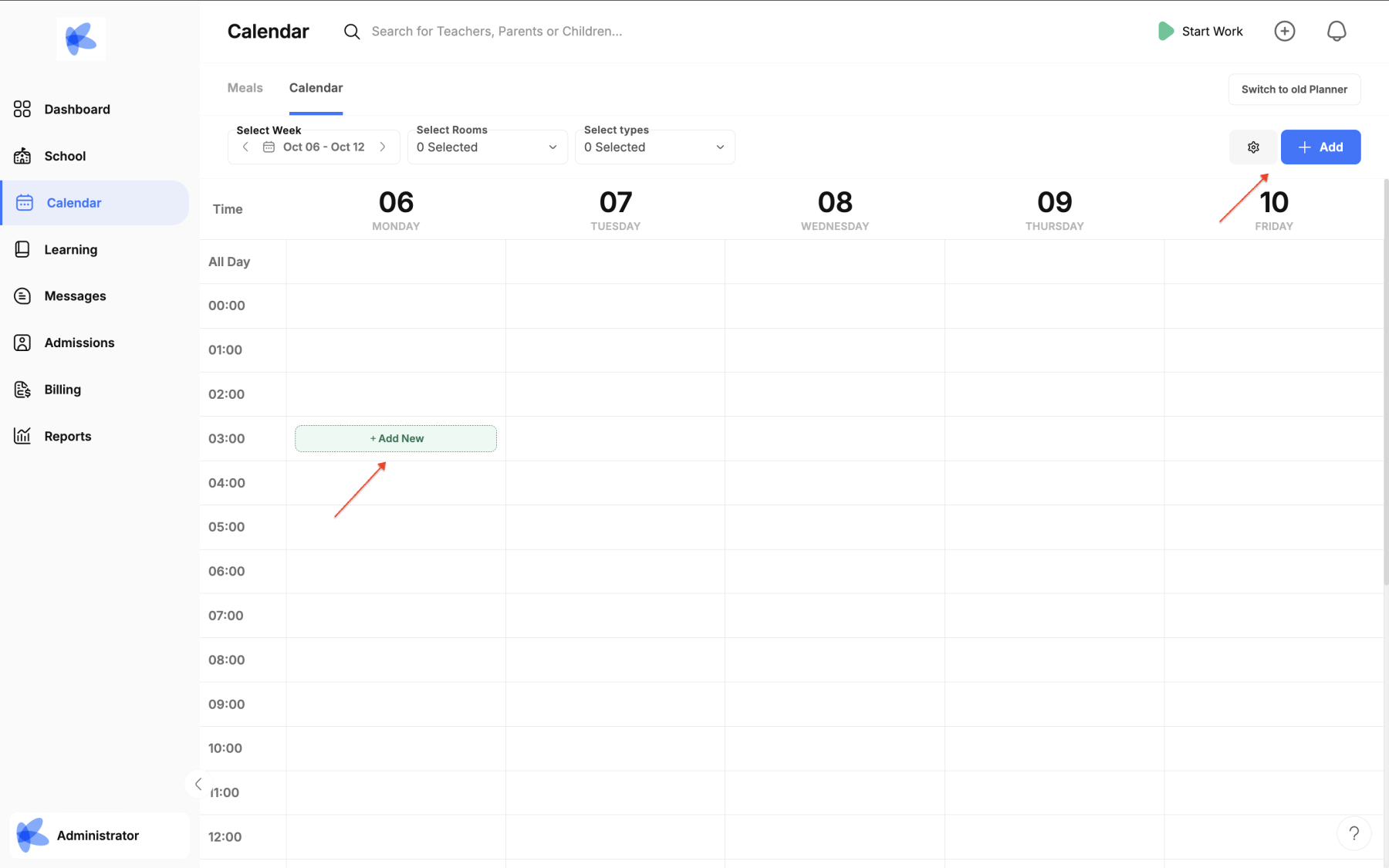
Step 1: Open the calendar
-
From the main menu, click on Calendar.
Step 2: Select the date
-
Click on the date where you want to assign the task,
or use the “Add +” button on the right side.
Step 3: Choose the category
-
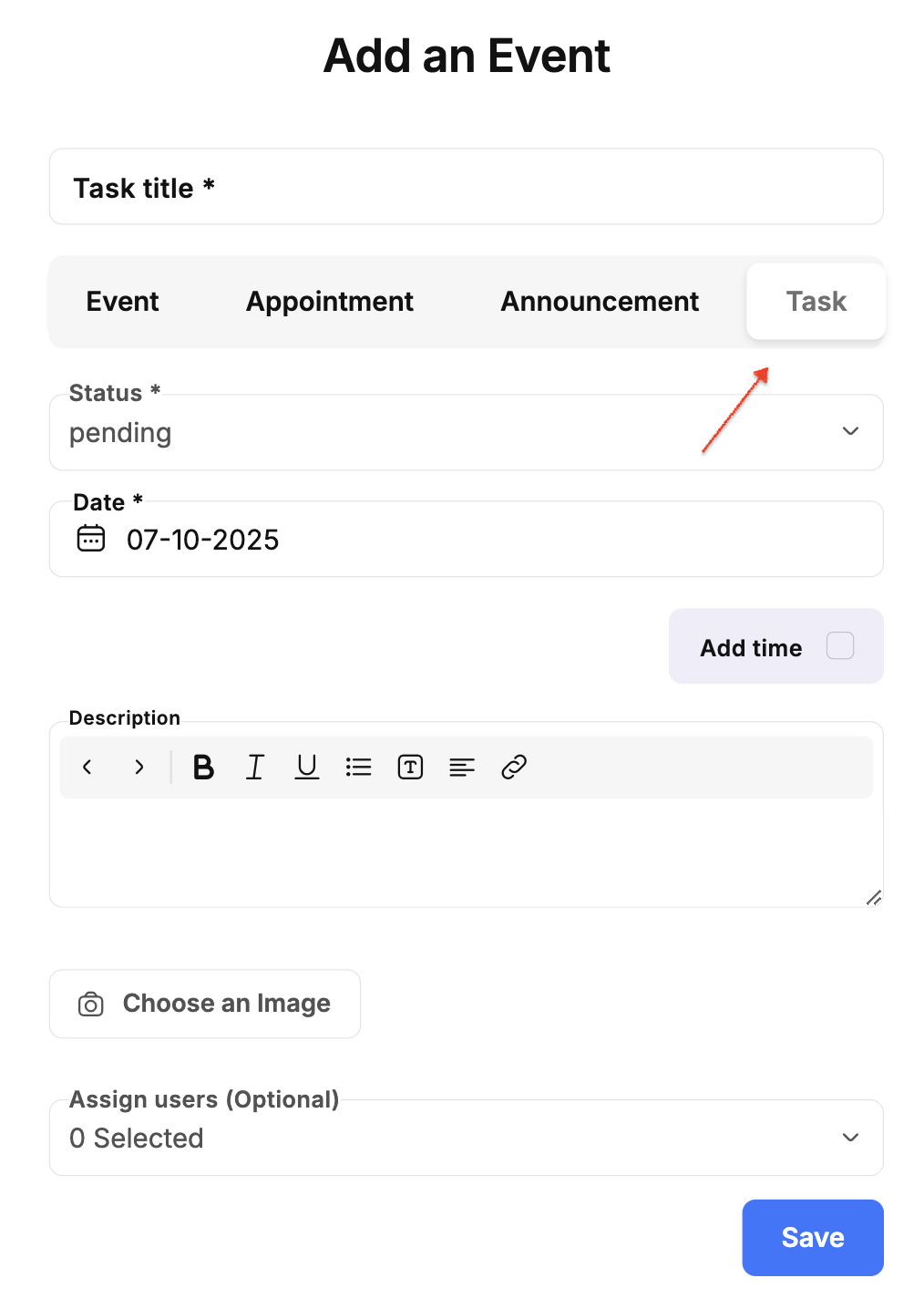
From the category list, select Task.
Step 4: Fill in the task details
-
Enter the title of the task (e.g. Prepare the list of materials for Oct. activities).
-
Add a description if needed.
-
Assign the staff members who will complete it.
-
Define the time or deadline for completion.
Step 5: Save
-
After filling in the details, click “Save”.
The task will now appear in the calendar and be visible to the selected staff.