
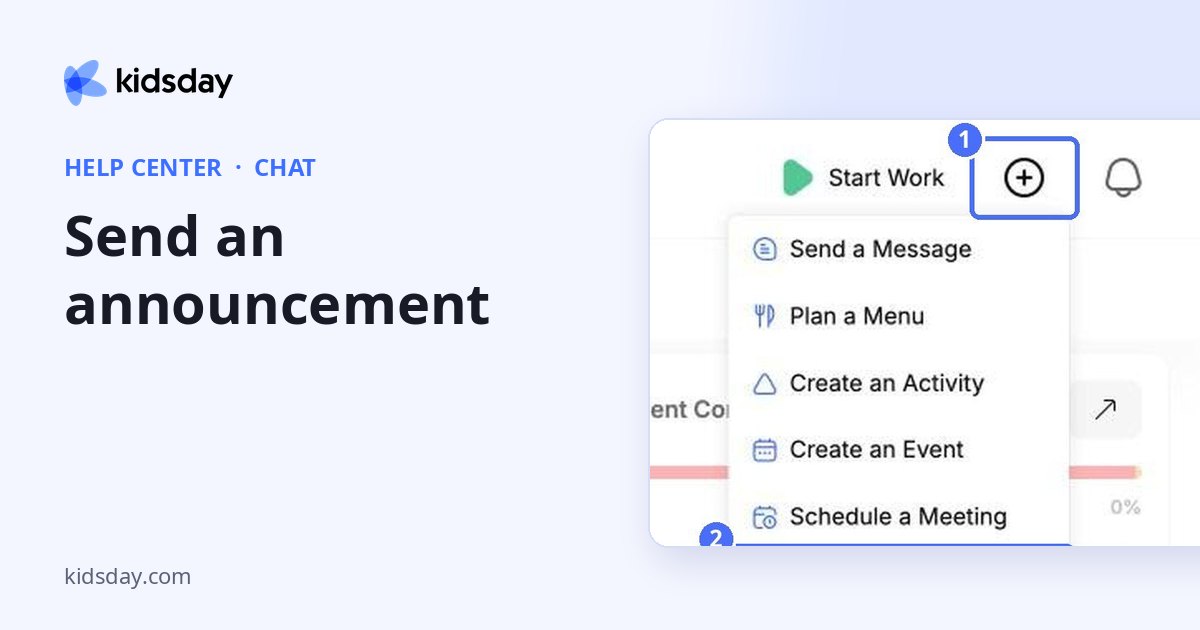
An announcement shares news with families and your team, such as a closure day, a trip reminder or a new menu.
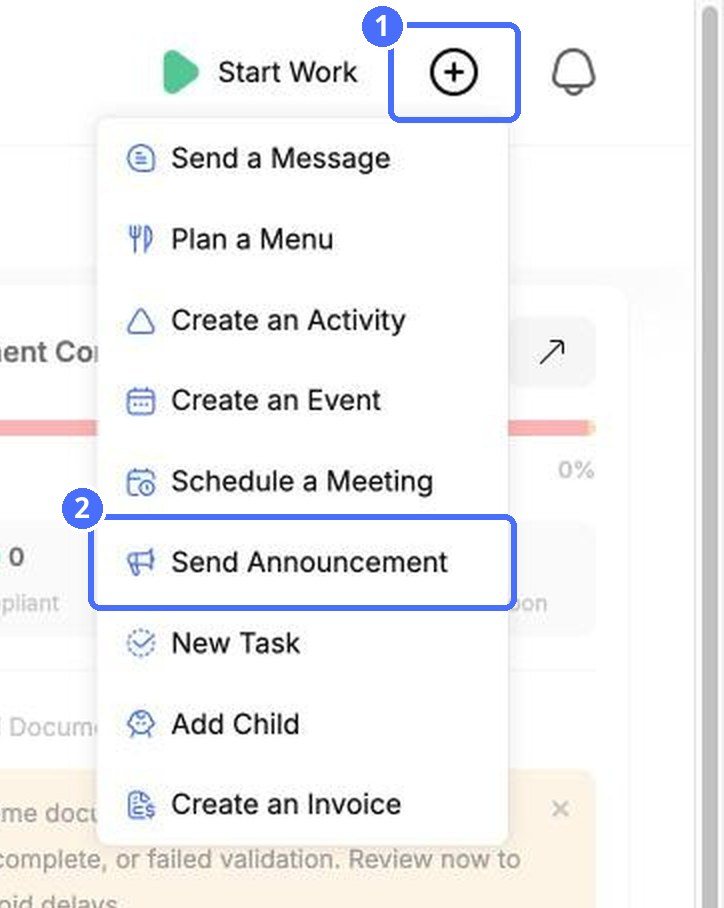
- At the top of any page, click + and choose Send Announcement.
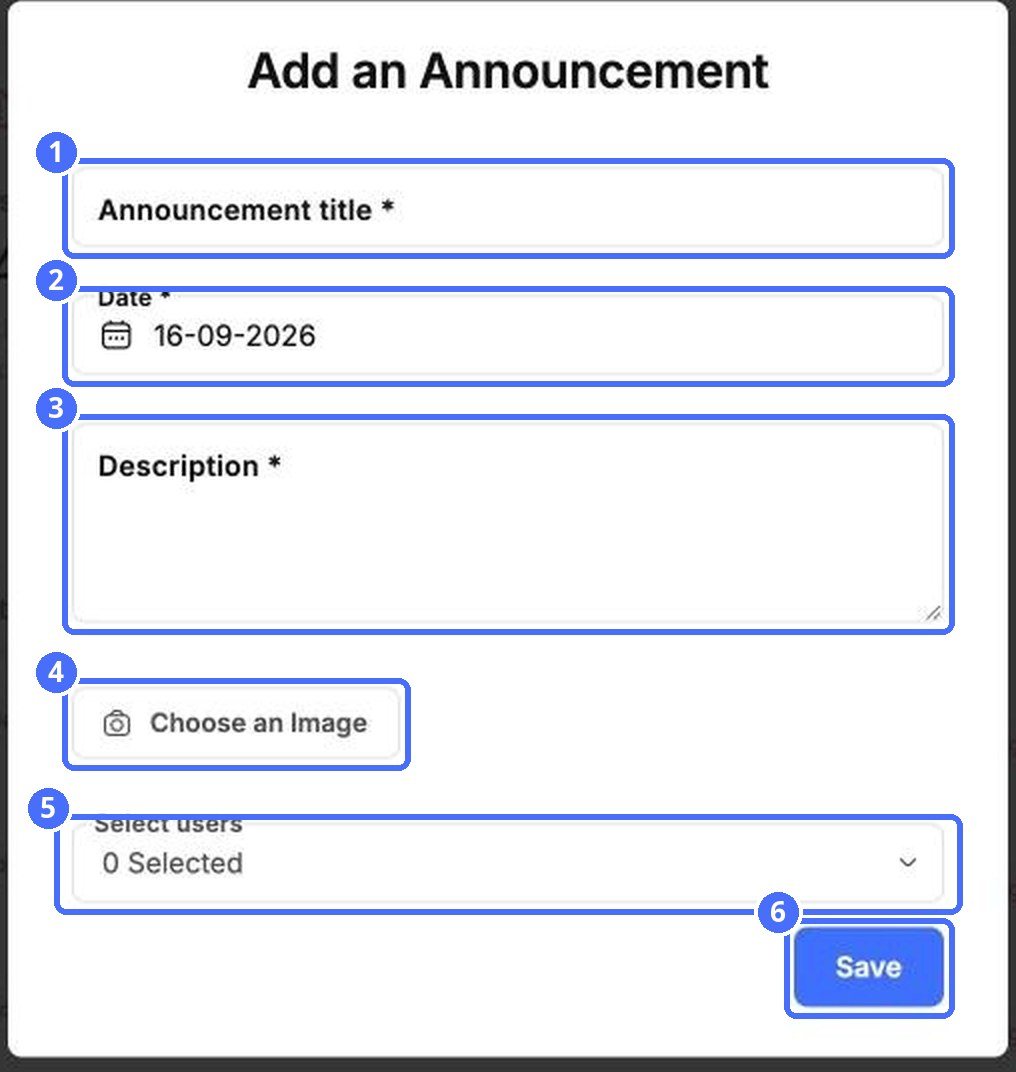
- Enter the Announcement title.
- Check the Date.
- Write the Description.
- Optional: click Choose an Image to add a picture.
- Under Select users, choose who should receive it.
- Click Save.
Choose who receives it
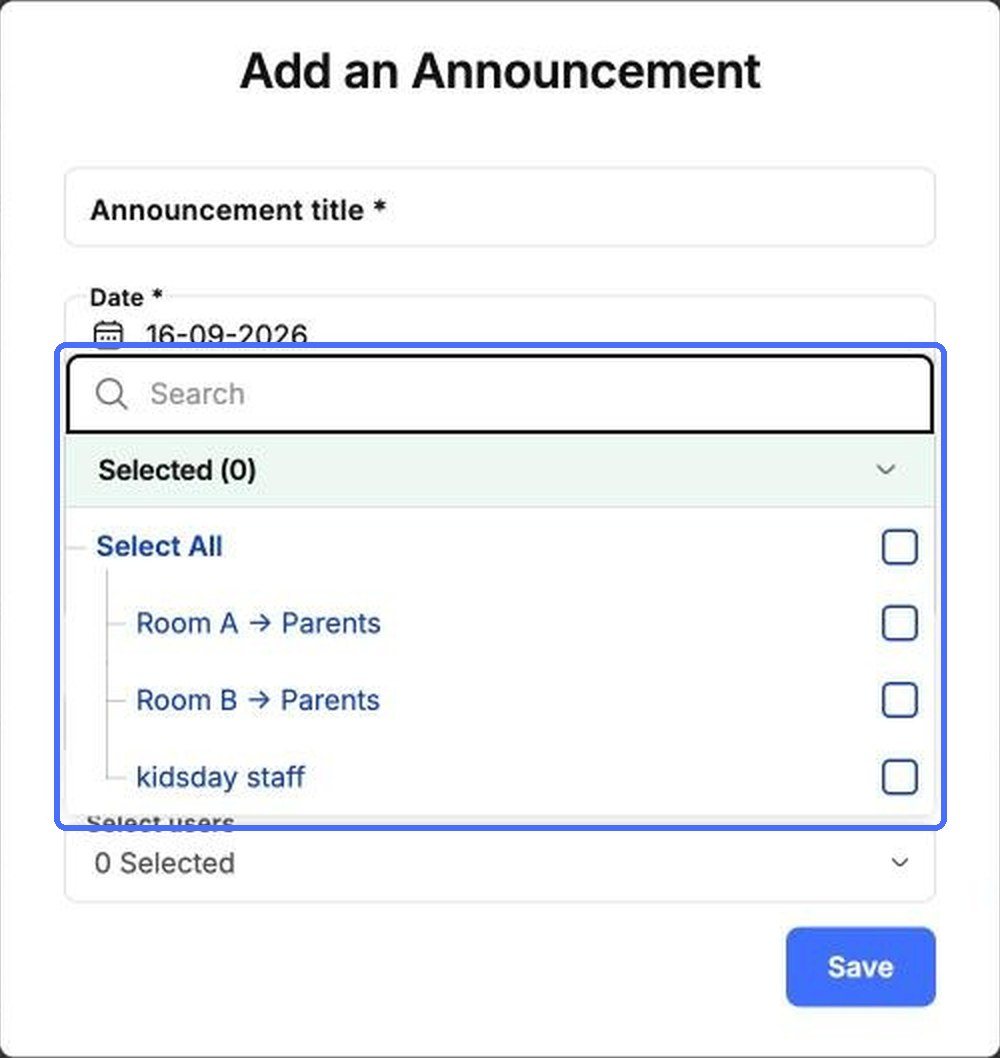
Open Select users to pick the recipients. You can choose the parents of each room, your staff, or Select All. Use the search box to find a group quickly.
Note: The title, date and description are required (marked with *).
Tip: You can also add announcements from the Calendar. See “Appointments, announcements and tasks”. To start a conversation instead, choose Send a Message from the + menu.


