
- Click Compose.
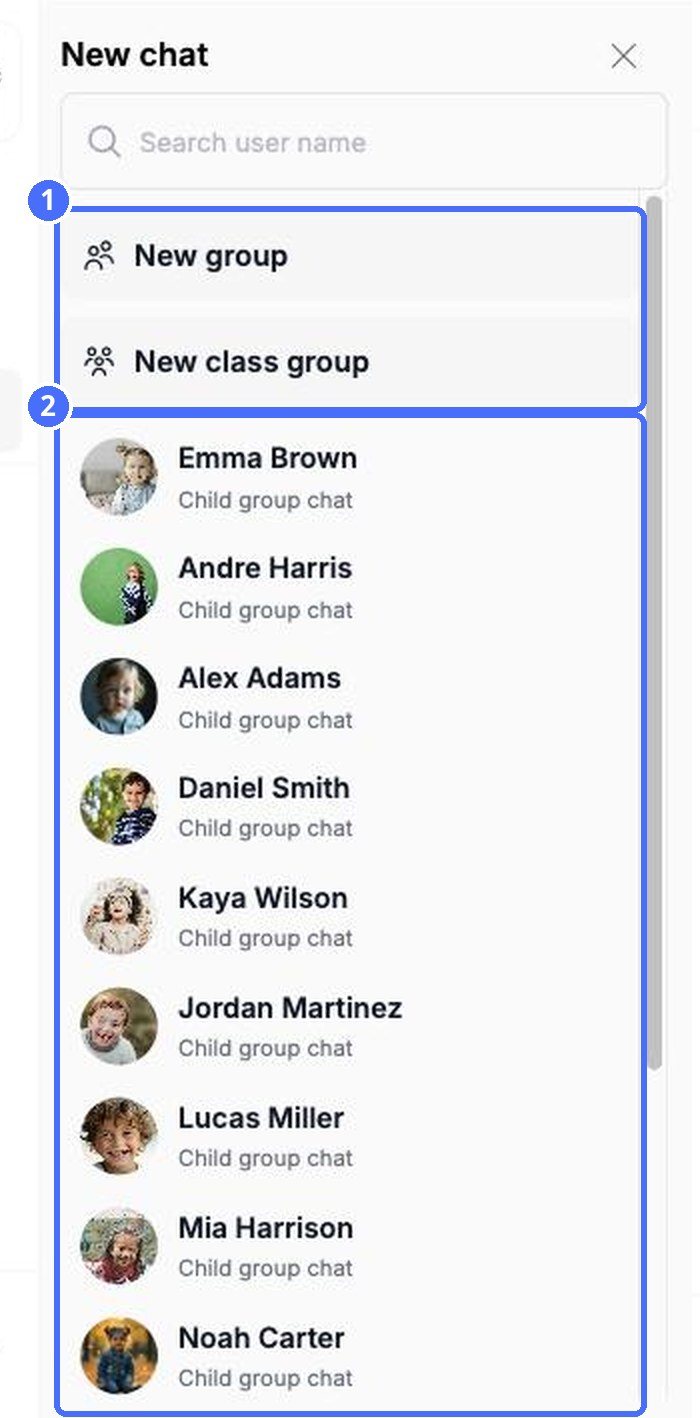
- Pick a child to open their Child group chat, or pick a staff member to send them a direct message.
- Write your message and send it.
For a group conversation, use New group or New class group instead (see below).
Tip: You can also start a direct message from any page: click + in the top bar and choose Send a Message, then pick a staff member.
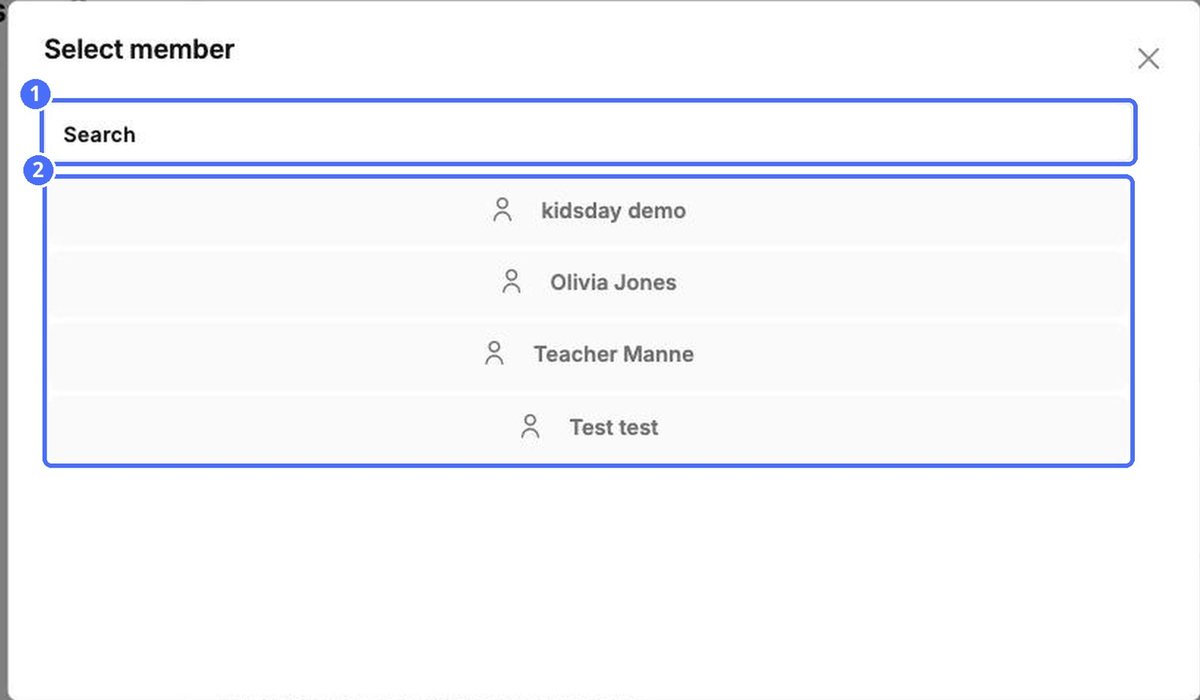
Create a custom group
- Click Compose, then New group.
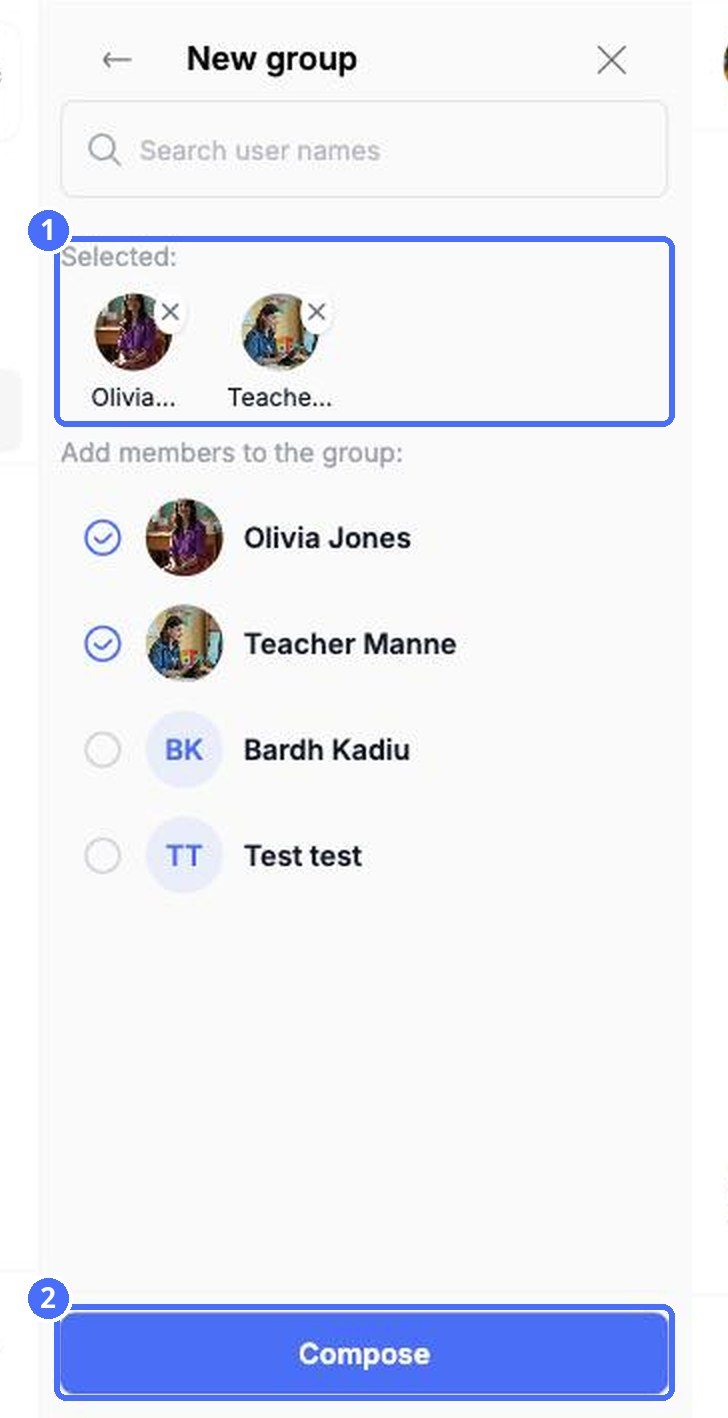
- Tick the staff members you want to add. They appear under Selected.
- Click Compose.
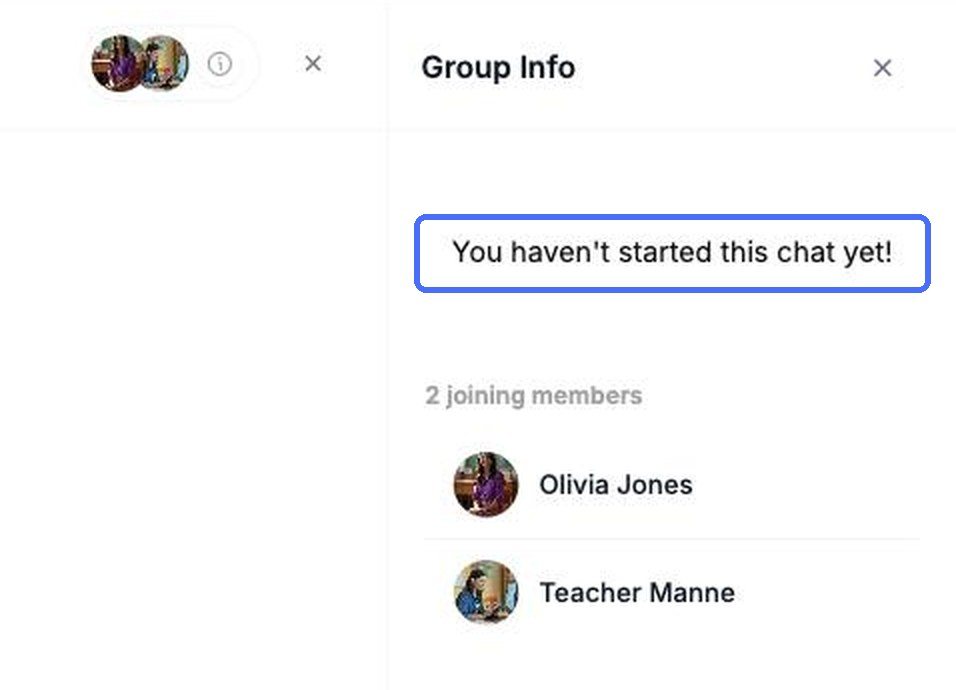
- Write your first message and send it. The group is created when the first message is sent.
Message a whole room
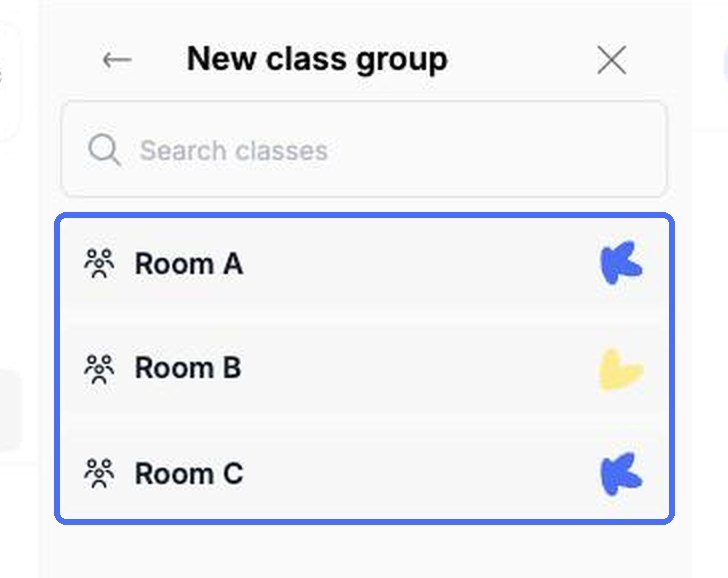
- Click Compose, then New class group.
- Choose the room.
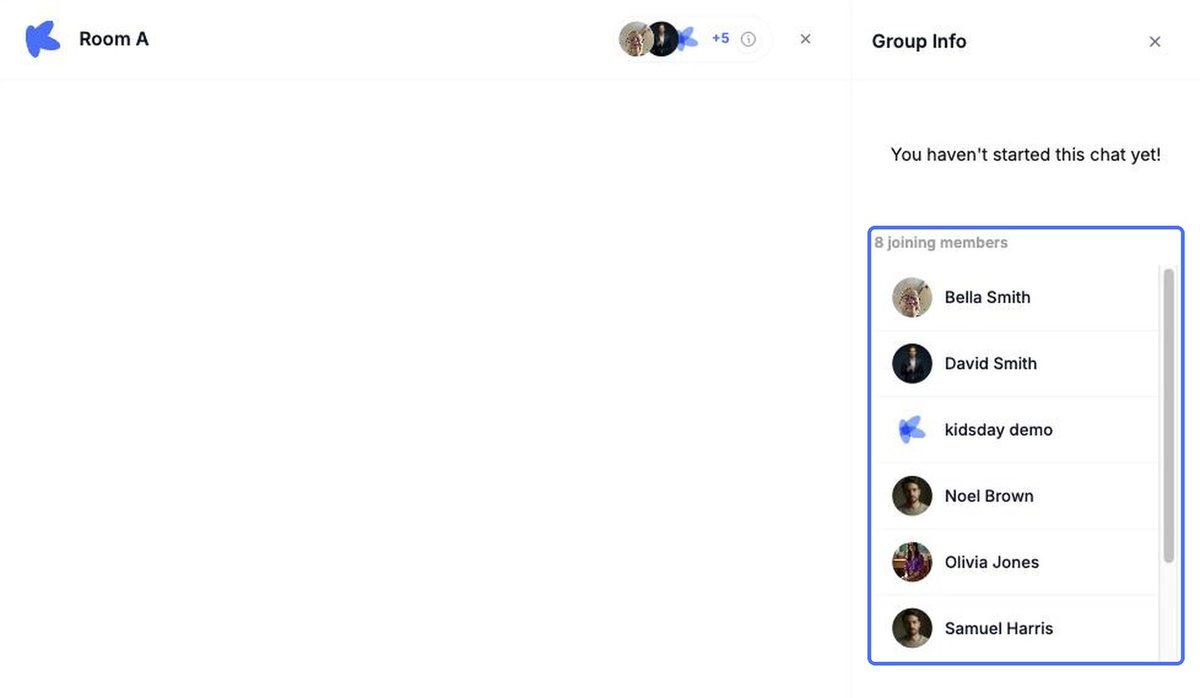
- Open Group Info to check who will receive your messages, then write your first message.
Tip: By default parents can read class group chats but not reply, which makes them a good channel for announcements. You can change this under Settings › Messages.


