
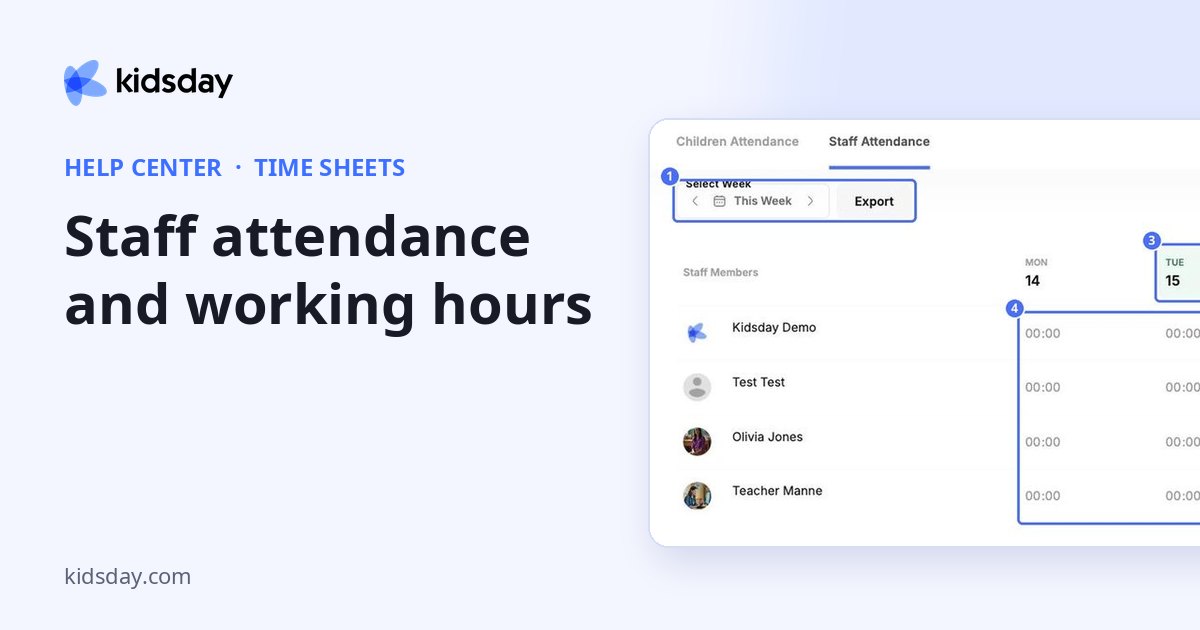
Staff hours are recorded in HR › Timesheets: every staff member down the side, the days across the top, and the hours in between. This is the module that used to be called Time sheets — it moved into HR so that hours and leave appear together.
Note: It moved. What used to be Time sheets › Staff Attendance is now HR › Timesheets. Children's attendance did not come with it — that stayed with School.
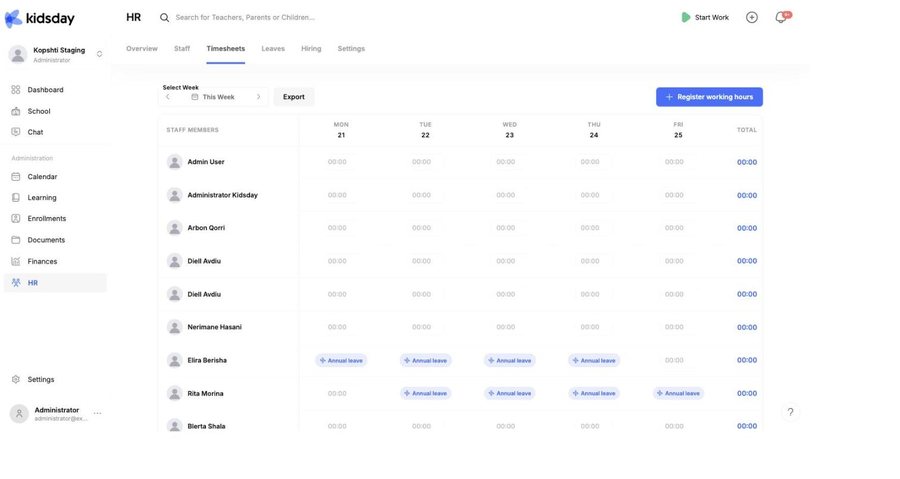
- Use the ‹ and › arrows beside This Week to move between weeks.
- 00:00 means no hours were recorded that day.
- Where someone is on approved leave, the cell shows the leave type in its colour instead of a time. A day marked Annual leave is not a missing entry.
- Export downloads the visible week as a spreadsheet: one row per person, one column per day, plus the total.
Register working hours
- Click Register working hours at the top right, or click a staff member's day in the grid.
- Check the Date and Staff Member. If you clicked a day, they are filled in already.
- Enter the hours and save.
Teachers log their own hours from the staff app; administrators can log hours for anyone, which is what you want when somebody forgot to clock in or worked an unplanned shift.
Contracted hours
When somebody has Weekly hours on their employment record, their profile compares the two under This week — hours logged against hours contracted. Without an employment record there is nothing to compare against, so the card reads No contracted hours set. See Employment records and contracts.
Tip: Staff can also clock in and out themselves with Start Work at the top of the page when attendance tracking is on. Switch it on in Settings › Schedule.


