
A lesson plan is a ready-made week of activities that you can add to any week of your calendar. The Library tab keeps them in two places:
- My Plans: plans made at your center. Private plans stay with you; Public plans can be shared with others.
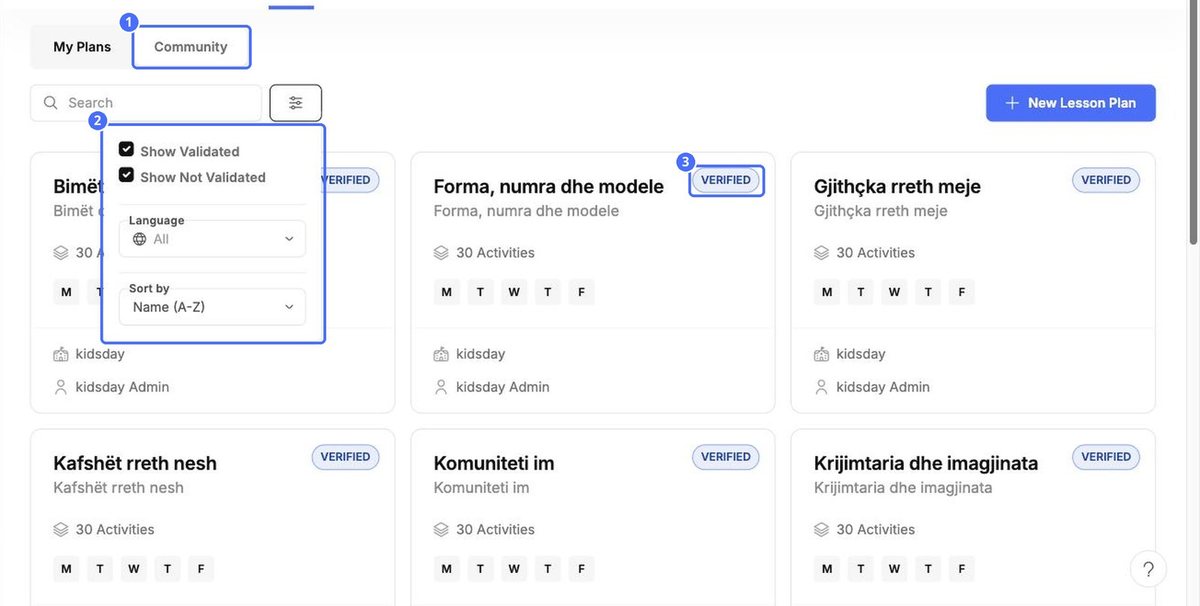
- Community: plans shared by other kidsday users. Verified marks plans checked by kidsday.
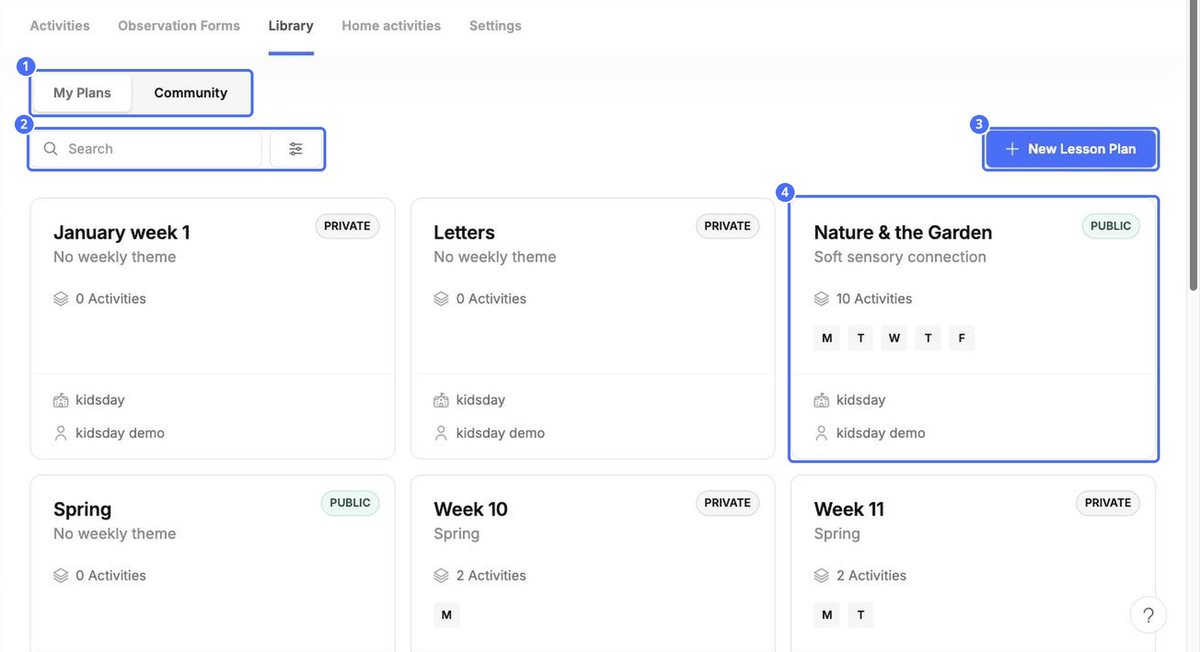
Each card shows the plan's theme, the number of activities, the days it covers, and who made it. Click New Lesson Plan to start your own.
Find a community plan
Click the filter button to show verified or unverified plans, choose a Language, or change the Sort by order.
Open, edit and install a plan
Click a card to open the plan. Activities are laid out by day and age group, under the plan's theme.
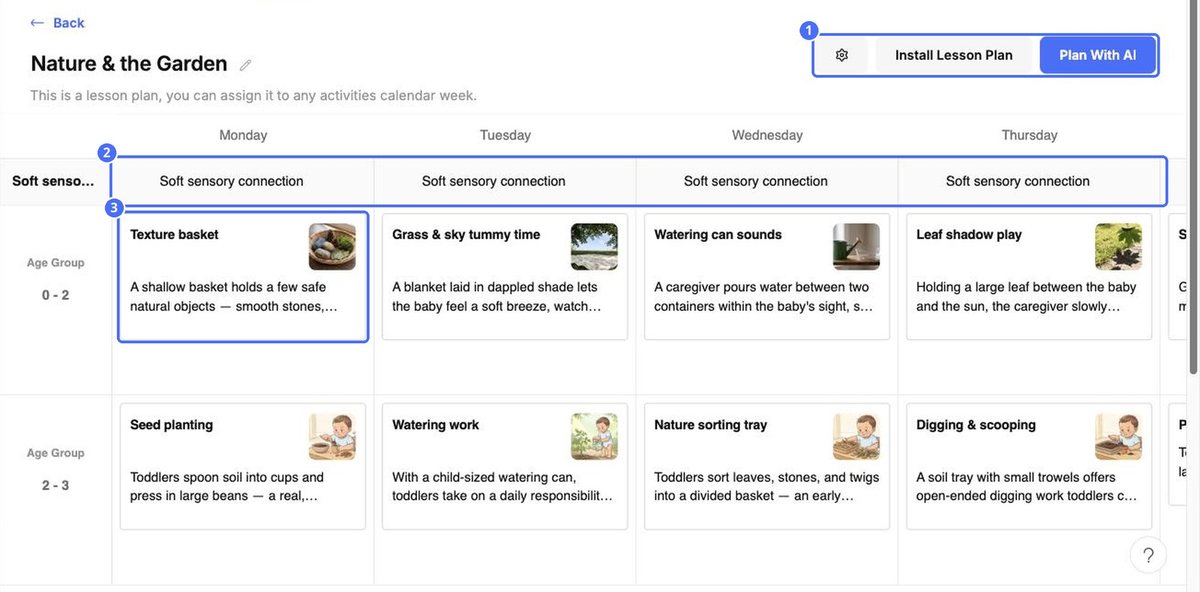
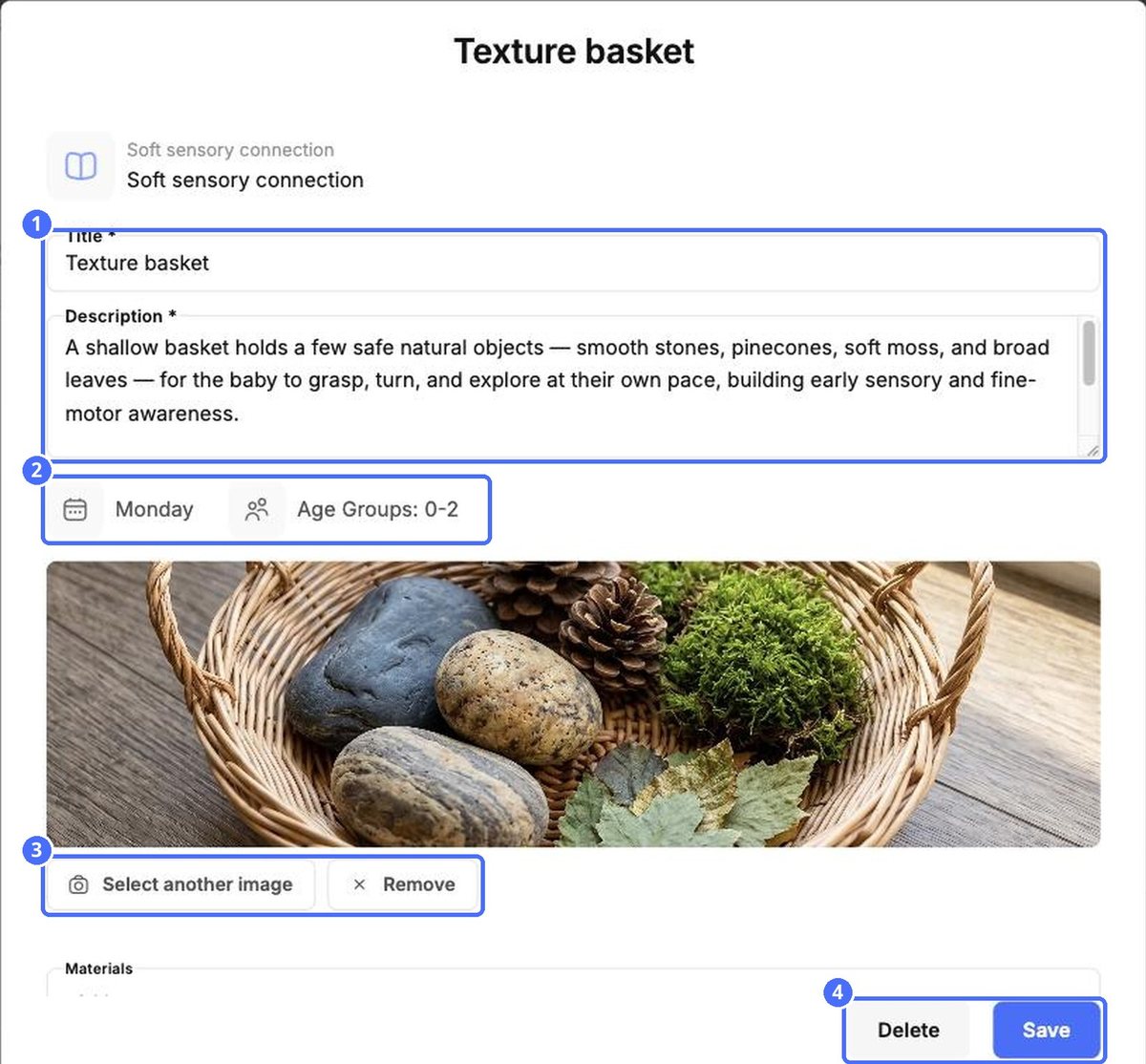
Click an activity to open it. You can change the title, description, image, materials and steps, then click Save, or remove it with Delete.
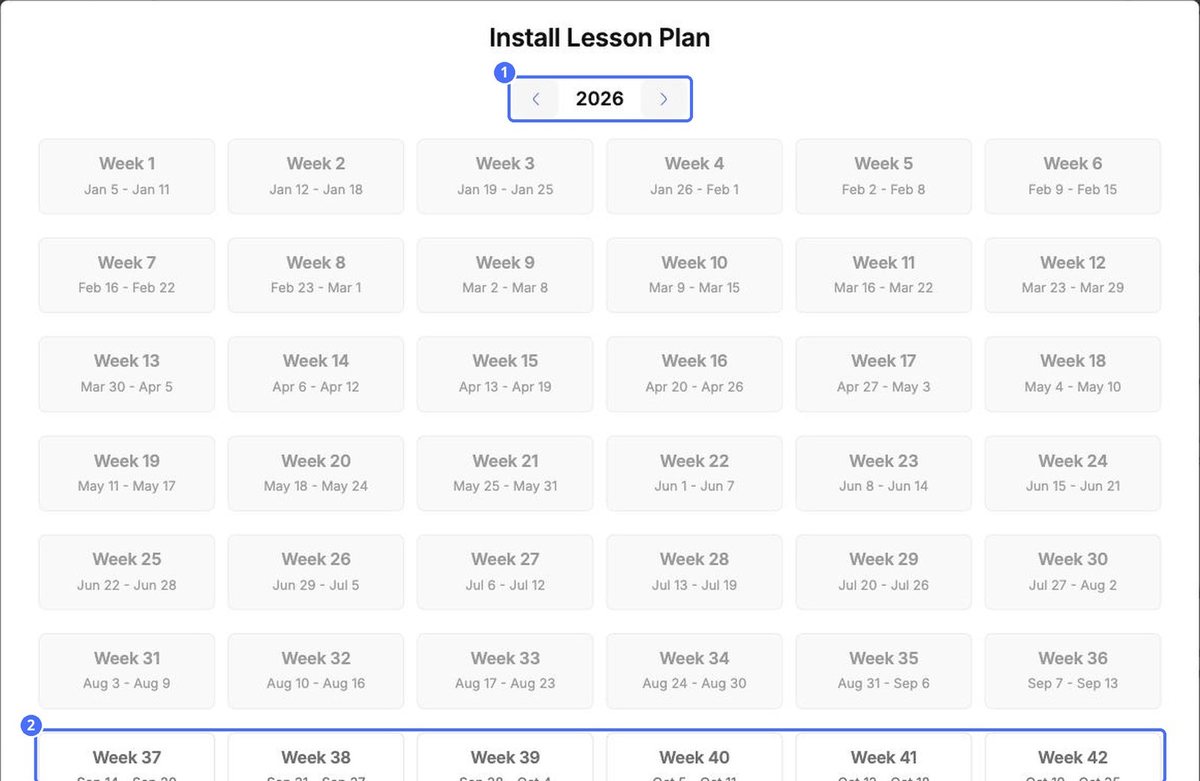
- Click Install Lesson Plan.
- Choose the year with the arrows.
- Click the week you want. Past weeks are greyed out.
- The plan's activities are added to that week on the Activities tab.
Tip: Click the pencil next to the plan name to rename it, and use Add Notes at the bottom of the plan to describe its goals for anyone who installs it.


