A billing plan is your price list. You set it once, add children to it, and kidsday invoices their families automatically every cycle.
Billing model, name and cycle
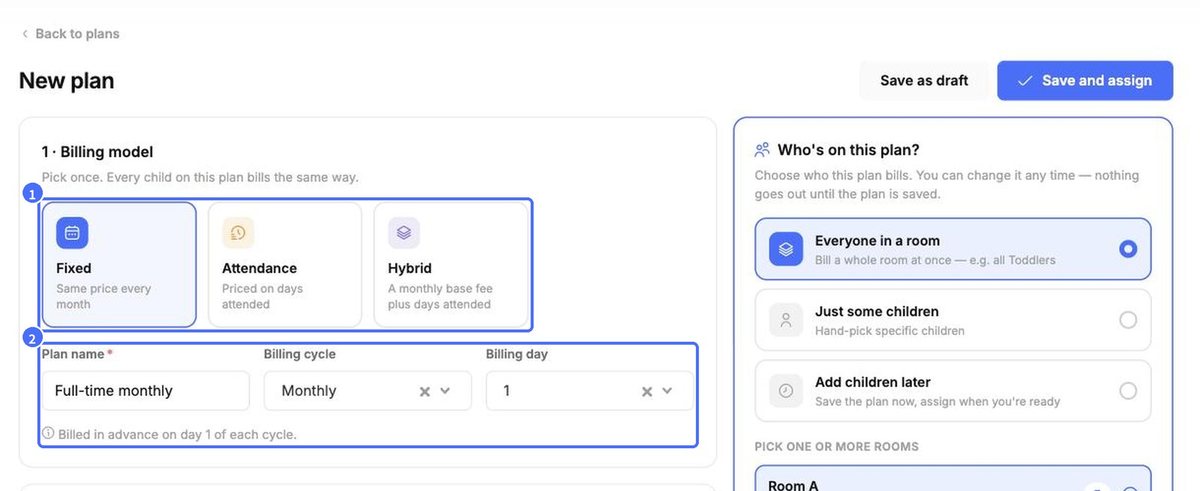
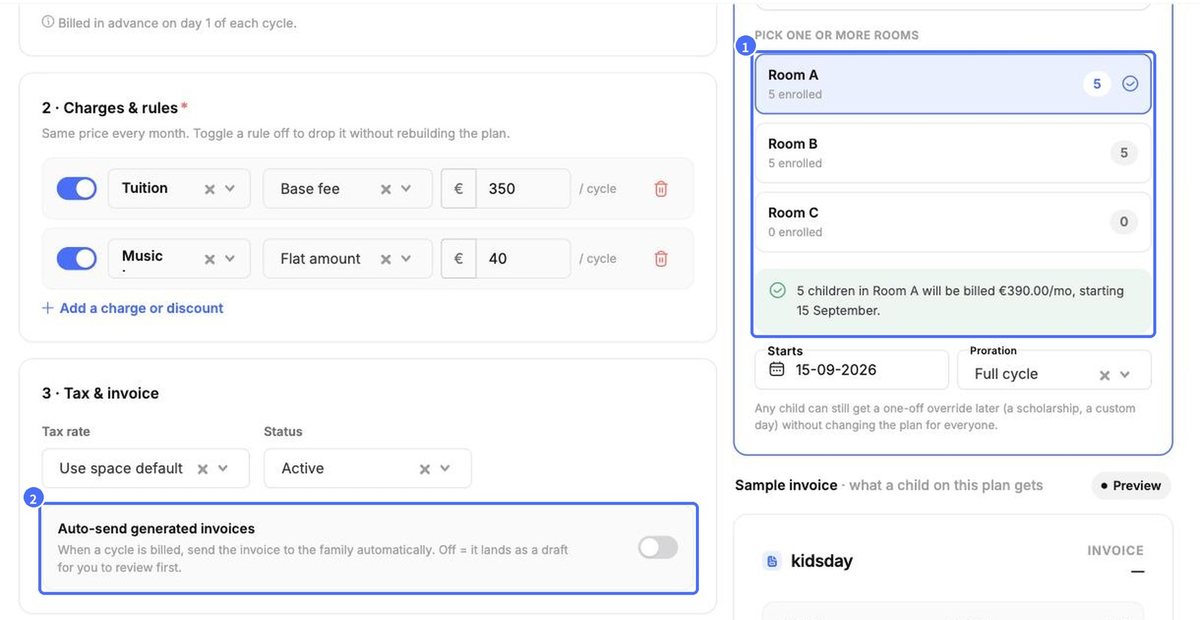
- Under 1 · Billing model, choose Fixed (same price every month), Attendance (priced on days attended) or Hybrid (monthly base fee plus days attended).
- Enter a Plan name, e.g. “Full-time monthly”.
- Choose the Billing cycle and the Billing day – the day of the month invoices are generated.
Charges, tax and automation
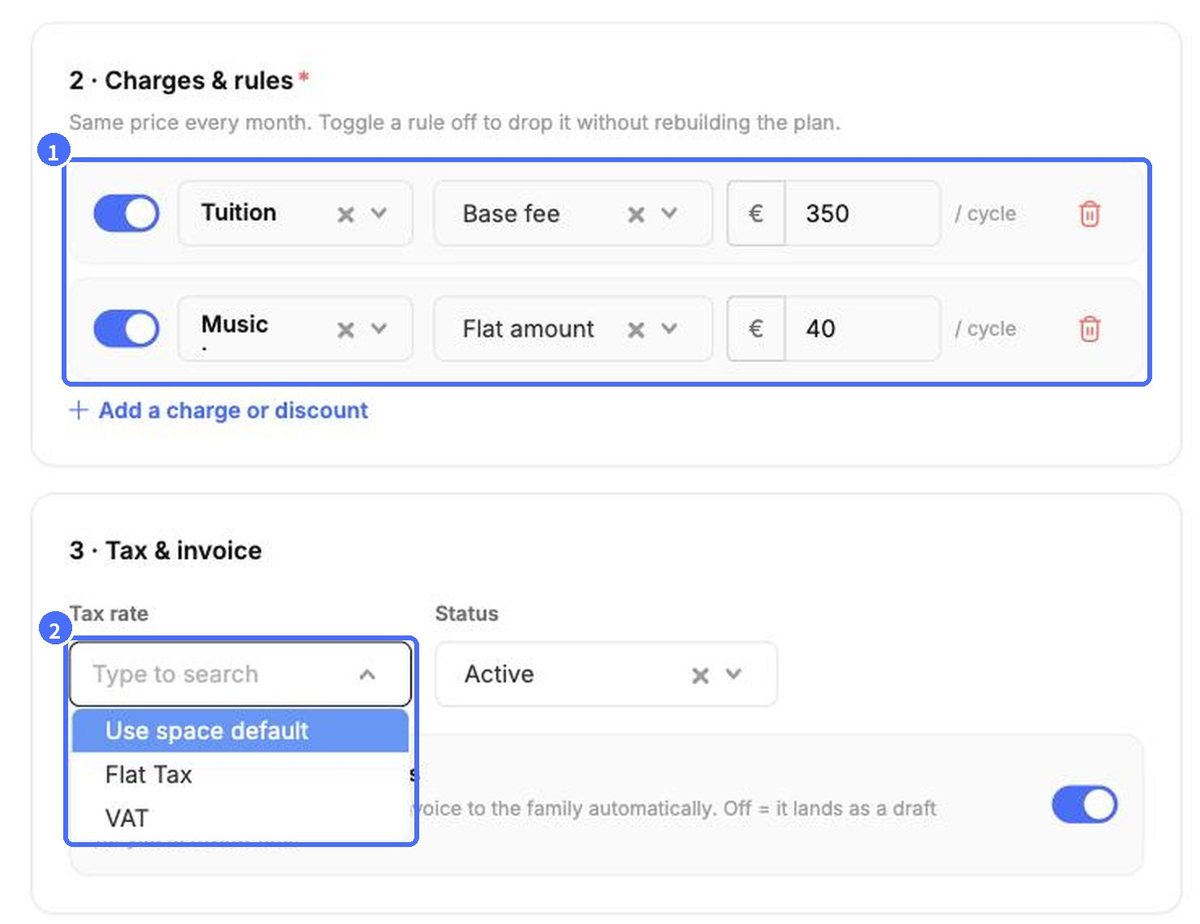
- Under 2 · Charges & rules, set the base Tuition amount.
- Click Add a charge or discount to add extra lines. Pick an item from your price list (for example Music Lessons) and enter its amount. Use the toggle on each line to switch a rule off without deleting it.
- Under 3 · Tax & invoice, choose a Tax rate or keep Use space default.
- Decide on Auto-send generated invoices: on = invoices go to families automatically each cycle; off = they are created as drafts for you to review first.
Who is on this plan?
On the right, choose who the plan bills: Everyone in a room, Just some children, or Add children later. When you select a room, kidsday immediately shows how many children will be billed and the monthly amount. Set the Starts date and Proration for the first cycle.
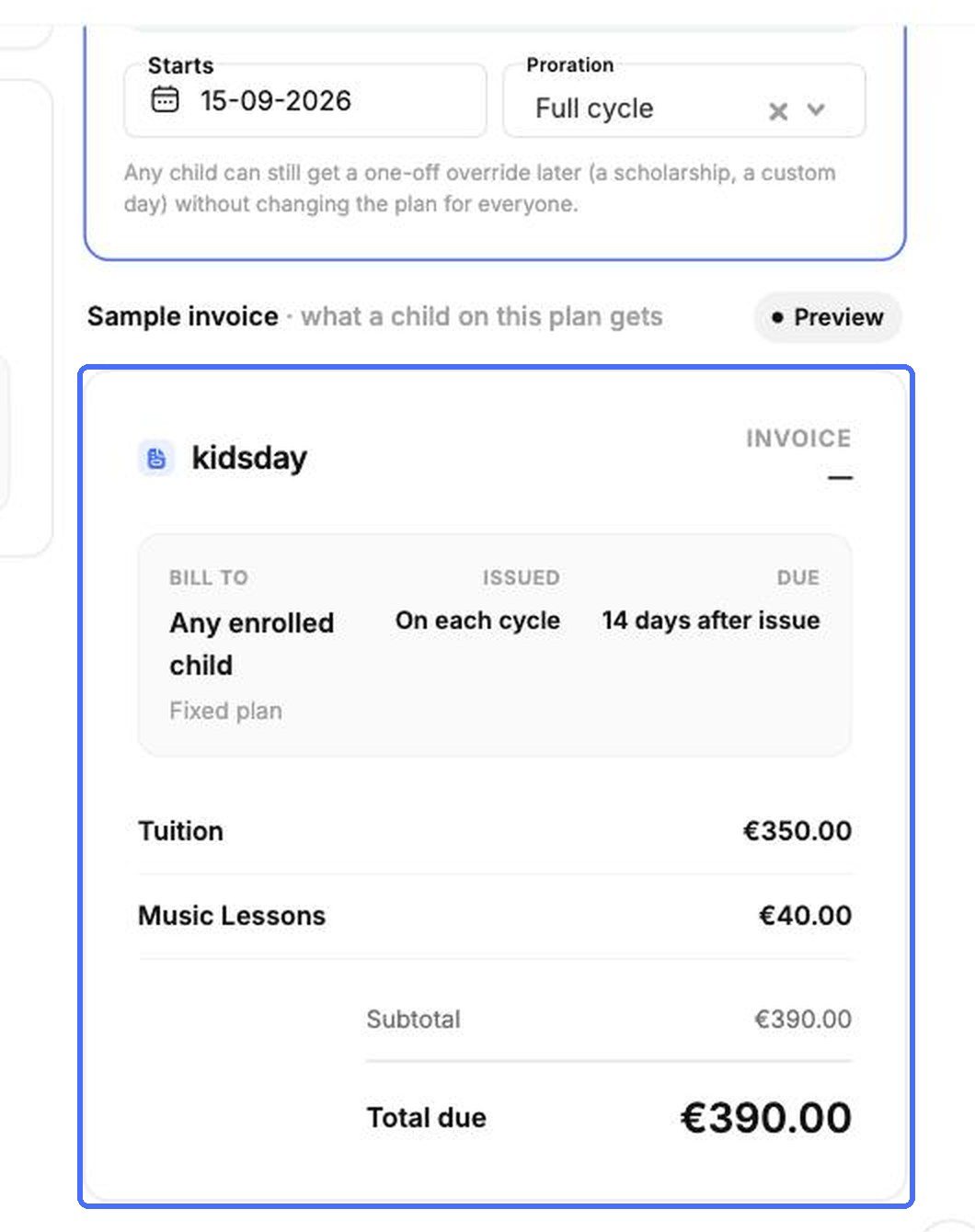
The Sample invoice at the bottom right shows exactly what a family on this plan will receive.
Save the plan
- Click Save and assign (or Save as draft to finish later).
- Confirm with Yes, save and add.
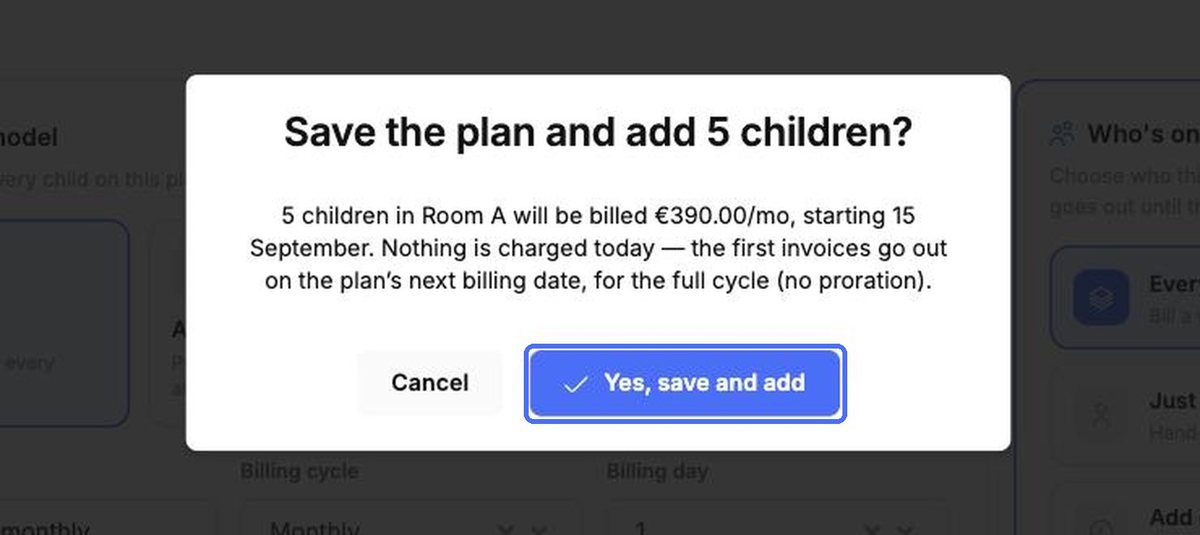
Note: Nothing is charged when you save. The first invoices are generated on the plan’s next billing date.
Manage plans
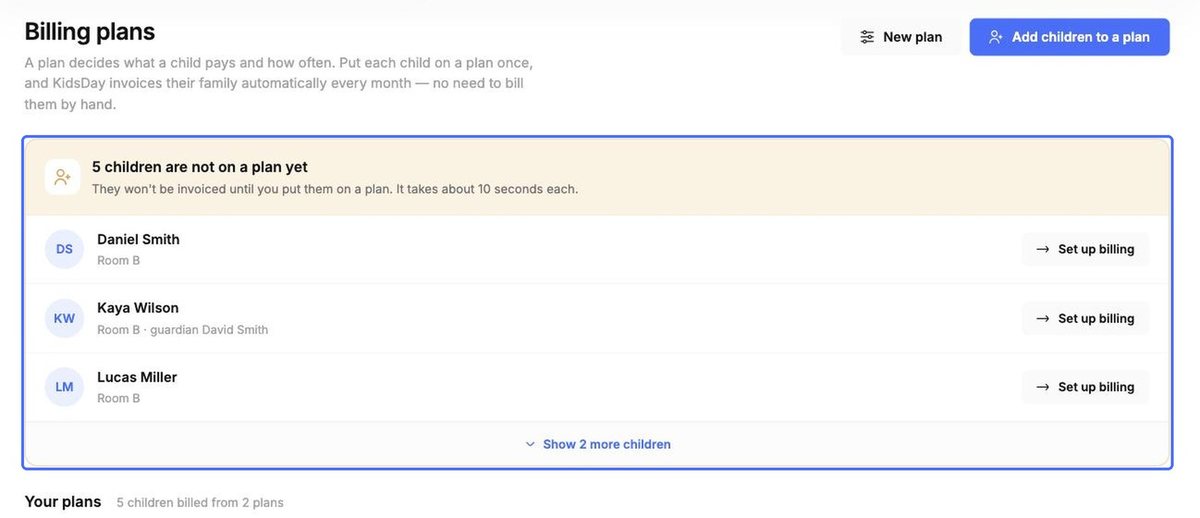
The Plans tab lists all your plans with the number of children and the amount per cycle. From each card you can Add child or View the plan. Use New plan to create another price list, or Add children to a plan to assign several children at once.
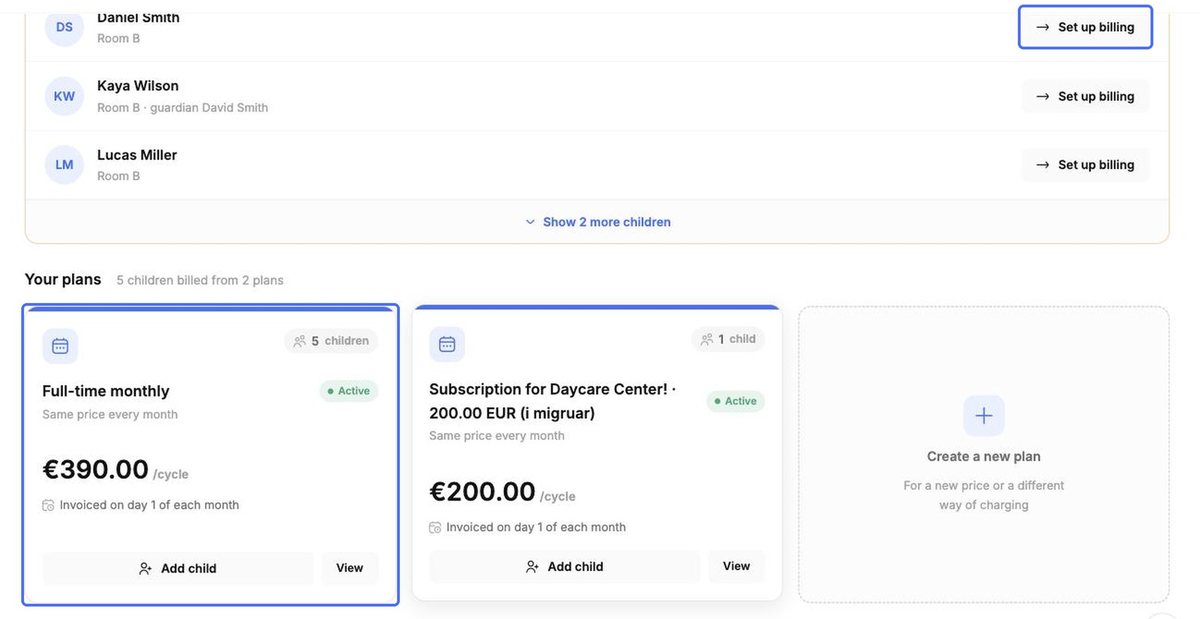
At the top of the tab, kidsday lists children who are not on a plan yet. They will not be invoiced automatically – click Set up billing next to a child to add them to a plan.