
HR › Hiring turns a vacancy into a public page with its own application form. You share a link, candidates apply against it, and the applications collect in one pipeline instead of scattering across inboxes.
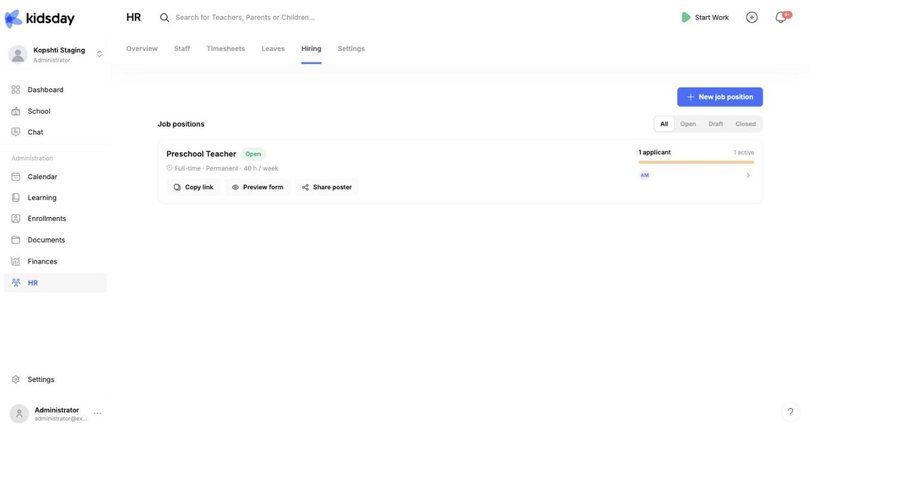
Create a position
New job position opens a four-step wizard: Role basics, Requirements, Application form and Publish. A panel on the right previews what the applicant will see as you type.
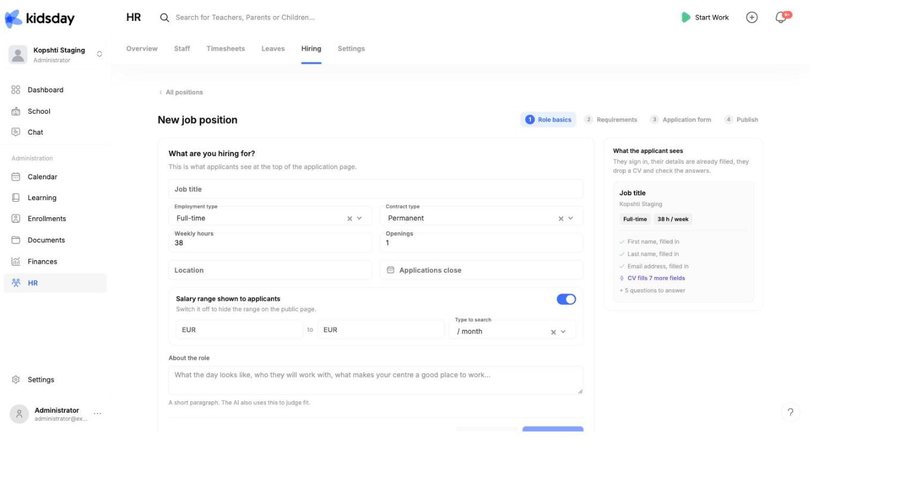
Step 1 asks what you are hiring for:
- Job title — the headline on the public page.
- Employment type and Contract type — full-time or part-time, permanent or fixed-term.
- Weekly hours and Openings — how many hours, and how many people you need.
- Location and Applications close — where the job is, and the deadline.
- Salary range shown to applicants — a from/to range and a period. Switch it off to keep the range off the public page.
- About the role — a short paragraph on the day, the team and why your center is a good place to work.
Tip: Write About the role properly. It is the part candidates actually read, and kidsday also uses it when judging how well an applicant fits.
The application form
Candidates sign in, so their name and email fill themselves in. They upload a CV, and kidsday reads it to fill in further fields, which the candidate then checks rather than retypes. On top of that you can ask your own questions — the preview panel keeps a running count of what the form will ask.
Note: A CV is parsed to save the applicant typing. Always read the CV itself before you shortlist — treat the extracted fields as a first pass, not a verdict.
Share the opening
Each position on the list carries three actions:
- Copy link — the public application page, for a job board, an email or your website.
- Preview form — see exactly what a candidate sees before you share it.
- Share poster — a ready-made poster for the parents' noticeboard or social media.
Tip: Preview the form yourself before the first share. It is much easier to fix a confusing question before applications start arriving than after.
Follow the applicants
Each position card shows its applicant count, how many are still active, and a row of avatars. Selecting the card opens the pipeline, where you work through candidates and move them along.
Open, Draft and Closed
- Draft — being written. Not public, no link works yet.
- Open — live and accepting applications.
- Closed — no longer accepting; the position and its applicants stay for your records.
The filter above the list switches between them, with All as the default.
From applicant to colleague
Hiring ends where the staff list begins: once you have chosen someone, invite them from HR › Staff with Add Staff, then add their employment record. Add staff, assign roles and rooms covers that step.


