Check children in and out in the staff app

Check a child in when they arrive, check them out with who picked them up, or check all children in or out at once.

Check children in and out in the staff app

Check a child in

  1. On the Children screen, find the child. You can filter by Absent or Pending.
  2. Tap Check in on the child's card.
  3. A confirmation shows that the check-in was saved, and the child's status changes to Present.
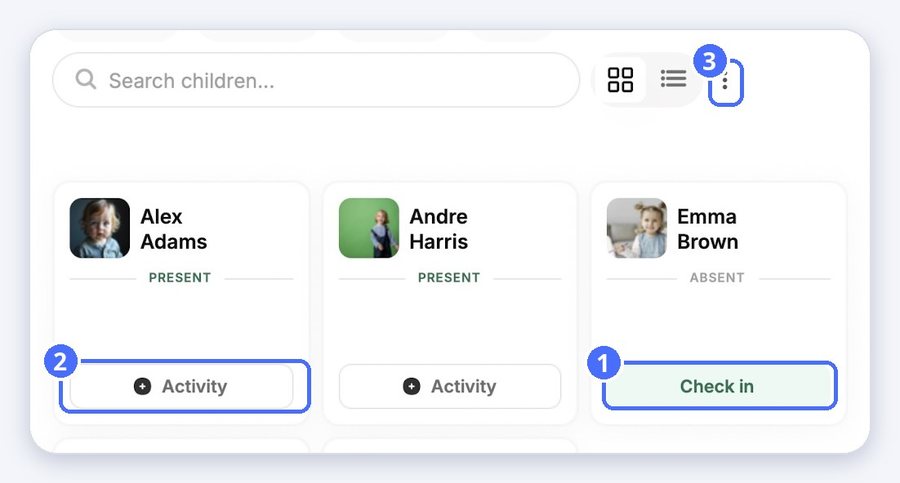
(1) Check in, (2) Activity opens the daily report of a present child, (3) the menu with Check all in and Check all out

Check all children in or out

  1. Tap the menu next to the view buttons.
  2. Tap Check all in to mark the selected children as present, or Check all out to mark them as left.
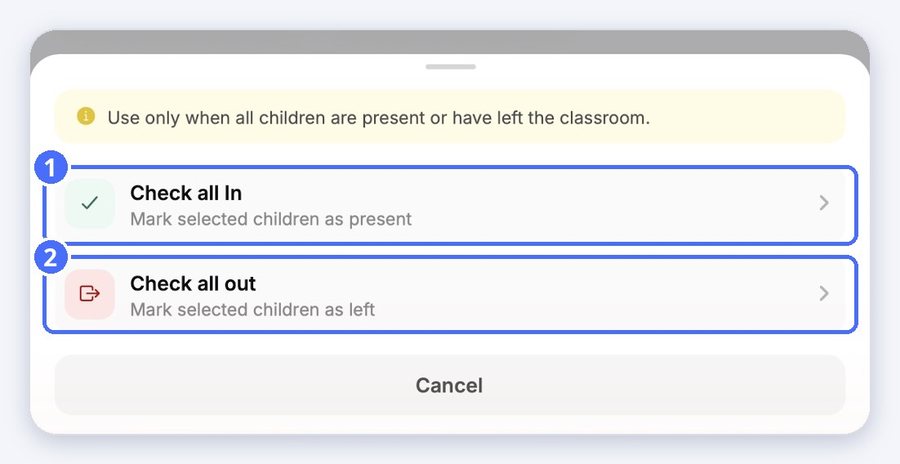
(1) Check all in, (2) Check all out

Tip: Use these only when all children are present or have left the classroom.

Check a child out

  1. Tap Activity on the child's card to open their daily report.
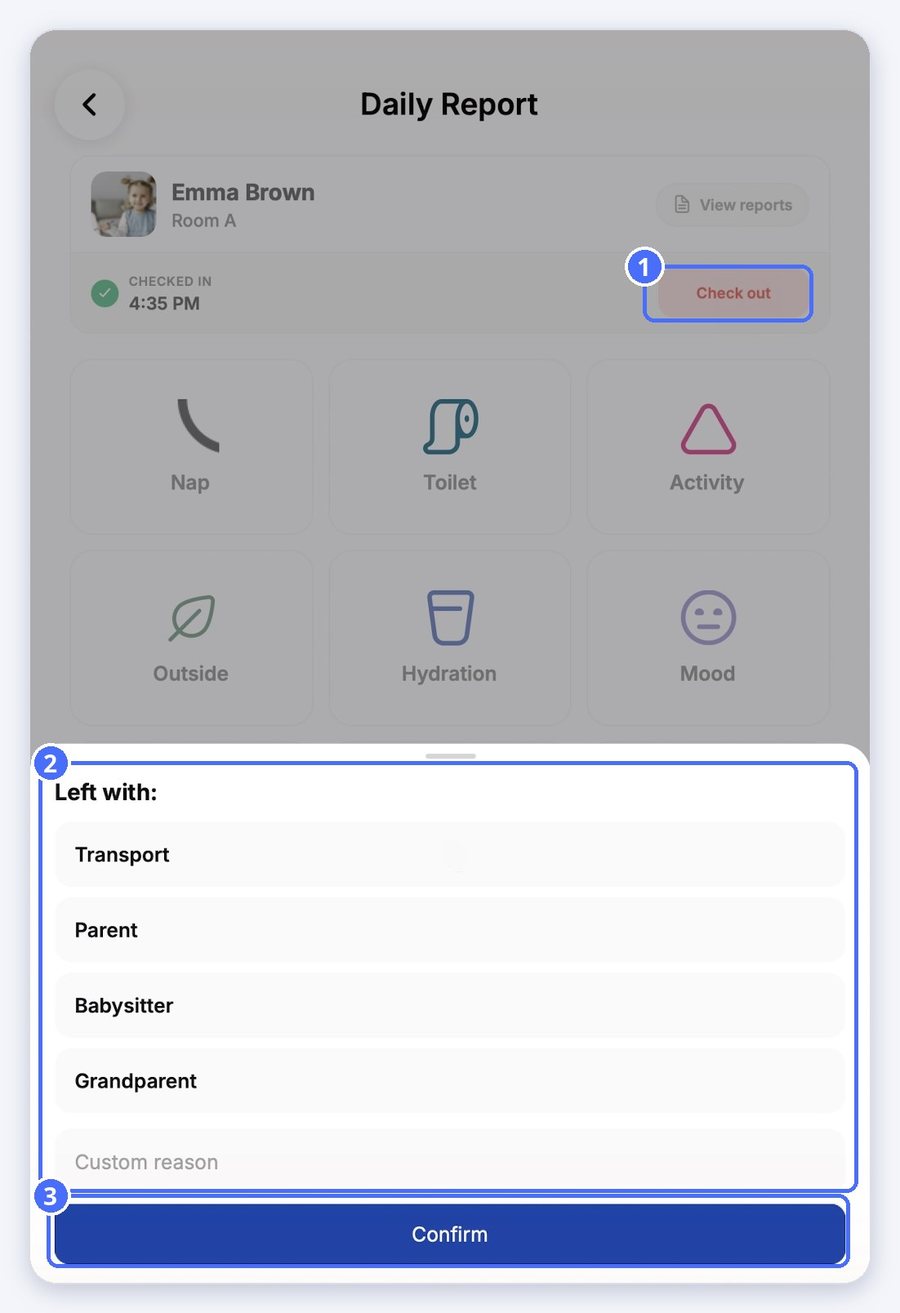
  2. Tap Check out.
  3. Under Left with, choose Transport, Parent, Babysitter or Grandparent, or type a custom reason.
  4. Tap Confirm.
(1) Check out, (2) who the child left with, (3) Confirm

Related topics

Empower your center, your team, and your children