
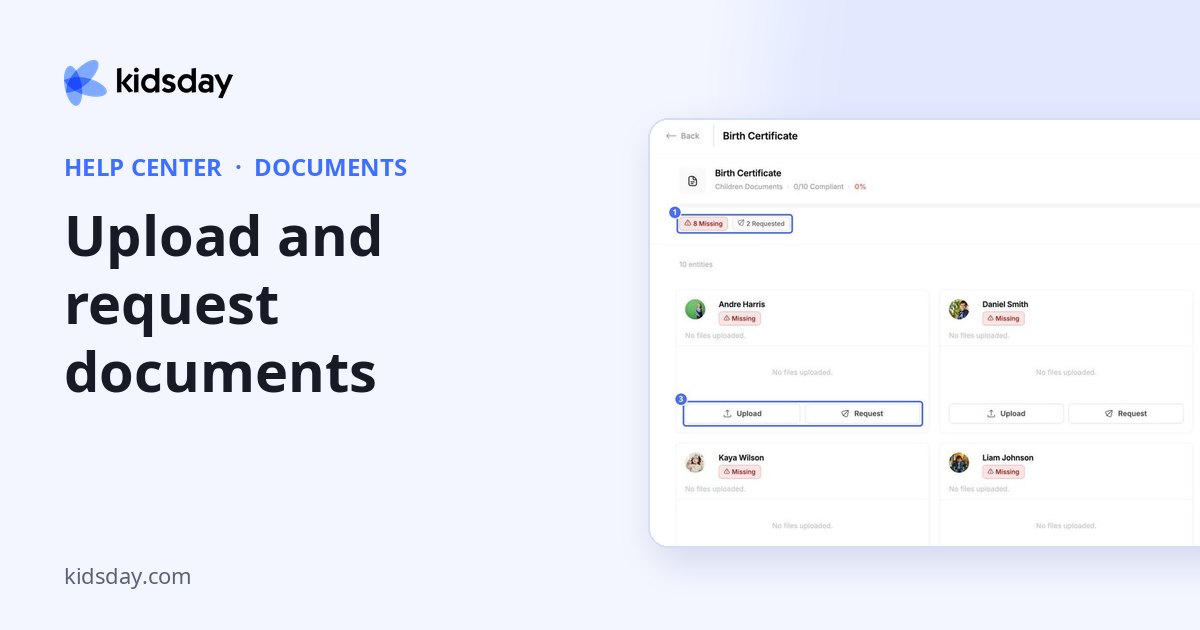
Click a row under Document Types to see everyone who needs that document.
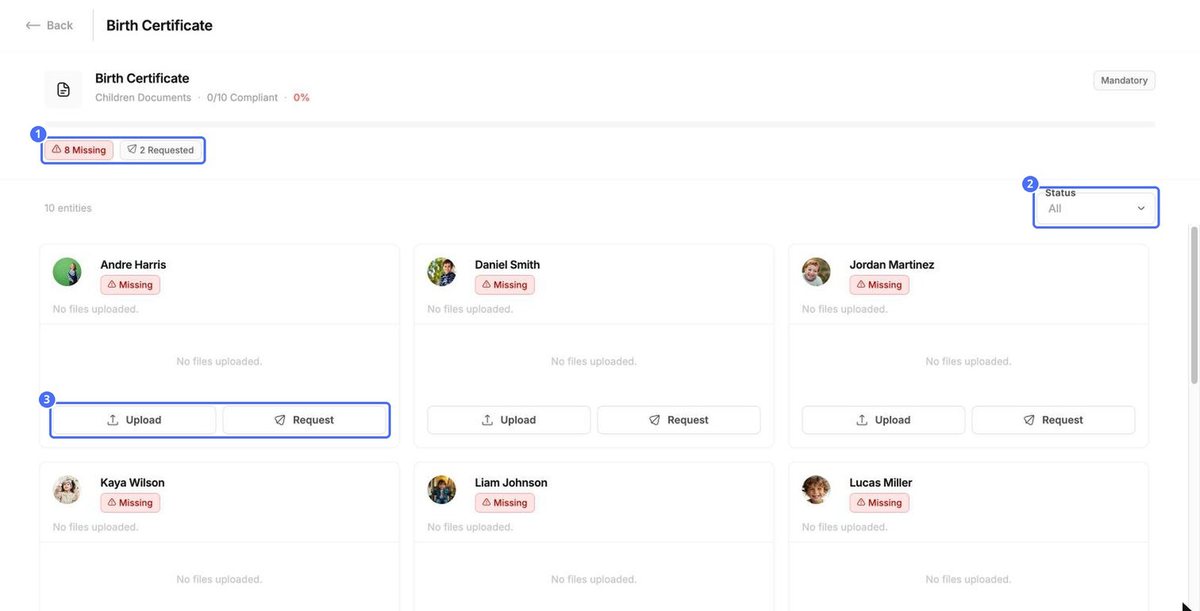
- The top shows how many people are compliant, with a progress bar.
- Use the Status filter to show only Valid, Missing, Expired, Requested or Pending Review documents.
- Each card shows one child, staff member or center, with its files.
Upload a document yourself
- Click Upload on the card.
- Drag the file into Files, or click Upload to choose it.
- Add Notes if needed, for example where the original is kept.
- Click Upload.
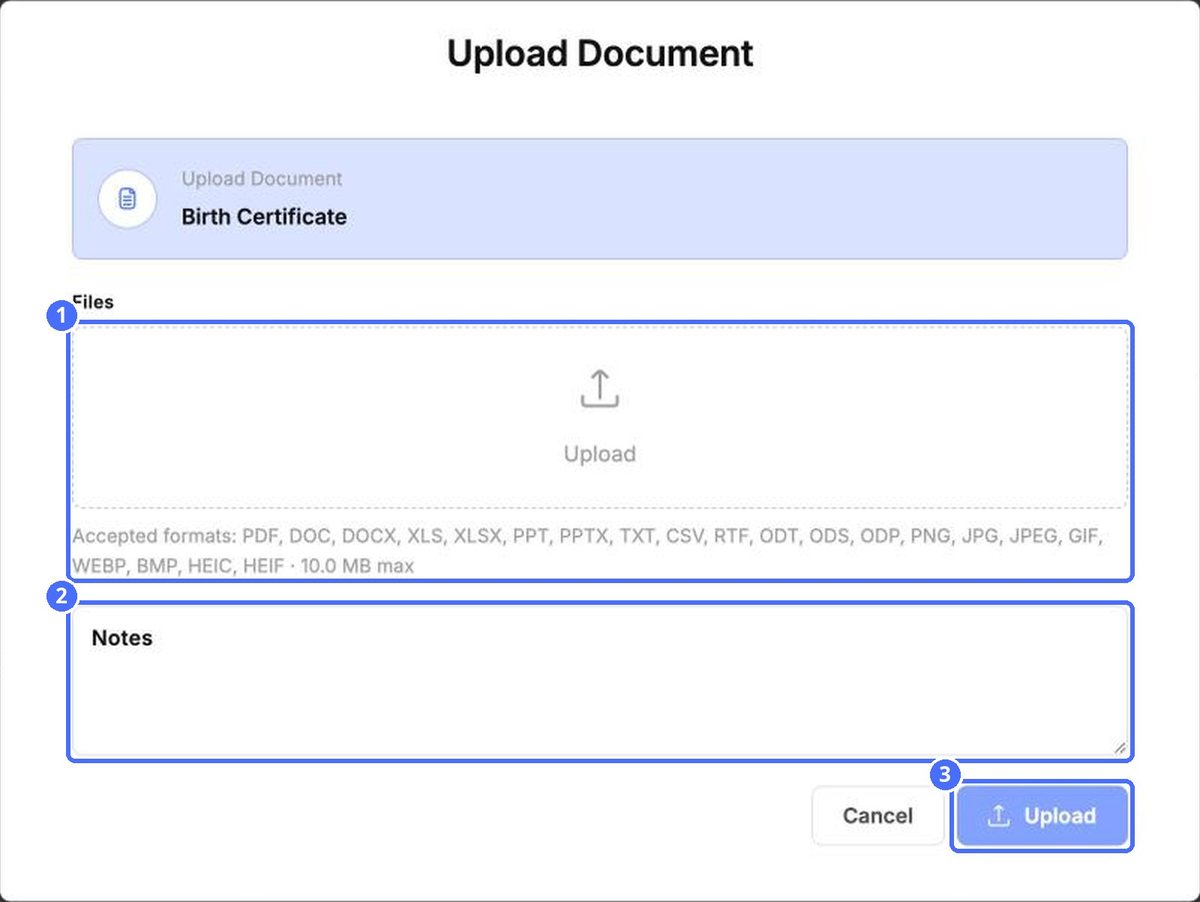
You can upload PDF, Word, Excel, PowerPoint, text, CSV and OpenDocument files, and images such as PNG, JPG, GIF, WEBP and HEIC. Each file can be up to 10 MB.
Ask a family for a document
Click Request on a child's card to ask the parents to upload the document. The card then shows Requested and Waiting for parent to upload.
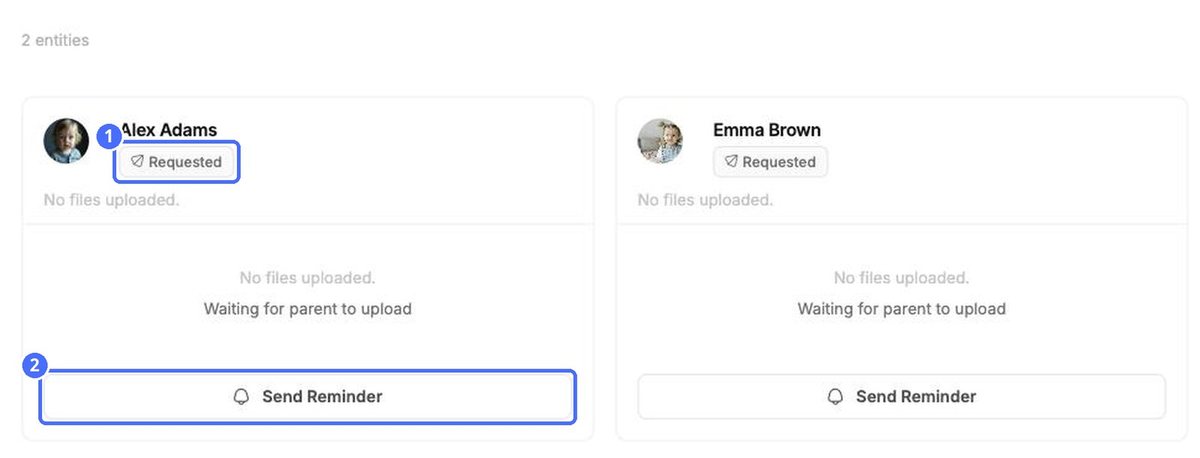
Click Send Reminder if the family hasn't uploaded it yet.
Note: Requests and reminders notify the family. Check the card first so you don't send the same request twice.


