
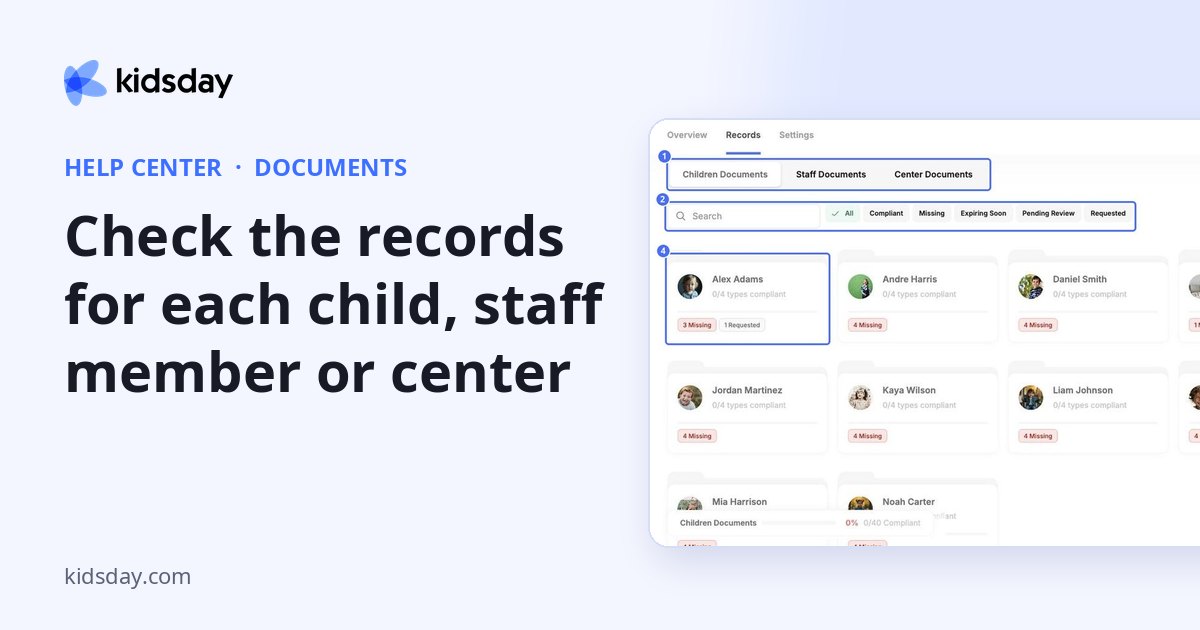
The Records tab shows one card per child, staff member or center, so you can see what each one still needs.
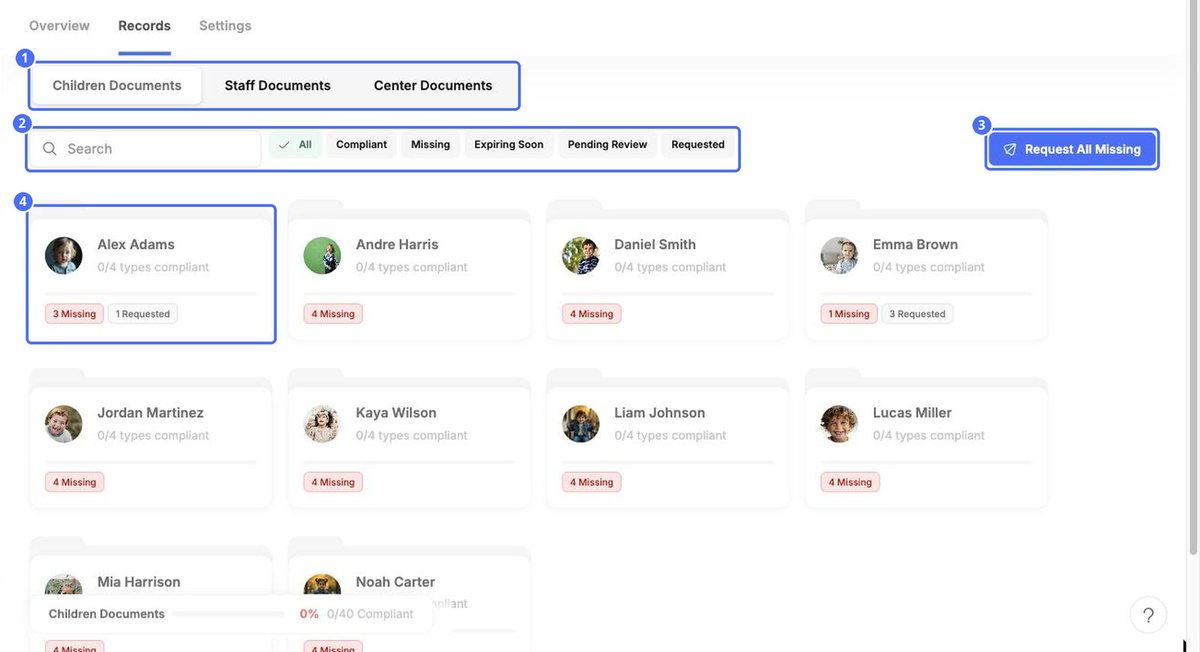
- Choose Children Documents, Staff Documents or Center Documents.
- Search by name, or filter by Compliant, Missing, Expiring Soon, Pending Review or Requested.
- Each card shows how many mandatory types are compliant, such as 0/4 types compliant, plus what is missing or requested.
- The bar at the bottom shows the compliance of the whole group.
Request All Missing asks for every missing document in one go.
Open a record
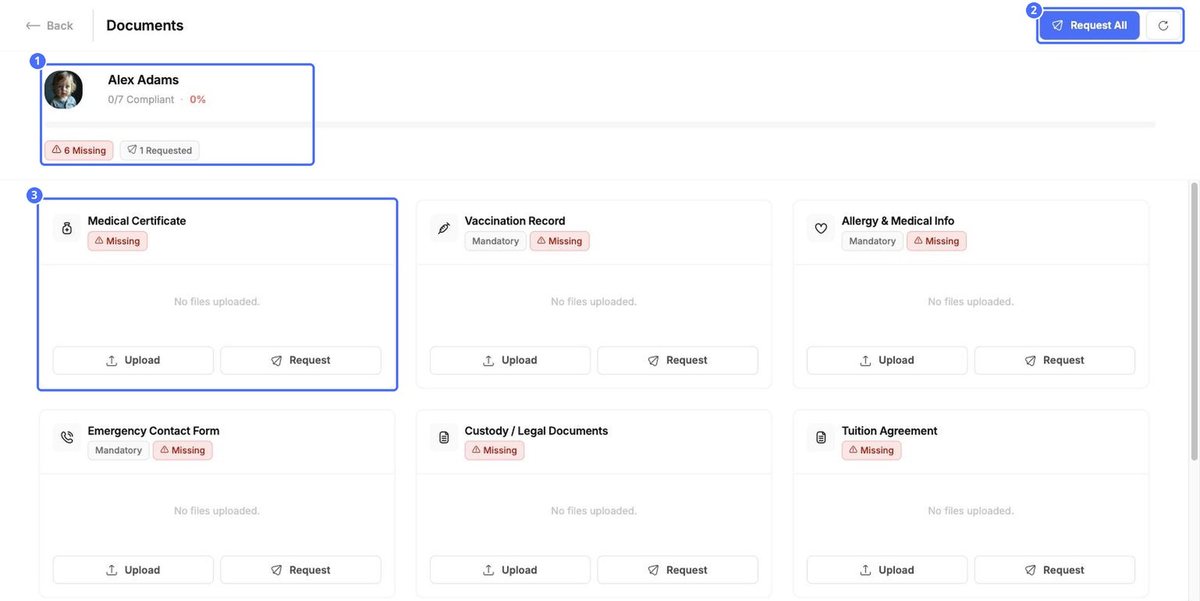
Click a card to see all of that person's document types. Use Upload or Request on each one, or Request All at the top right for everything that is missing. The round arrow refreshes the page.
Tip: Use Records before a licensing visit: filter by Missing to see exactly who still needs what.


