How to Create an Announcement in kidsday
Category:
 Planner
Useful for:
This feature allows you to send general notifications to parents in a clear and organized way. Notifications can include information about activities, meetings, events, birthdays, or any other important updates.
Why is it important?
-
Clear communication with parents – every notification is displayed in a structured format.
-
Real-time information – parents receive updates immediately.
-
Easy organization – manage all notifications from a single place.
Steps to create a notification
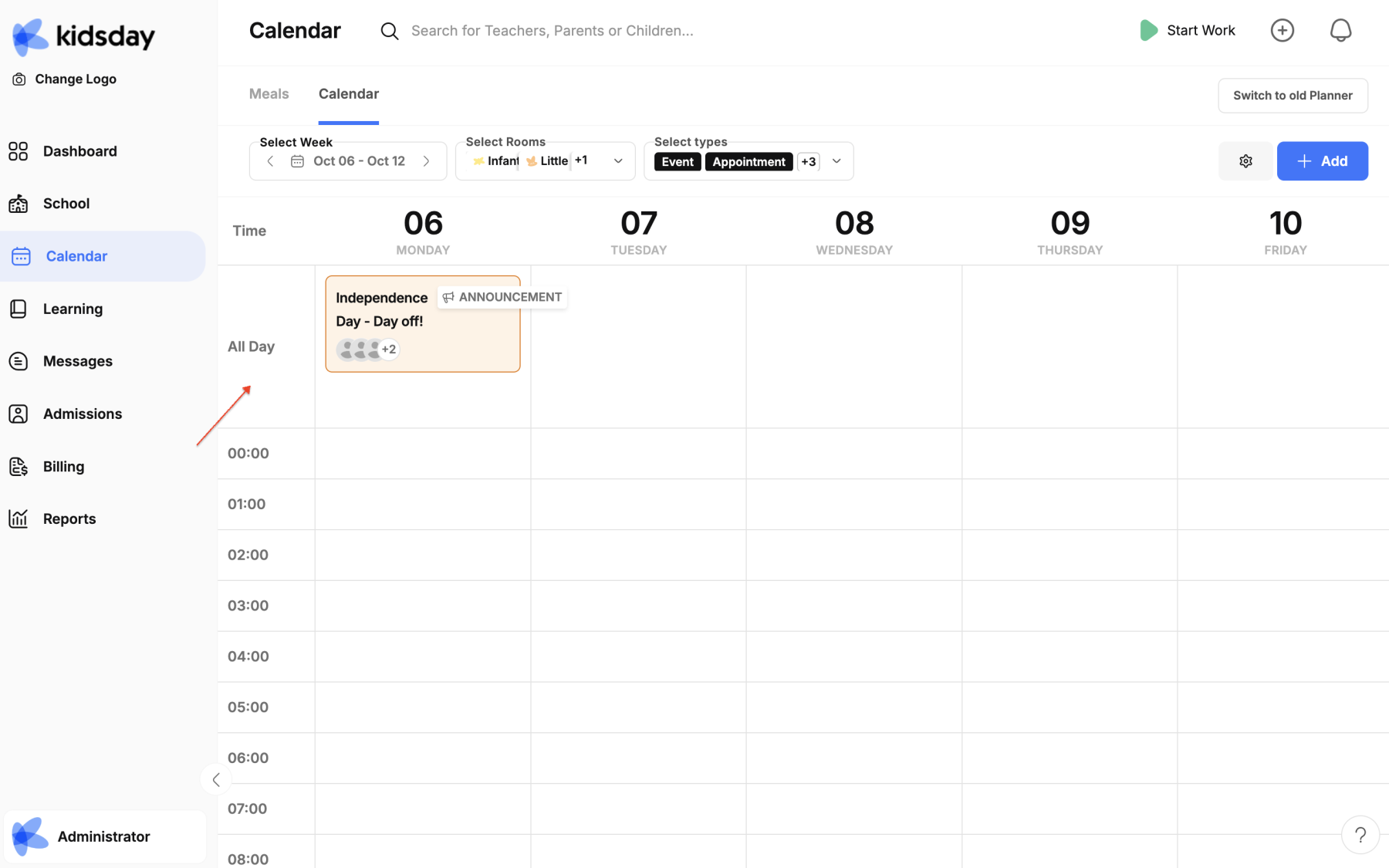
Step 1: Open the calendar
-
From the main menu, click on Calendar.
Step 2: Select the date
-
Click on the date where you want to create the notification,
or use the “Add +” button on the top right.
Step 3: Choose the category
-
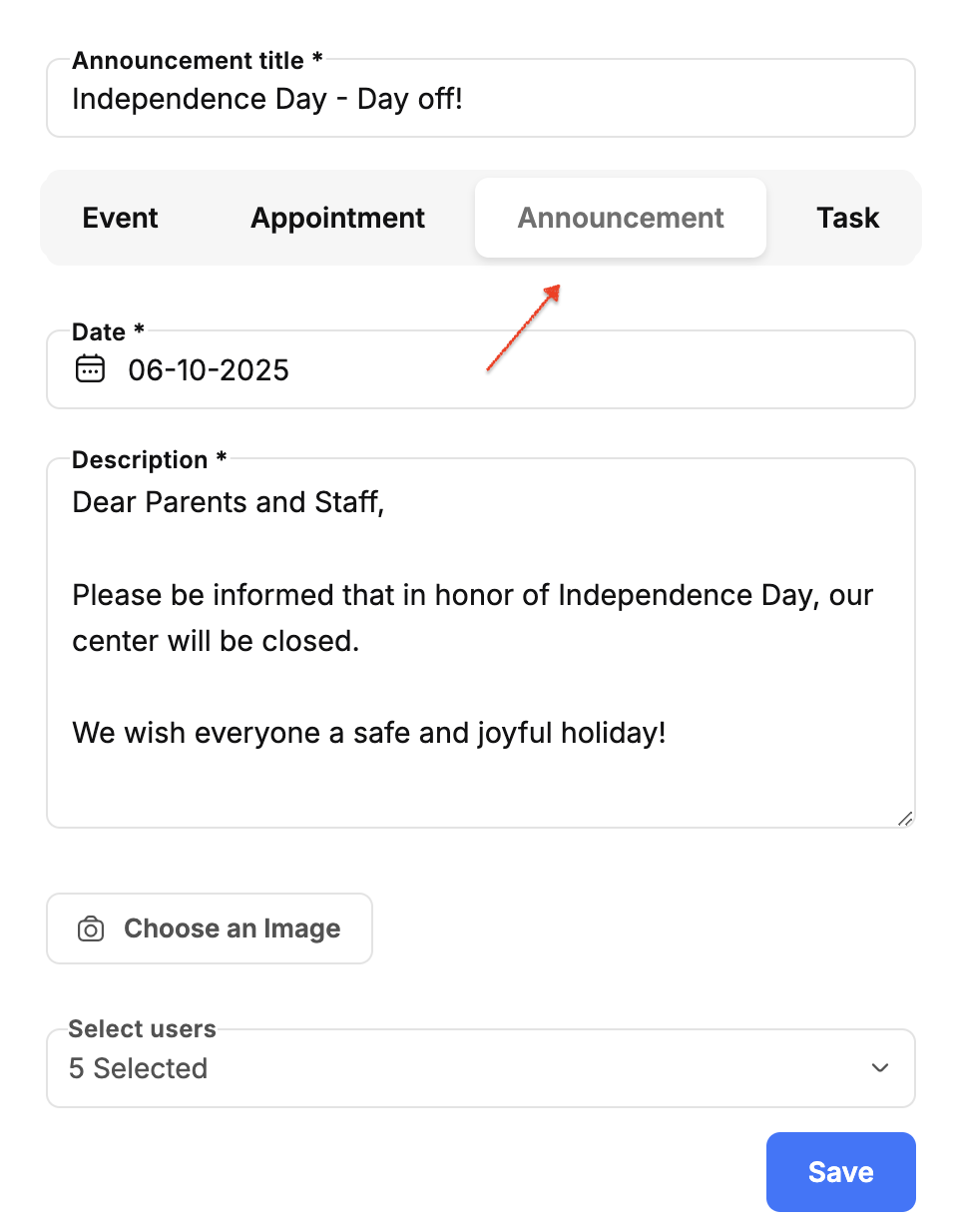
From the category list, select Announcement
Step 4: Fill in notification details
-
Enter the title of the notification (e.g., Day OFF).
-
Write the content of the notification.
-
Optionally, assign classes or groups of children to receive it.
Step 5: Save and send
-
Click “Save” to send the notification.
-
The notification will now be visible to the parents of the selected classes or groups.