Click a child's photo in the Children list to open their profile. It has six tabs, described one by one below.
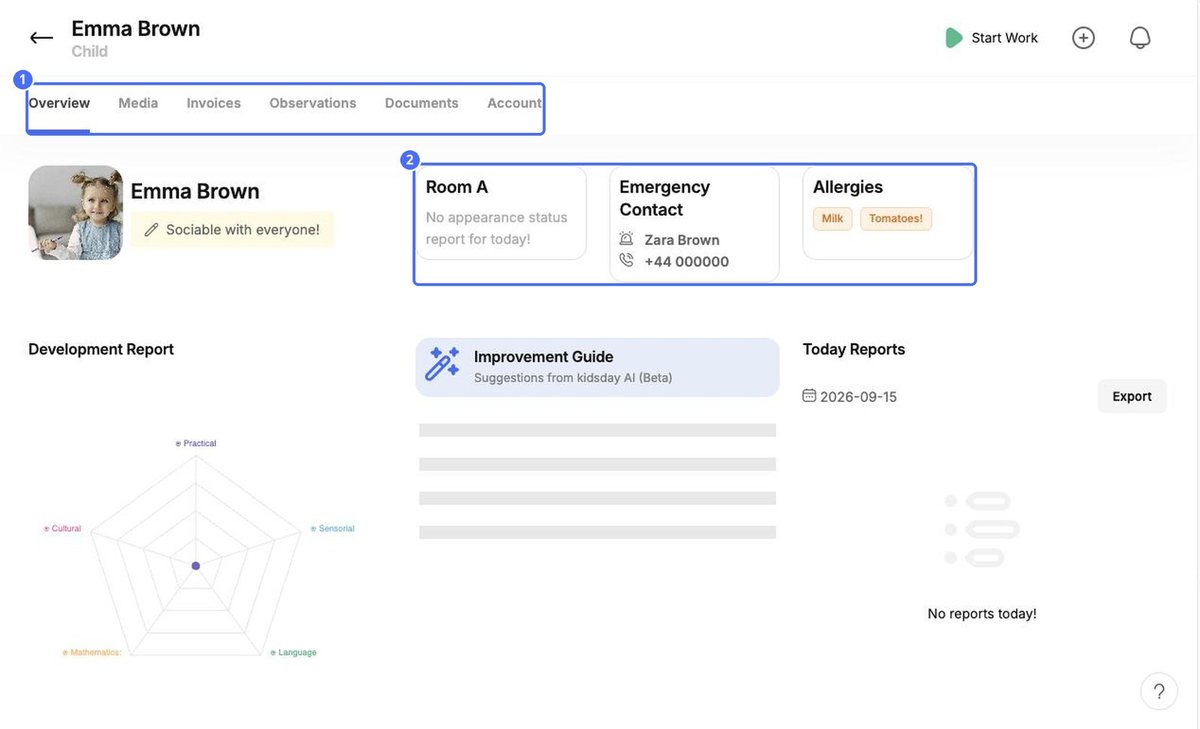
| Tab | What you'll find |
|---|---|
| Overview | Today's status in the room, the emergency contact, allergies, the Development Report chart, the AI Improvement Guide and today's reports (with Export). |
| Media | Photos and images added to the child's reports. |
| Invoices | The child's invoices and outstanding balance. |
| Observations | Learning progress per area, used to build development reports. |
| Documents | Required documents and any other files for the child. |
| Account | The same details as Edit Child Info. |
Overview tab: development report and Improvement Guide
The top of the Overview tab repeats the essentials: today's status in the room, the emergency contact and allergies. Today Reports lists everything recorded for the child today, and Export downloads it.
The Development Report chart shows progress in five areas: Practical, Sensorial, Language, Mathematics and Cultural. It fills in as observations are recorded on the Observations tab. The Improvement Guide gives suggestions from kidsday AI (Beta) based on those observations.
Observations tab: record progress
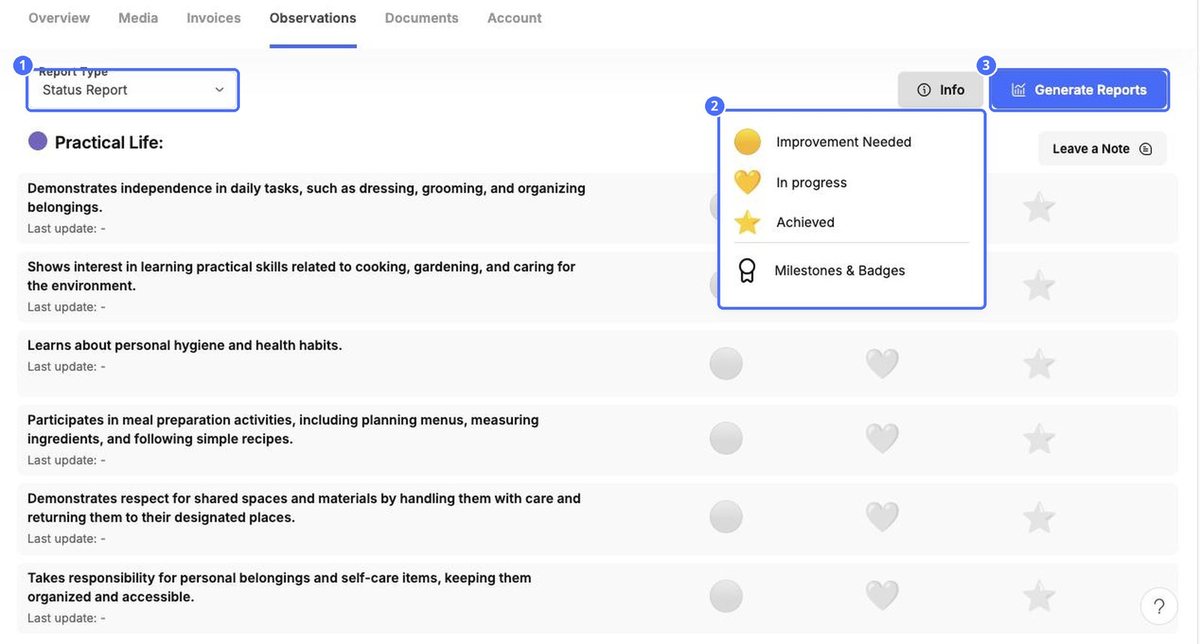
- Choose a Report Type: Status Report, Semester report or Month Report.
- For each statement, click the symbol that fits: Improvement Needed, In progress or Achieved. Click Info to see what each symbol means, and to find Milestones & Badges.
- Use Leave a Note to add a comment for an area.
- Click Generate Reports to create the development report.
Note: Development reports appear as PDF files on the Documents tab, under General Documents (for example "Development monthly report: Emma Brown").
Documents tab: required documents and files
Compliance Documents shows how many required documents are on file (for example 0/7) and the status of each: Missing, or Requested with the date you asked for it. The required documents are Medical Certificate, Allergy & Medical Info, Custody / Legal Documents, Tuition Agreement, Birth Certificate, Vaccination Record and Emergency Contact Form.
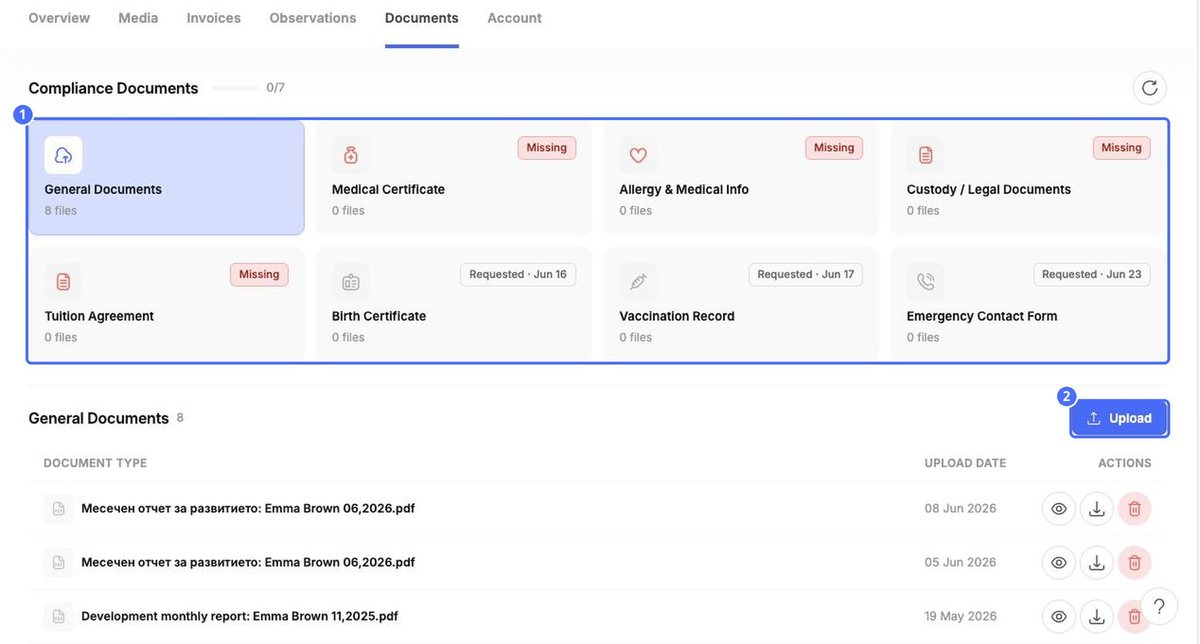
Everything else, such as generated monthly reports, is listed under General Documents. Use the icons on each row to view, download or delete a file, and Upload to add one.
Invoices tab: the child's billing
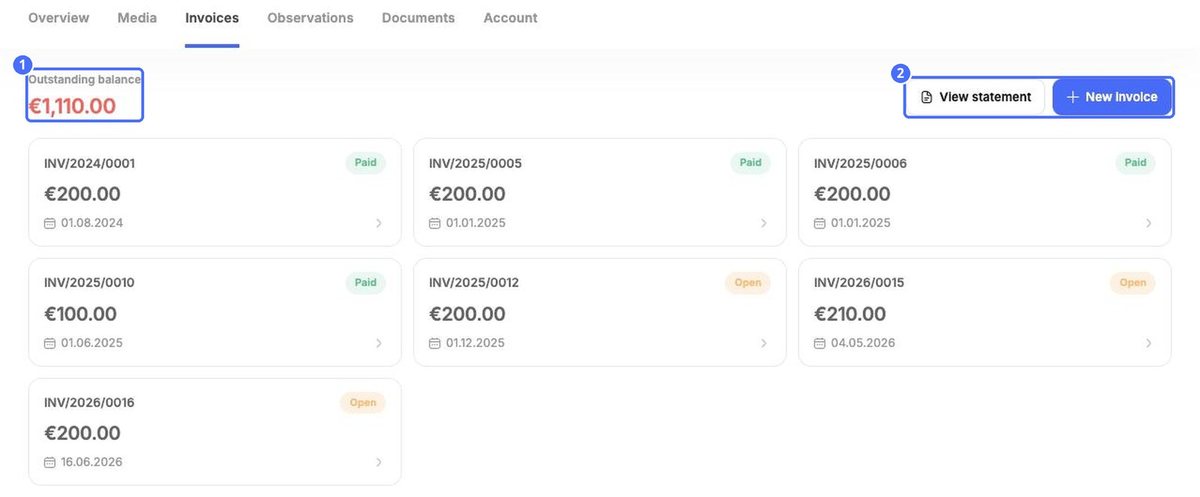
This tab is a billing shortcut and is not part of the development report. It shows the family's Outstanding balance and one card per invoice with its number, amount, date and status (Paid or Open). Click a card to open the invoice, or use View statement and New invoice. For everything about billing, see the Finances topics.