
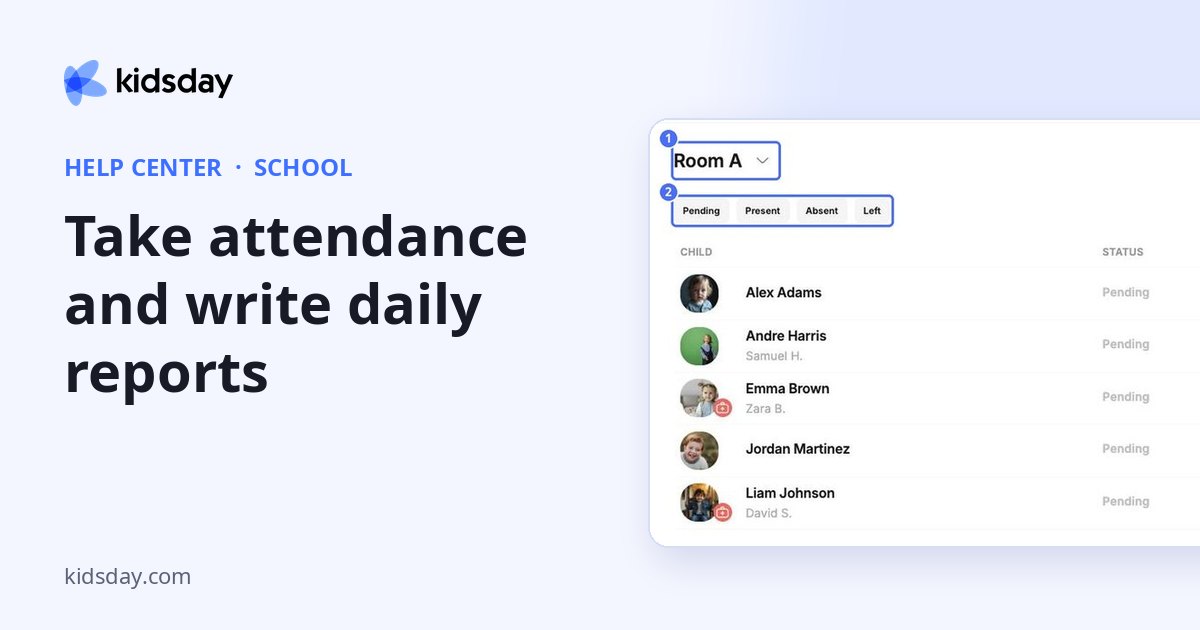
Open a room from School › Rooms to see today's list of children. This is the page teachers use all day to take attendance and write reports.
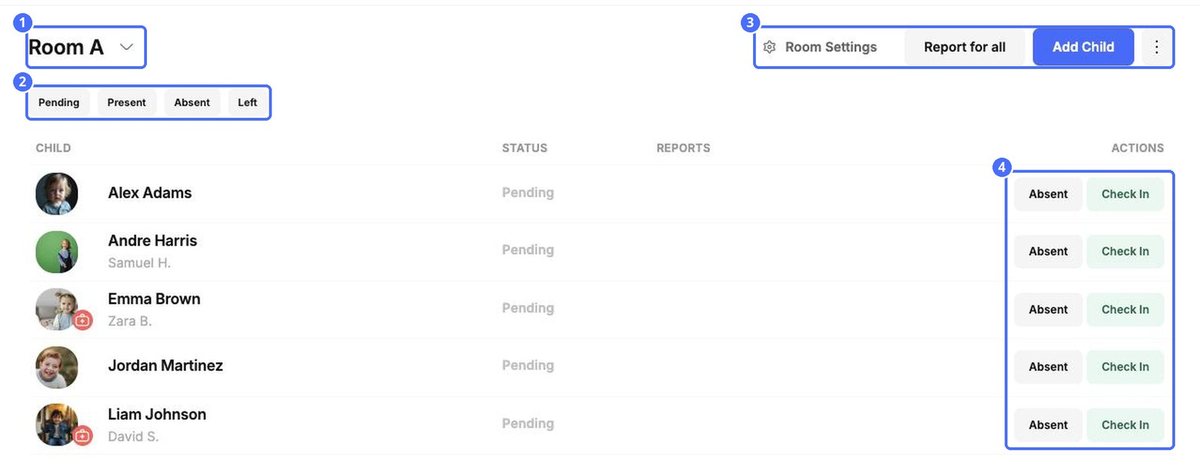
- Status filters. Show only children who are Pending (not arrived yet), Present, Absent or Left.
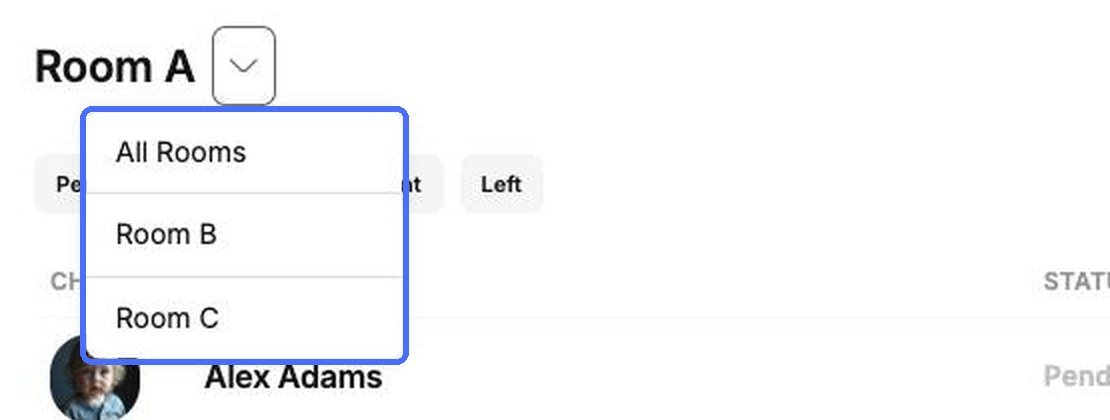
- Room switcher. Click the arrow next to the room name to move to another room or to All Rooms.
- Health badge. A red badge on a child's photo means there is health information to be aware of, such as allergies. Open the child's profile to read it.
Check children in and out
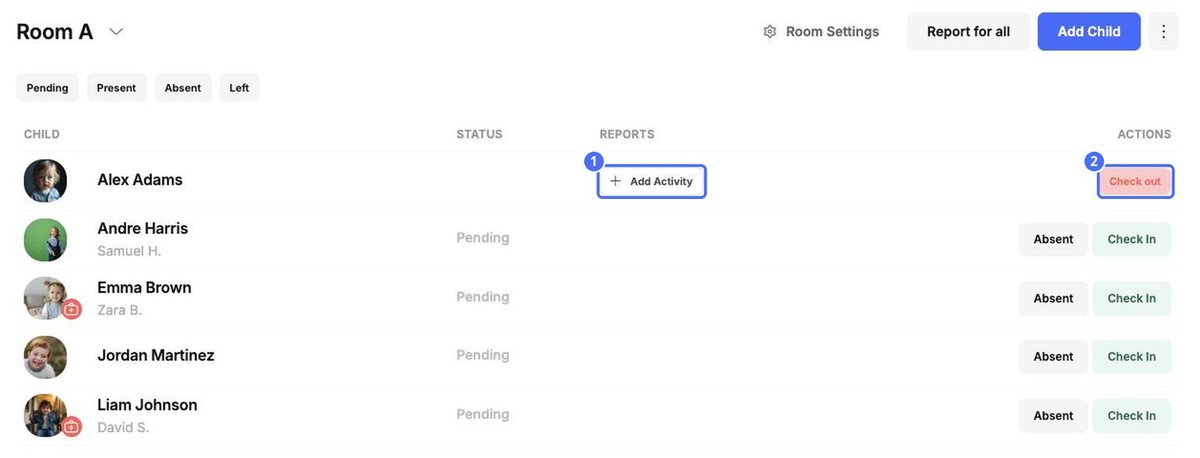
- When a child arrives, click Check In on their row. The message Attendance updated! confirms it.
- If a child isn't coming today, click Absent.
- When the child is picked up, click Check out.
To update the whole room at once, click the ⋮ menu and choose Check all In or Check all out.
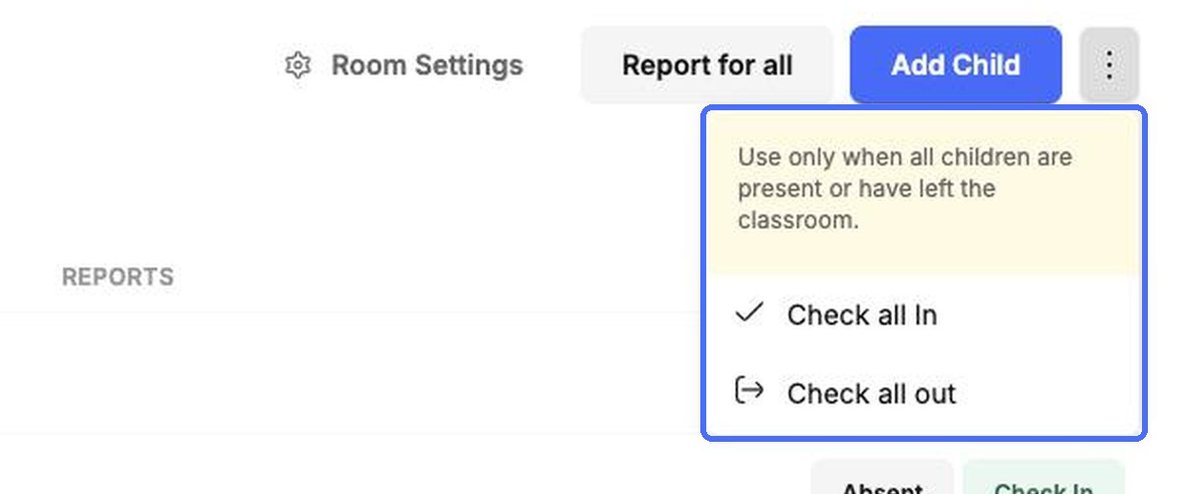
Note: Use Check all In or Check all out only when every child really is present, or has left. Children who are absent would be marked incorrectly.
Write a daily report for a child
Daily reports are shared with the child's family. You can only write them for children who are checked in.
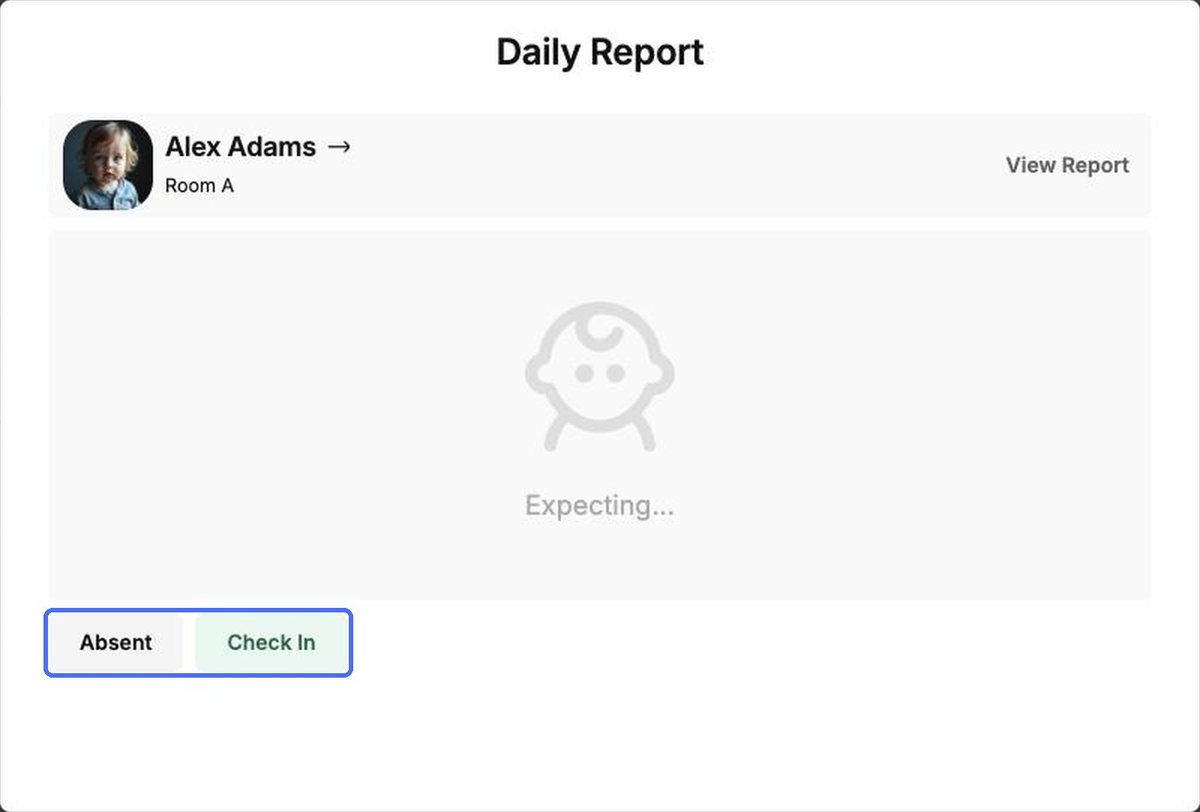
- Click Add Activity on the child's row (or click the child's name).
- Choose a report type, for example Meal.
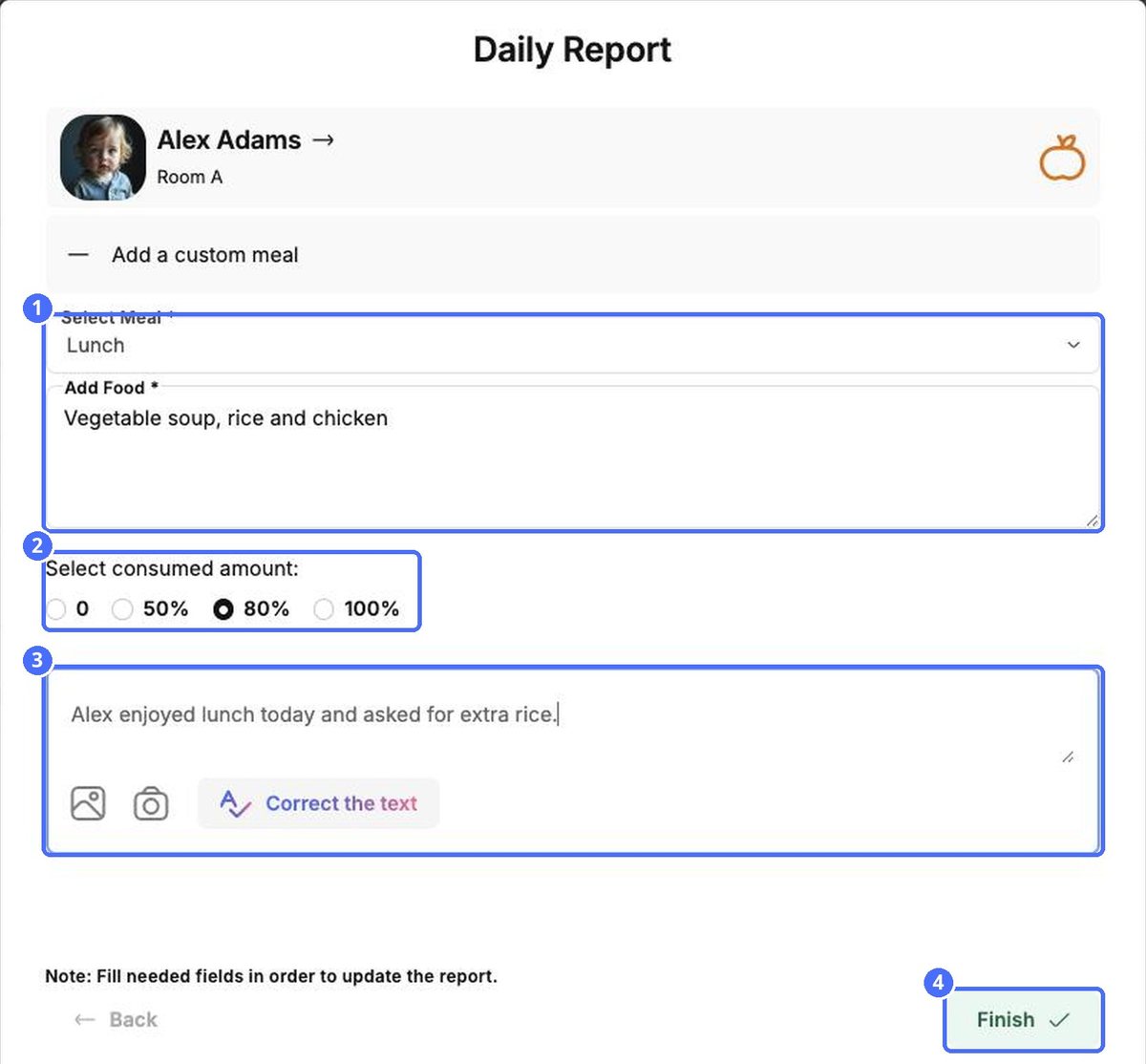
- Fill in the details. For a meal: pick the meal (Breakfast, Lunch, Snack or Snack 2, or Add a custom meal), describe the food and choose how much was eaten (0, 50%, 80% or 100%).
- Add a description if you like. Use the picture and camera icons to attach photos, and Correct the text to have kidsday tidy up your spelling and grammar.
- Click Finish.
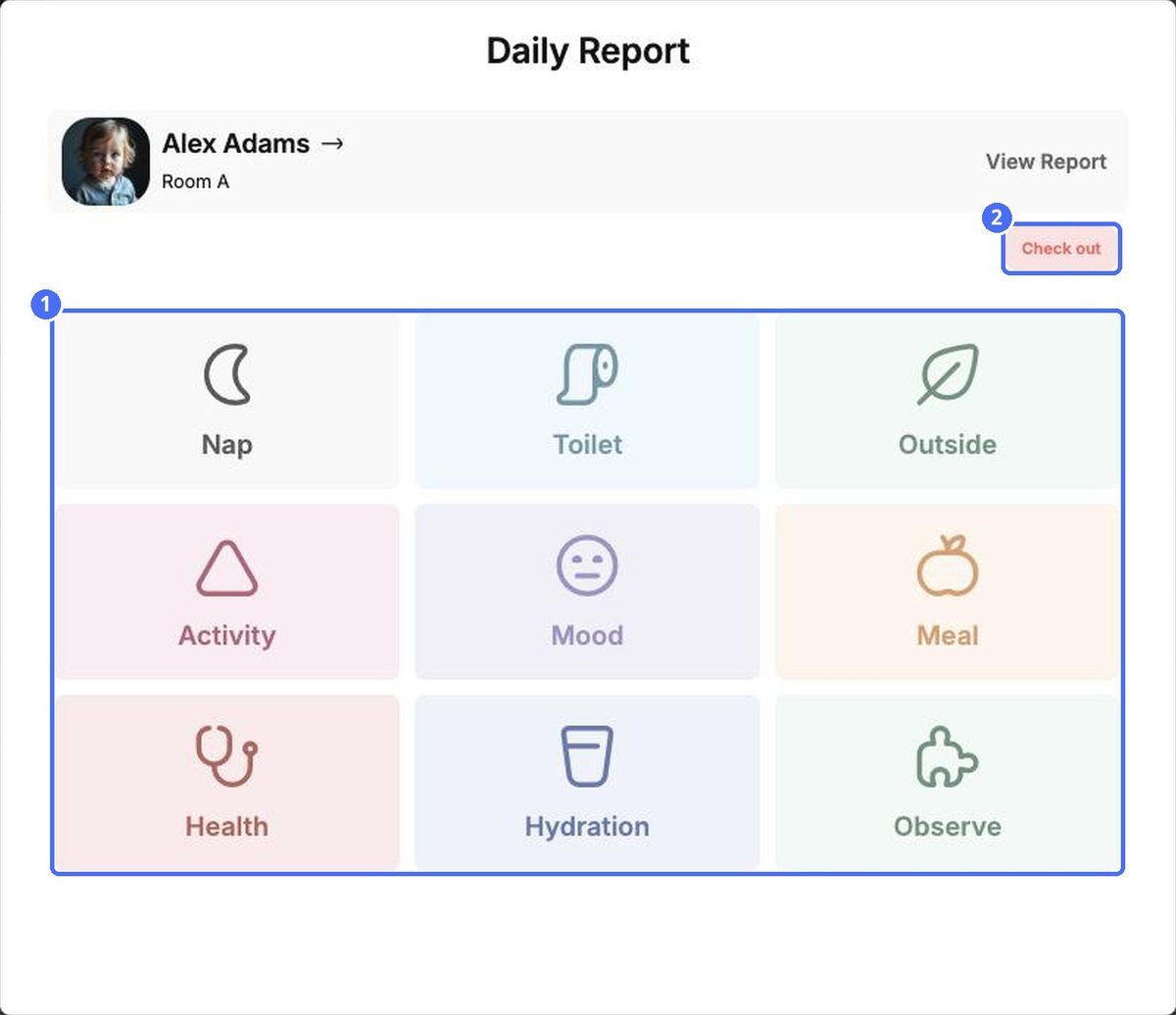
Tip: Click View Report at the top of the window to see everything recorded for the child today.
Report for the whole room
When the same thing applies to many children, such as lunch or outdoor play, click Report for all. Choose the report type, pick the children it applies to and fill in the report once. Only children who are checked in can be included.


