Open Finances › Settings to fine-tune billing. The settings menu is grouped into Organisation, Documents and Communication.
| Section | What it controls |
|---|---|
| Billing entity | Legal name, address, tax ID and bank details printed on every document. Click Save after changes. |
| Tax & VAT | The tax rates you can apply to invoice lines. Use Add a tax rate to create one. |
| Features | Switch optional features (e.g. subsidies) on or off, and re-run the setup wizard. |
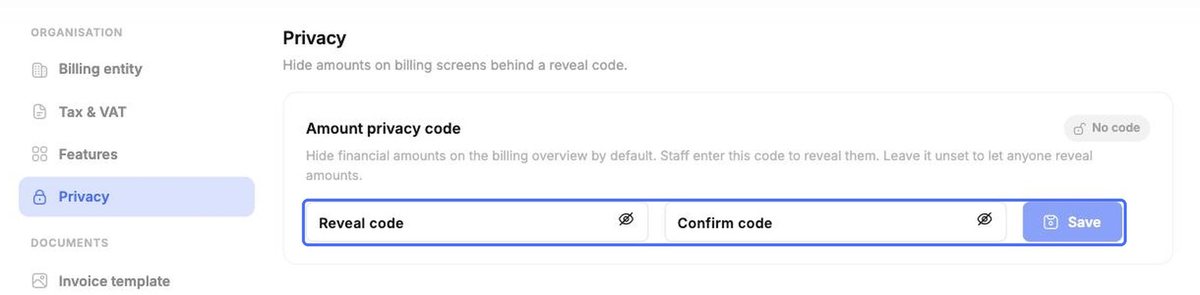
| Privacy | Set a reveal code so financial amounts stay hidden until staff enter it. |
| Invoice template | Accent colour, what appears on invoices (logo, tax ID, IBAN), payment term and footer text – with a live preview. |
| Numbering & sequences | How invoices, credit notes and payments are numbered (prefix, year, counter). |
| Pricing | Reusable items and default prices you can pick when building invoices and plans. |
| Reminders & dunning | Automatic payment reminders, late fees and staff alerts. |
| Finance recipients | Your accountant and finance contacts, used when sending reports. |
Tax & VAT
Each rate has a name and a percentage. Delete a rate with the bin icon; add one with Add a tax rate.
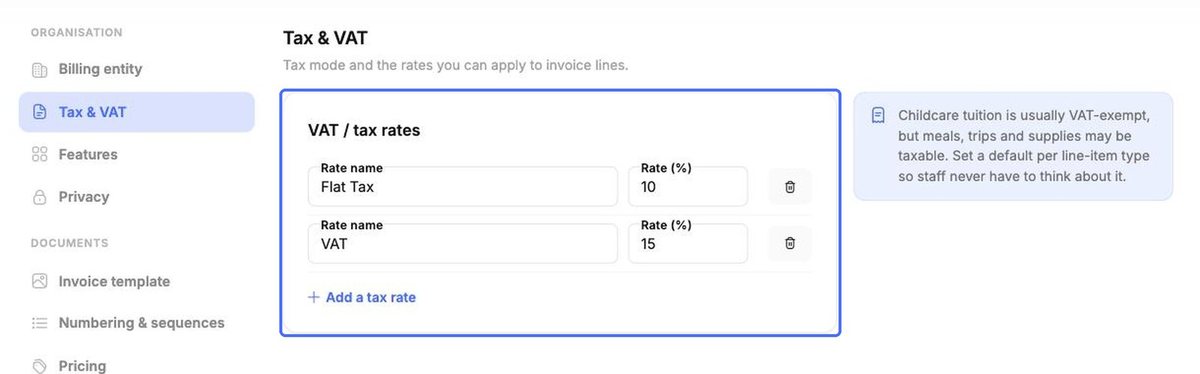
Tip: Childcare tuition is usually VAT-exempt, but meals, trips and supplies may be taxable. Check the rules for your country.
Invoice template
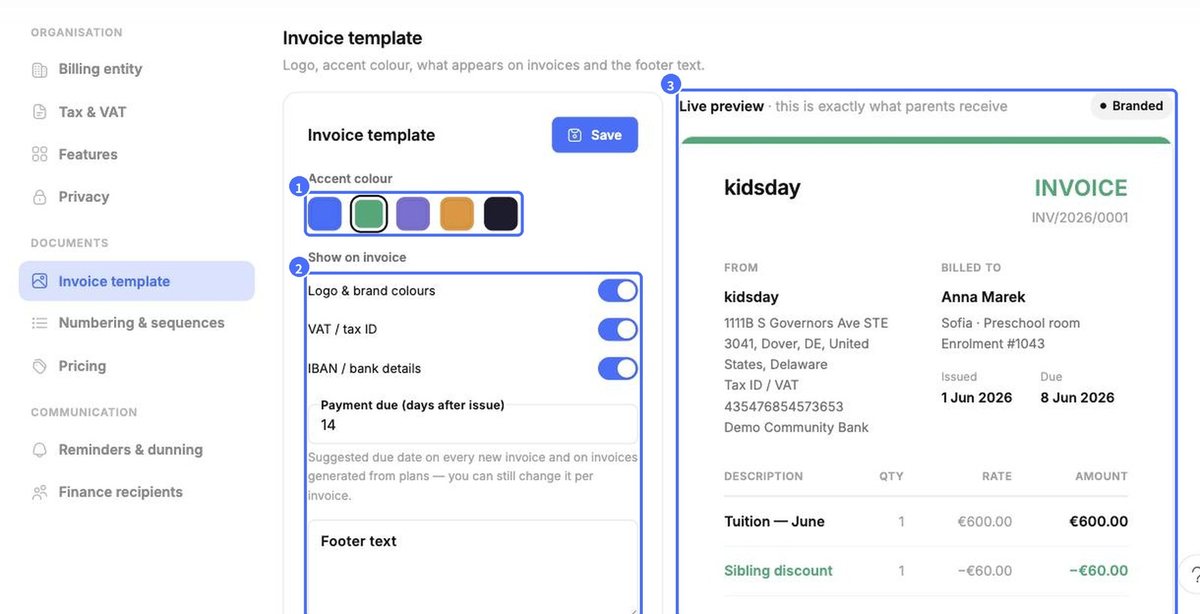
- Pick an Accent colour.
- Under Show on invoice, choose whether to show your logo and brand colours, VAT / tax ID and IBAN / bank details. Set the default Payment due days and add Footer text.
- Check the Live preview – it shows exactly what parents receive – then click Save.
Numbering & sequences
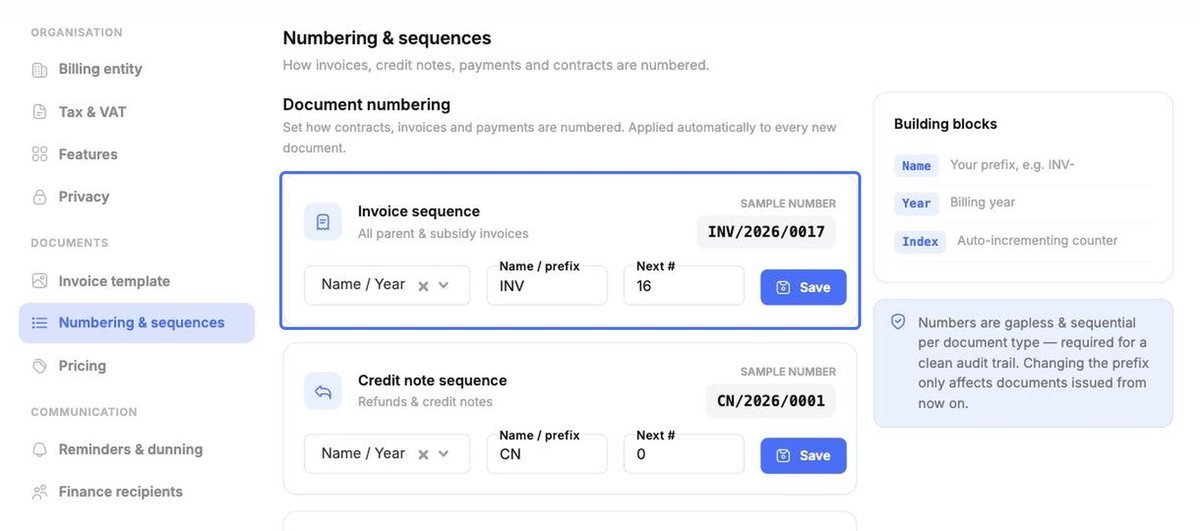
Set the format and prefix for each document type and click Save. Numbers are built from a name/prefix, the billing year and an auto-incrementing counter. They are gapless and sequential per document type – required for a clean audit trail. Changing the prefix only affects documents issued from then on.
Pricing
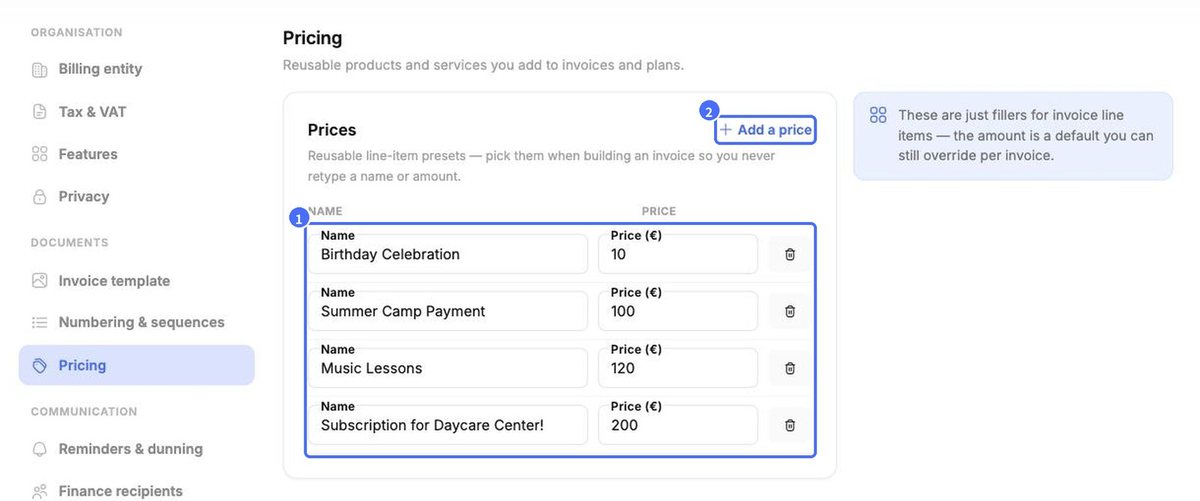
Pricing holds reusable line items such as “Summer Camp Payment” or “Music Lessons”. Click Add a price to create one. The amount is only a default – you can override it on any invoice.
Reminders & dunning
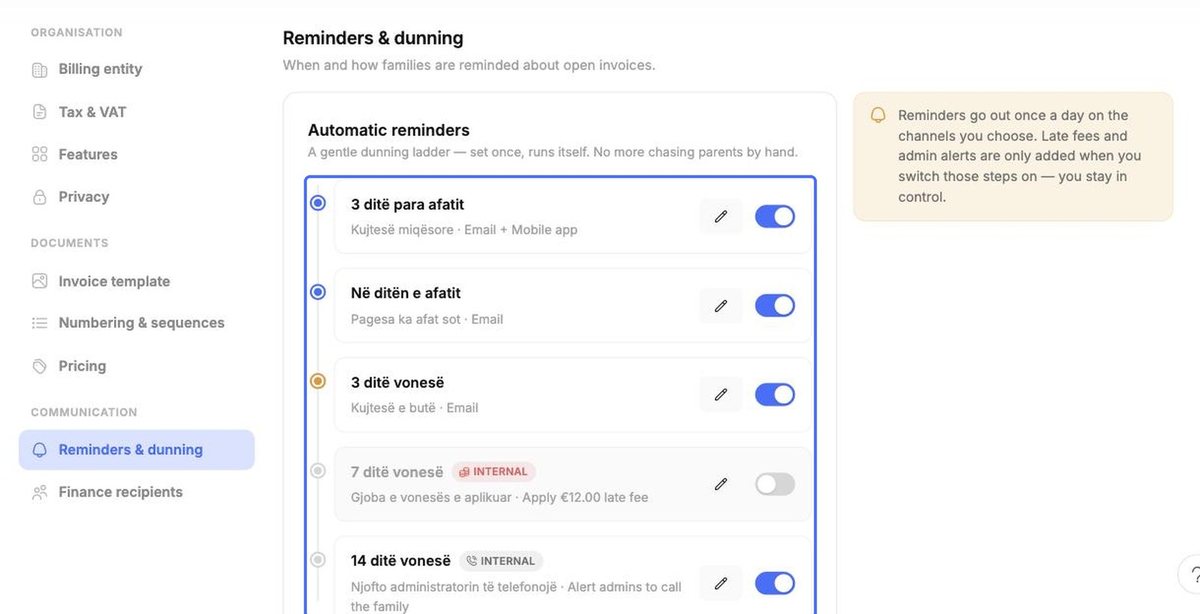
Build an automatic reminder ladder – for example 3 days before the due date, on the due date, and 3 days after. Steps can also apply a late fee or alert admins to call the family (marked Internal). Use the pencil to edit a step and the toggle to switch it on or off. Reminders go out once a day on the channels you choose; click Add a step to add more.
Finance recipients and Privacy
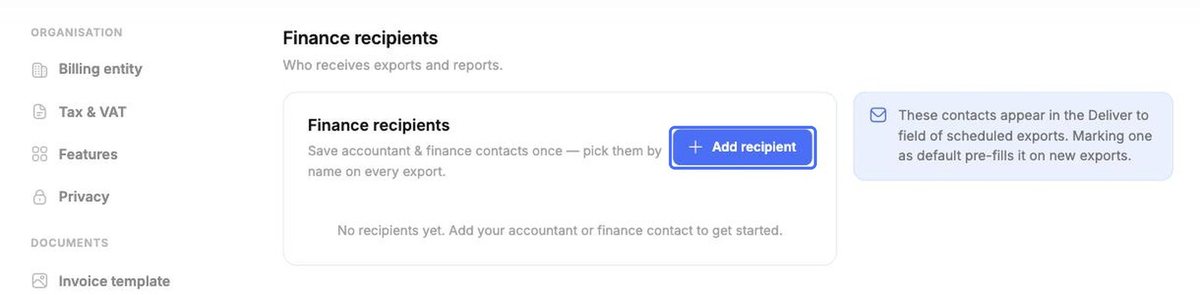
Under Finance recipients, click Add recipient to save your accountant once – you can then pick them by name on every export. Mark one as default to pre-fill new exports.
Under Privacy, enter and confirm a Reveal code and click Save. Amounts on the billing screens then stay hidden until staff enter the code. Leave it unset to let anyone reveal amounts.