v3.1.2
Ability to Record Attendance for Teachers and Administrators
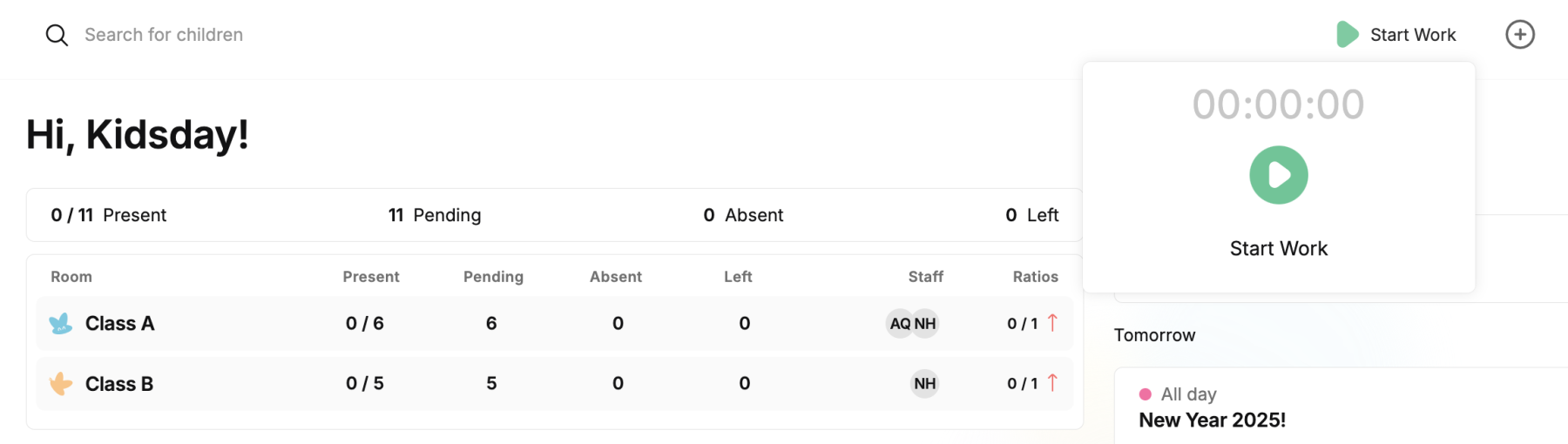
With this new feature, teachers and administrators can automatically log their clock-in and clock-out times, including the start and end of their workday, without the need for manual entries in lists or paperwork. This option enables accurate, automatic tracking of work hours, making time and resource management more efficient.
The button for this functionality is always positioned in the upper right corner of the screen. It also allows the administration to create detailed reports on staff attendance, without the need for manually written documents. This system facilitates organization and increases efficiency, reducing the possibility of errors and improving resource management in the institution. The administration has the option to choose whether to activate this feature for its staff, by clicking on School - Settings.
See instructions: How to Register Staff Attendance in kidsday
"Teacher-Child Report" Option
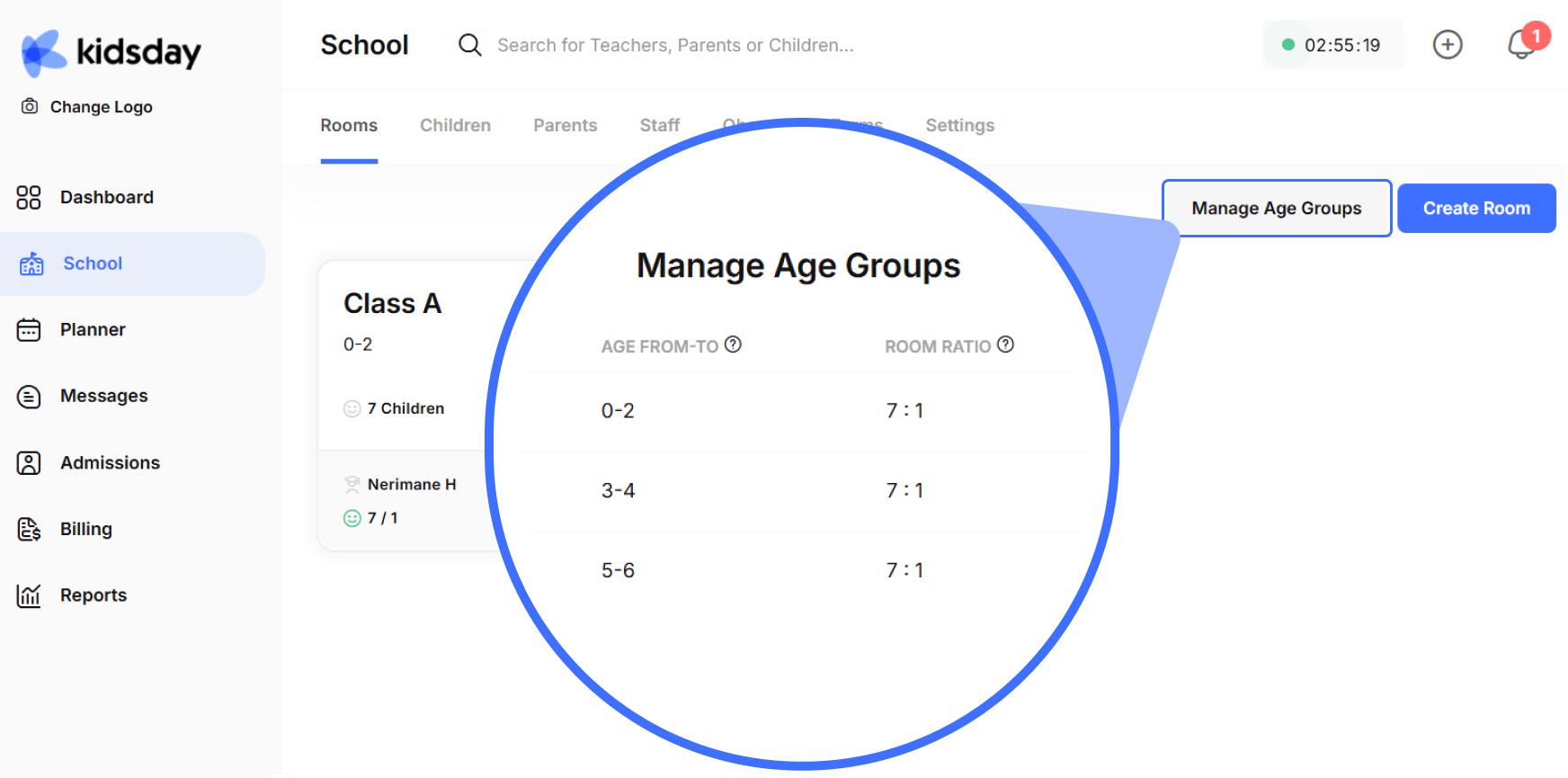
Define how many children a teacher is responsible for. This new feature allows you to determine the number of children a teacher should supervise. This is very important to ensure a proper balance between the number of children and the teacher's ability to provide individual care and support. This feature also contributes to improving the quality of teaching, enabling more careful supervision and a lesson more adapted to the needs of each child. This will ensure a more organized environment and increase the overall performance of the institution.
See instructions: How to Manage The Teacher - Child Ratio in kidsday
Sleep and Outdoor Time Recording with Manual Options
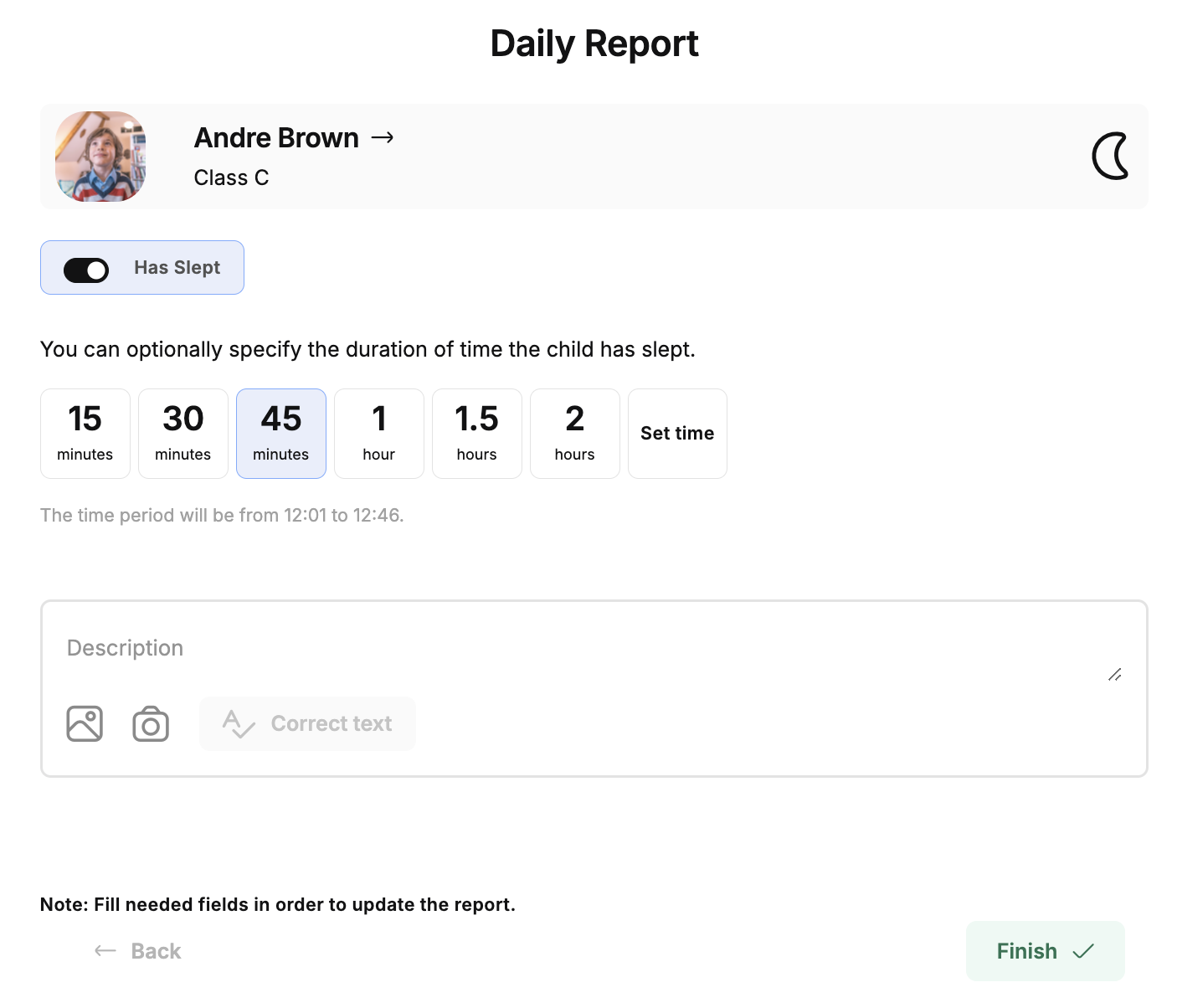
Administrators and teachers can now record the duration of sleep and time spent outdoors of children in a simple way. Through pre-defined options such as 15 minutes, 30 minutes, up to 2 hours, or by manually setting the time, the time period when the child slept and how much time was spent in nature can be recorded.
Email for Changing/Resetting the Password
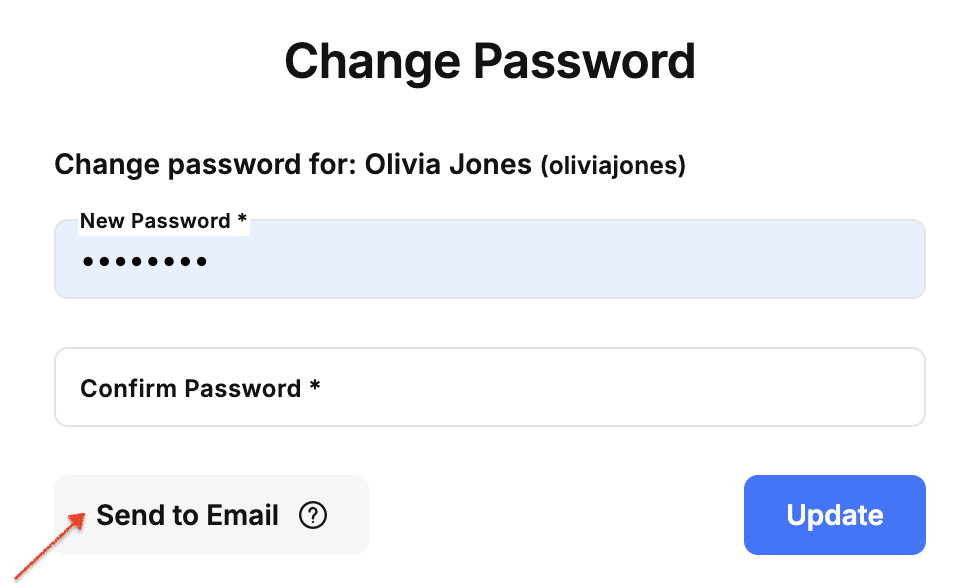
The possibility has been added for the administrator to send an email for changing the password or for resetting it in case it has been forgotten, to staff and parents. This feature makes it easier and faster to return to the account, increasing security and improving the user experience.
See instructions: How to Send a Password Reset Link to Staff/Parents
Option for Managing Teacher Roles
The possibility has been added for the administrator to change the role of the teacher in kidsday, offering him broader access (e.g., as administrator) in case the teacher has more experience. This allows for more efficient staff management and tailoring access to individual needs and responsibilities.
See instructions: How to Change the Teacher's Role in kidsday
Notification for Parents Regarding Completed Payments
The possibility has been added for parents to receive a notification in the application and an email when a bill payment is completed. This feature is important because it provides transparency and security for parents, allowing them to track and verify payments made, without having to constantly check. Thus, they can more easily manage their children's finances and react quickly if there is a problem.
Grandparent Option in Recording Children's Check-Out
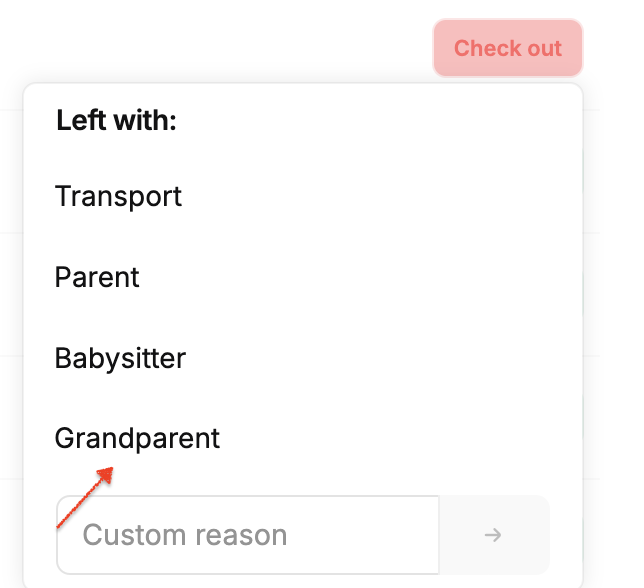
The new "Grandparent" option has been added to the list of people with whom the child can leave the kindergarten. In the option describe the reason, other people with whom the child left can also be mentioned, such as aunt, friend, etc. For teachers who want to register children's exits, on mobile devices they must click on the child's name, and then the "Check-out" button will appear on the top right. On desktop devices, the "Check-out" button will also appear in the list of children in the class.
Update on the Reporting Method for Teacher Activities
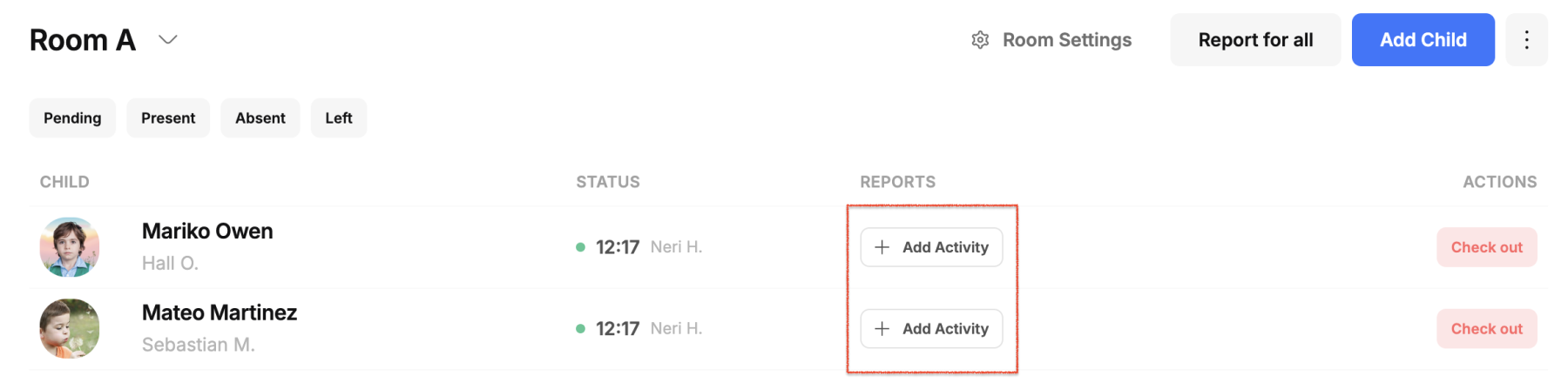
Teachers can now click the "Add Activity" button to add reports for different areas of activity during the day. Once added, they can click on the icons to view the details of the marked reports. In cases where they want to report for all children in the class for the same activity, they can do so on mobile devices using the "+" button, which appears in blue at the bottom. While on desktop devices, this button is moved to the right side, at the top with the description + update.
Restore the Old Form for Adding Meals
The old form for adding meals has been restored, within the meal calendar.
Filter Children by Status
You can now filter children in the classroom based on their status. The filter buttons are specifically separated and exposed for faster and easier access, who is present, waiting, absent and has left the kindergarten for that day.
Ability to Send Multiple Photos in Messages
When there are more than 10 children in the classroom, the "Show more" button has been removed, allowing teachers to see all children in the list without having to click the button.
Display Allergies as a List
The way allergies are displayed has been improved and is now displayed as a list, if the child has more than one allergy.
See instructions: How to Identify Children's Allergies in kidsday
Redesign of the Panel
The main dashboard now offers a detailed view of the status of children and classes. Click on a status to see the corresponding list of children. The total number of children in the kindergarten is clearly displayed. You can also check the staff activity: if the reports are displayed in red, this indicates a lack of staff in the class. The improvements ensure simpler and more efficient management.
Redesign of Rooms
The new view of classes in the "School" dashboard provides a detailed overview of their organization and management. For each class, key information is displayed, such as the name of the class, the corresponding age group, the number of children enrolled and the responsible teacher, who is presented with his name and initials. The teacher-child ratio is also clearly displayed, helping to monitor the staff balance for each class.
See instructions: How to Create a New Room in kidsdayChanges to Room Settings
To update room information (age level, class leaders, color, etc.) you can now find it when you click inside the class.
See instructions: How to Update Room Settings in kidsday
Recording Children's Attendance
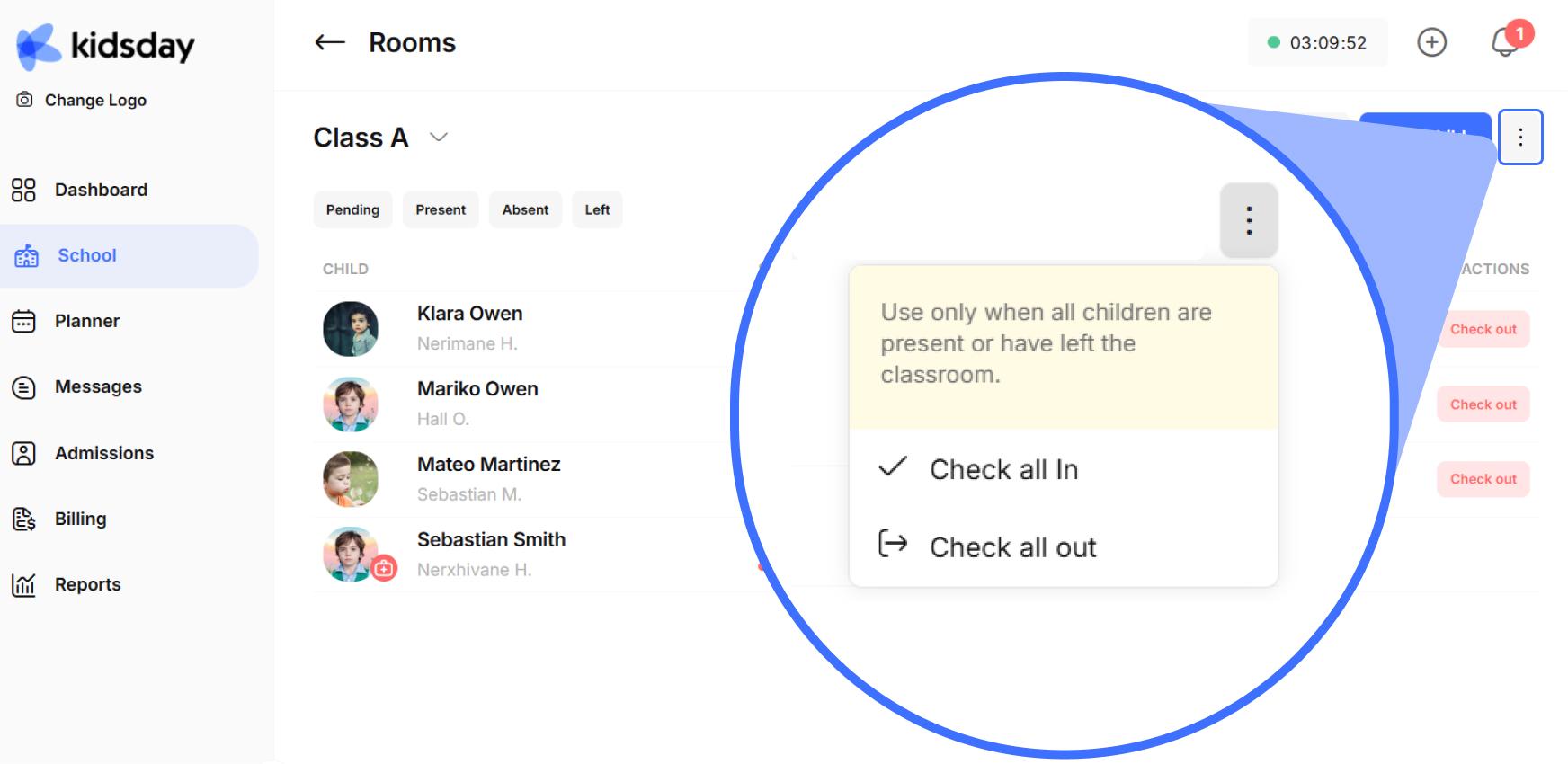
The buttons with icons have been replaced with buttons with descriptions (Check-in, Absent, Check-out) for greater clarity. Also, the "Check-all in" and "Check all out" options have been moved to a less visible position, as they are often used incorrectly or are not used often. Considering these situations, we have seen fit to place these options in a less exposed place.
See instructions: How to record children's attendance?