
Note: This topic is for teachers whose center is not on kidsday yet, or who teach their own class. If your center already uses kidsday, see Join your center instead — your administrator adds you there.
If you run your own class, or you're setting up a center that isn't in kidsday yet, you can create an institution yourself from the app. You become its administrator, and everything else — classes, children, the daily plan — is built inside it.
Create the institution
- Open Profile, tap the center card and choose Add New Workspace. On a brand-new account, this screen appears right after you set your password.
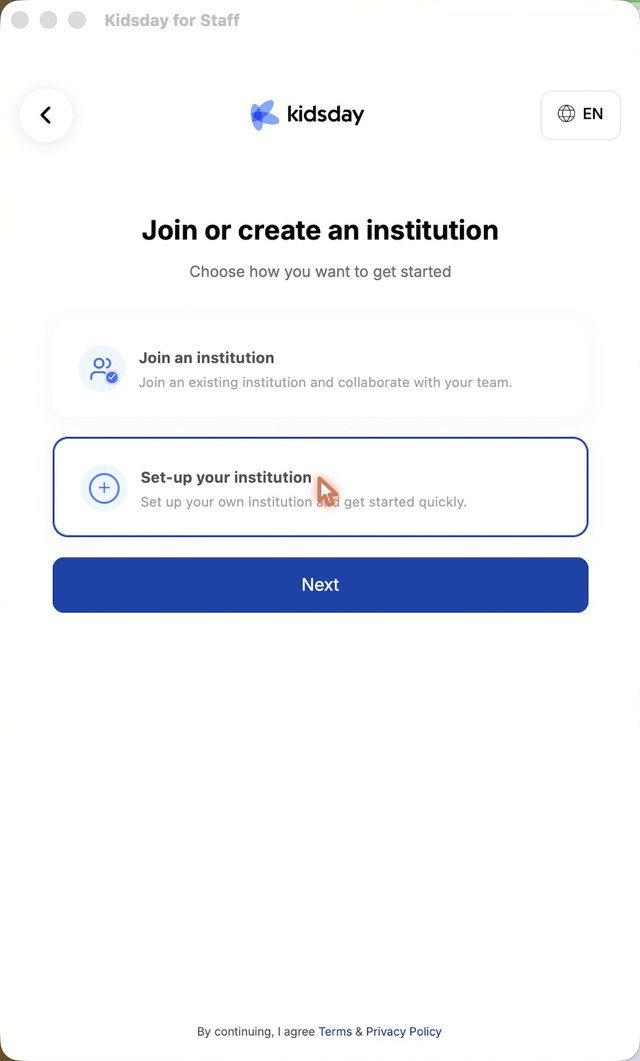
- Choose Set-up your institution and tap Next.
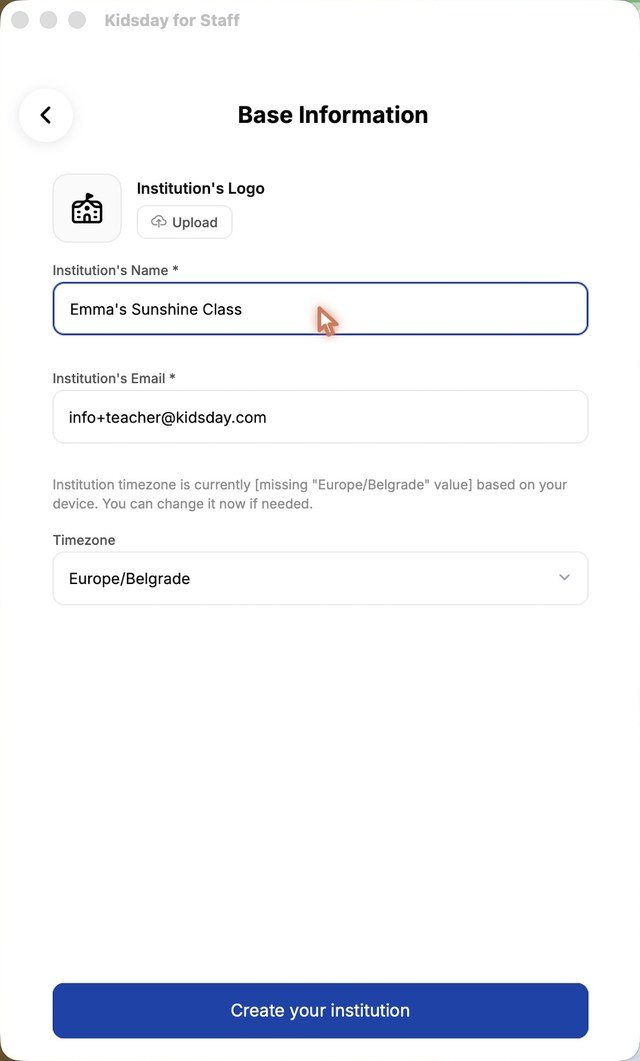
- Fill in the institution's name and email, check the time zone and add a logo if you have one.
- Tap Create your institution.
Add your class
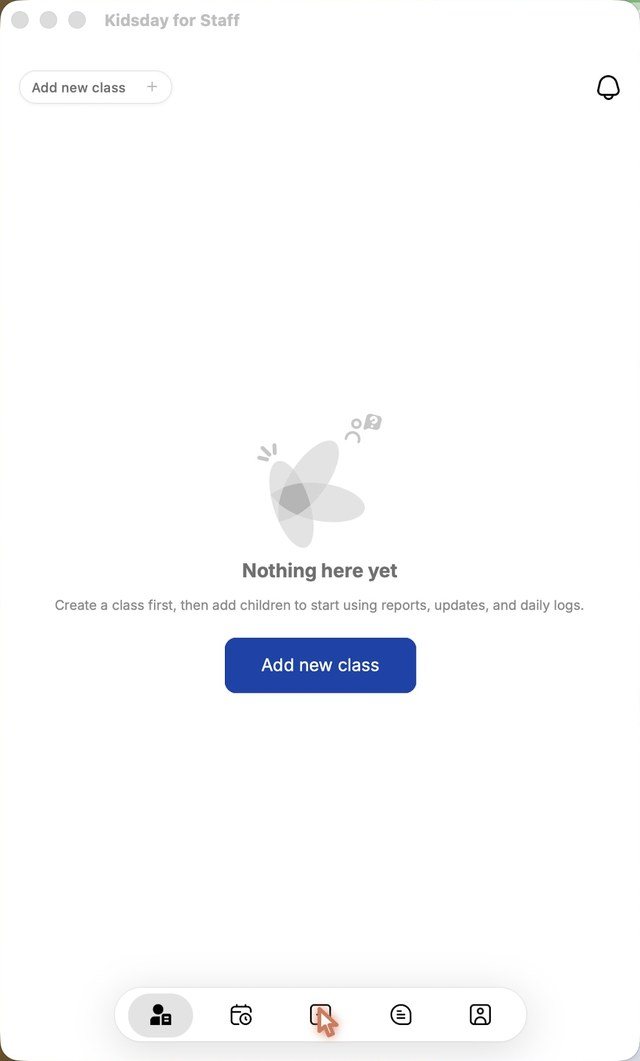
- The Children screen opens empty, with Add new class.
- Enter a class name and pick a colour.
- Choose an age group, or create one with its age range and child-to-teacher ratio.
- Under Report Configuration, tick the daily reports you want for this class — the app suggests a set for the age group.
- Tap Save.
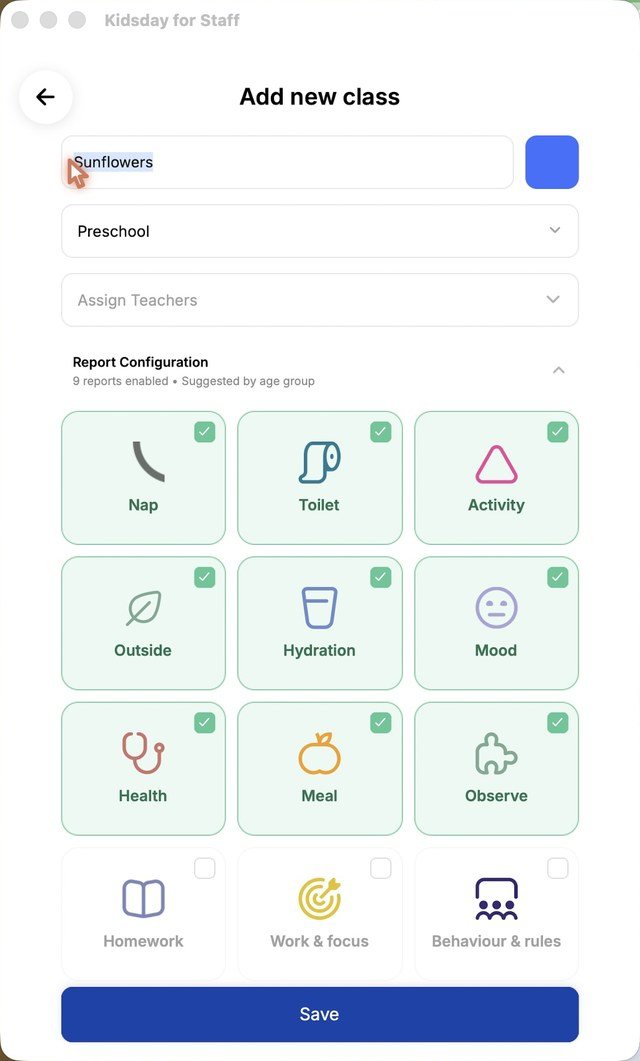
Tip: Assign Teachers invites colleagues to the class. You can leave it empty if you teach the class on your own, and add people later.
Add the children
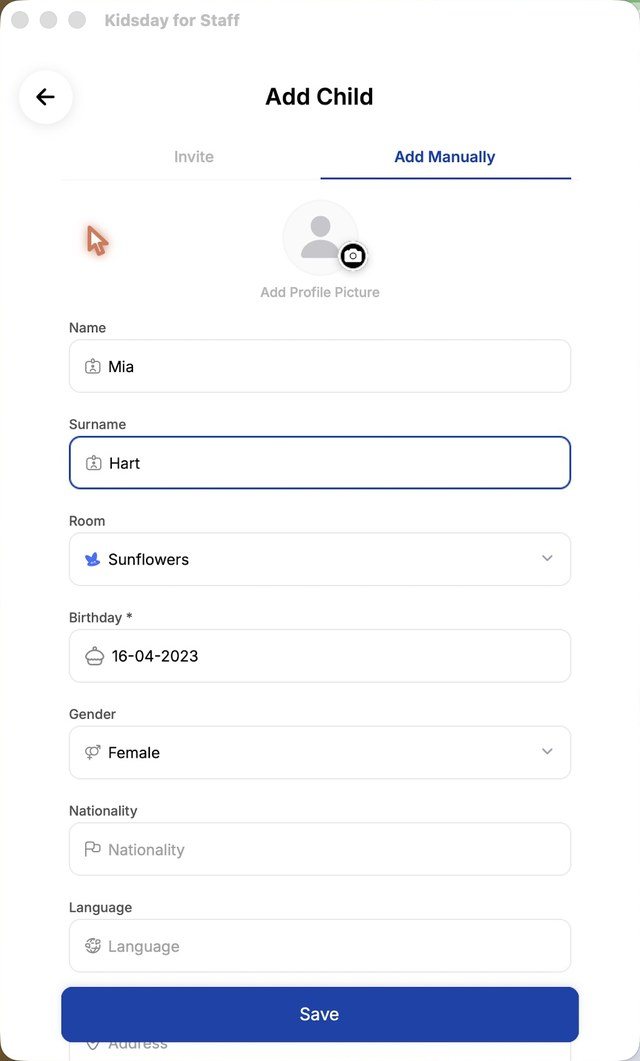
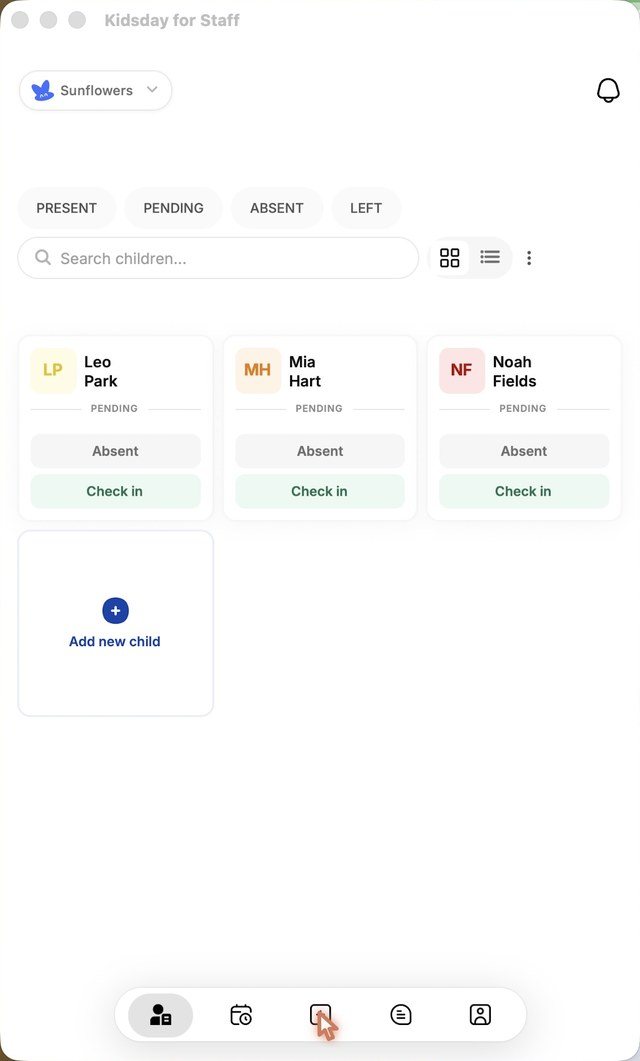
- On the Children screen, tap Add child.
- Use Invite to send the parents an invitation, or Add manually to enter the child yourself.
- Fill in the name, surname, birthday and gender, then tap Save.
Plan the day
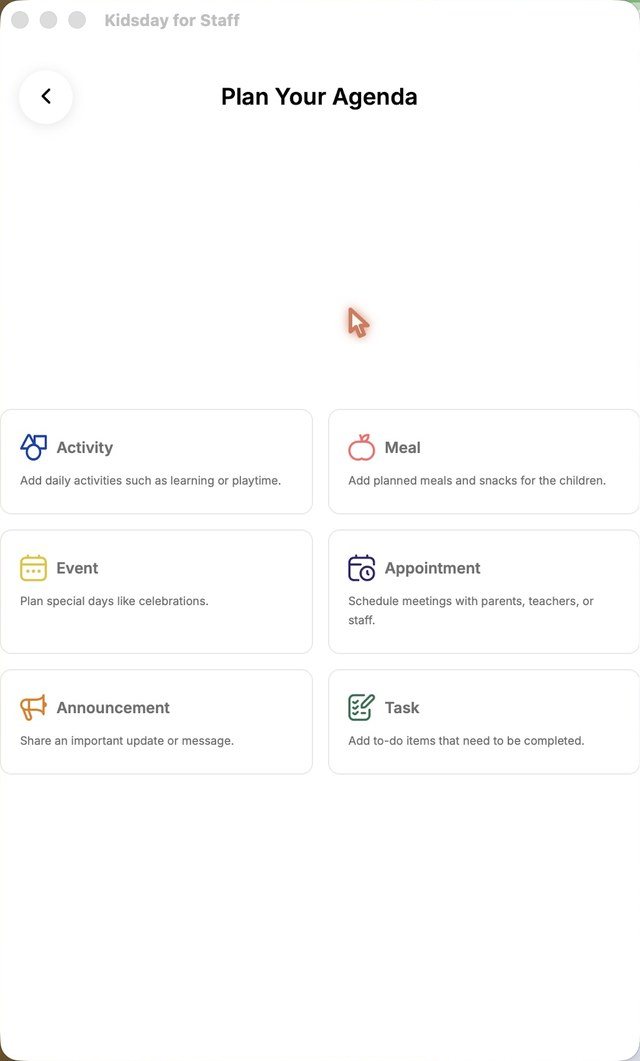
- Open the Calendar tab and tap Plan.
- Choose what to add: Activity, Meal, Event, Appointment, Announcement or Task.
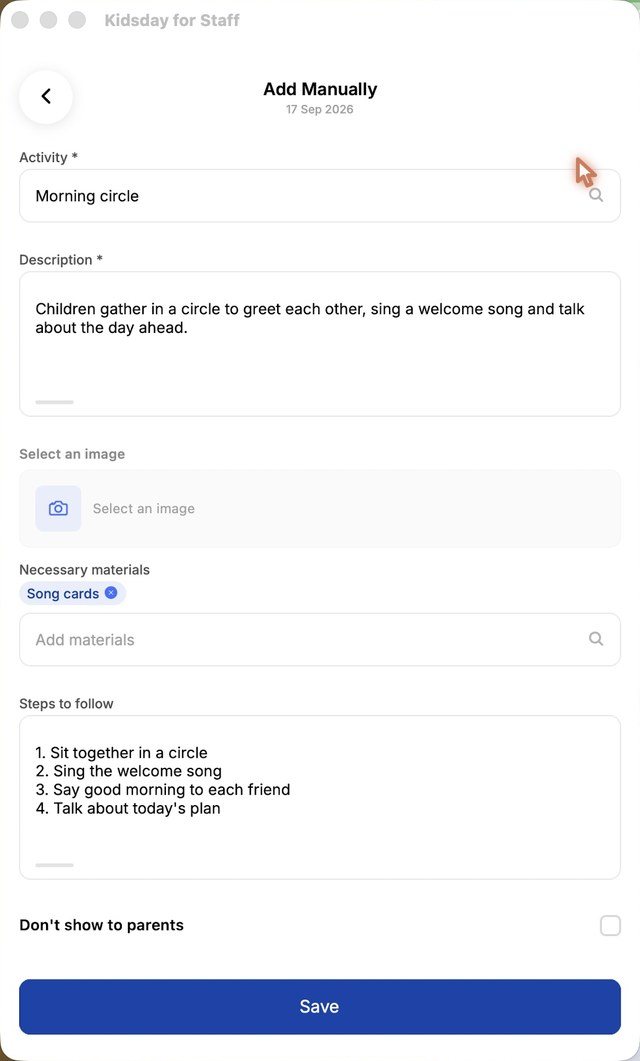
- For an activity, choose Add Manually or let Generate with AI draft the plan for you.
- Fill in the details and tap Save. The item appears on the day in your calendar.
From here your class works like any other kidsday class: attendance, daily reports, messages with families and the weekly plan.


