
kidsday for Staff is the app for teachers and staff. You use it during the day to take attendance, write daily reports, plan activities and message families. Download it from the App Store or Google Play and sign in with your kidsday account.
Download: App Store · Google Play
The Children screen
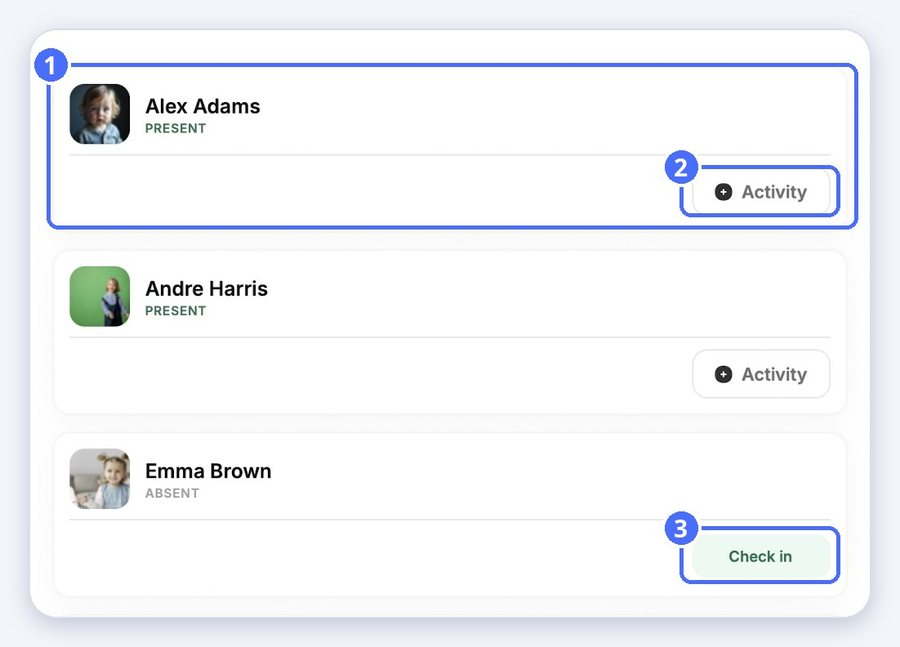
The app opens on the children in your room.
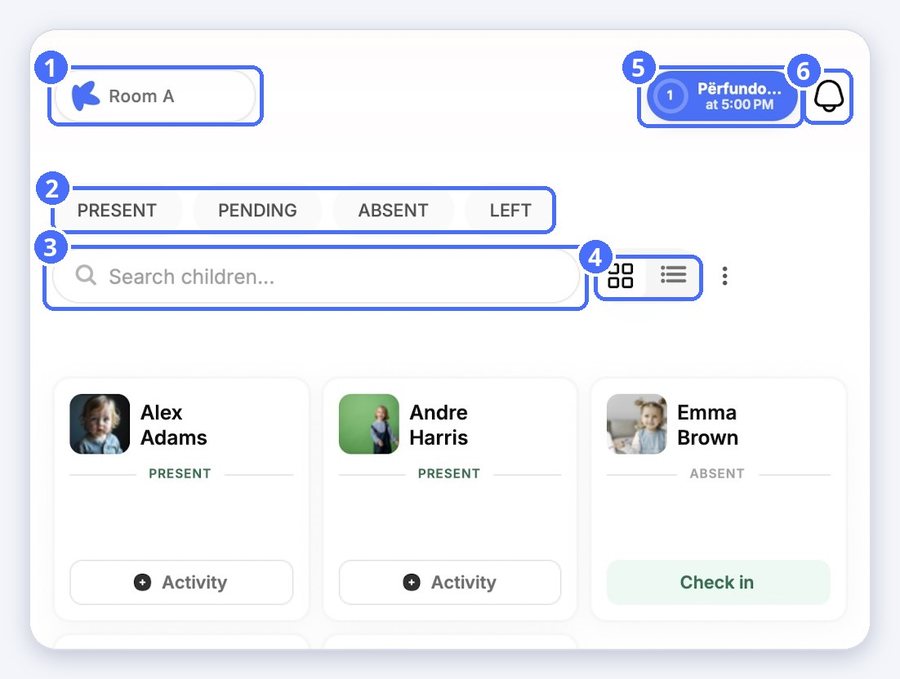
- Tap the room name at the top left to switch to another room.
- Use the filters Present, Pending, Absent and Left to see only the children with that status.
- Search for a child by name.
- Switch between the grid view and the list view. The ⋮ menu opens Check all in and Check all out.
The bottom bar
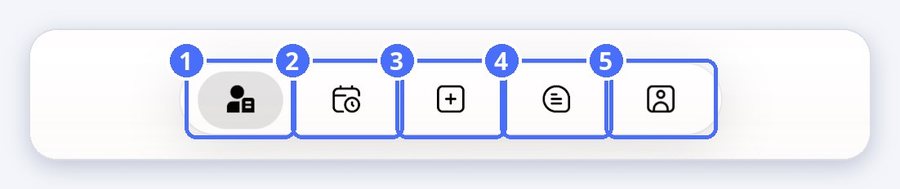
- Children: attendance and daily reports for each child.
- Calendar: your agenda and activity planning.
- Plus: the bulk daily report, to record the same thing for several children at once.
- Messages: conversations with families and colleagues.
- Profile: your account, working hours and app language.
Daily Actions and notifications
The button at the top right is Daily Actions. It reminds you of your reporting tasks and shows them in your school's language. The bell next to it opens your notifications. For details, see “Daily Actions: reminders, points and streaks”.


