
If you can't remember your password, kidsday emails you a reset link. You can also skip the password altogether and sign in with a one-time code — see Log in without a password.
Ask for a reset link
- On the login screen, tap Forgot password?
- Enter your username or email address.
- Tap Request Reset. The sheet closes and the email is on its way.
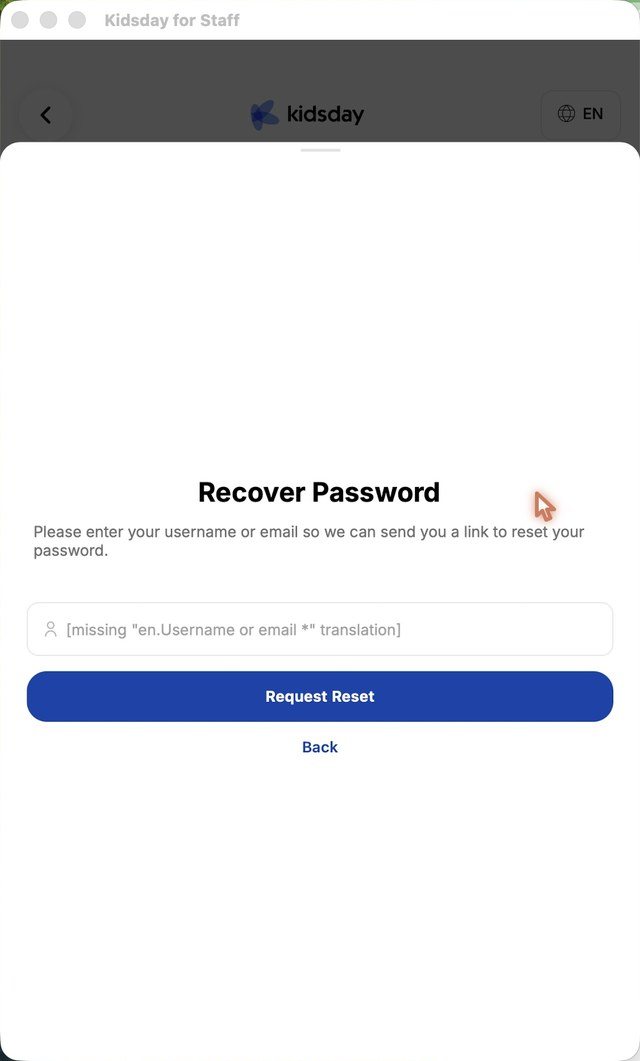
Note: The app doesn't show a confirmation message after Request Reset. Check your inbox — the email arrives within a minute.
Set a new password
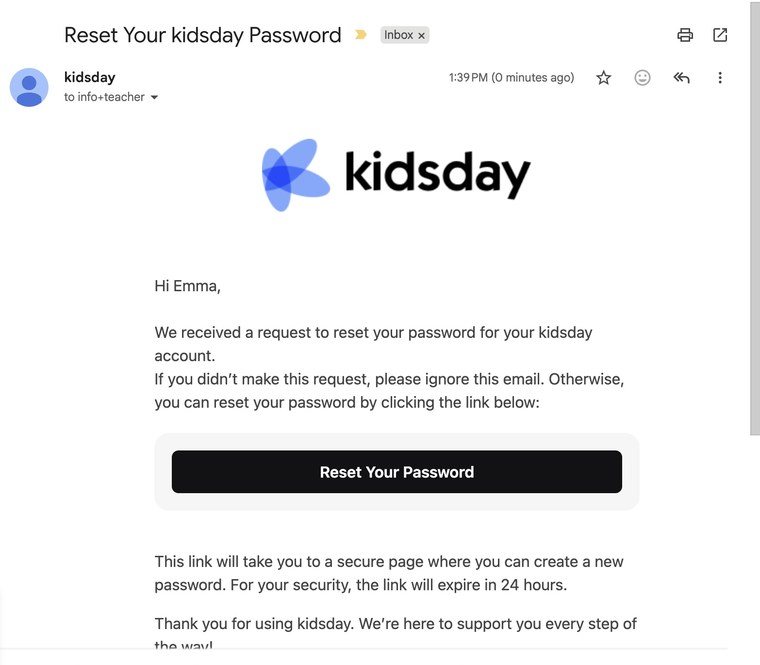
- Open the email Reset Your kidsday Password and tap Reset Your Password. The link is valid for 24 hours.
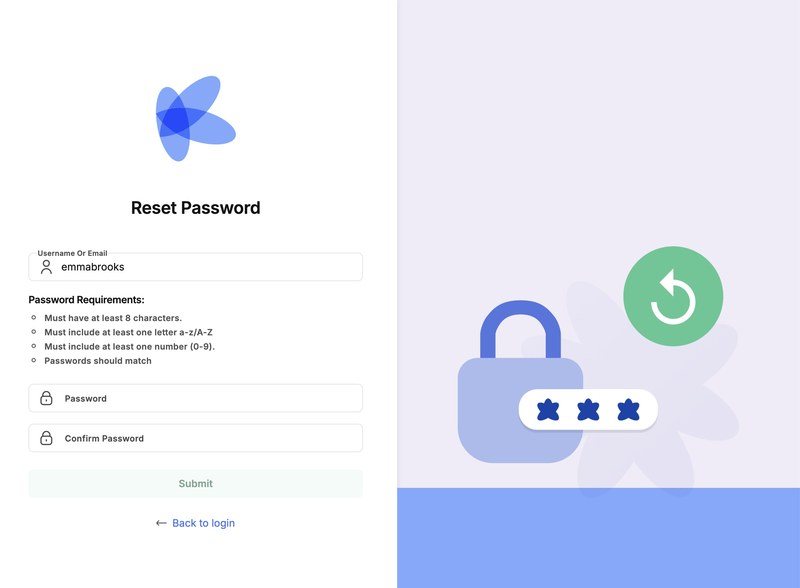
- The reset page opens in your browser with your username already filled in.
- Enter the new password twice. It needs at least 8 characters, with a letter and a number.
- Tap Submit.
Go back to the app and log in with your username or email and the new password.
Tip: The app asks for at least 6 characters when you first set a password, but the reset page asks for 8. Choose 8 or more and it works in both places.


