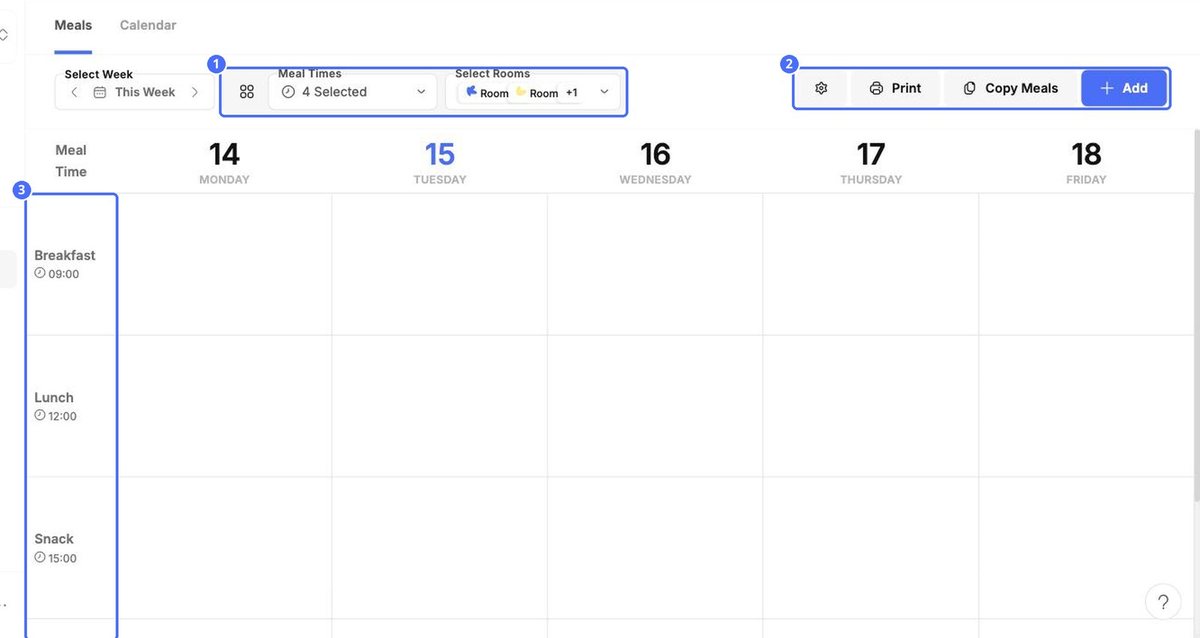
The Meals tab shows the week's menu, with one row for each meal time, such as Breakfast, Lunch and Snack.
- Click Add.
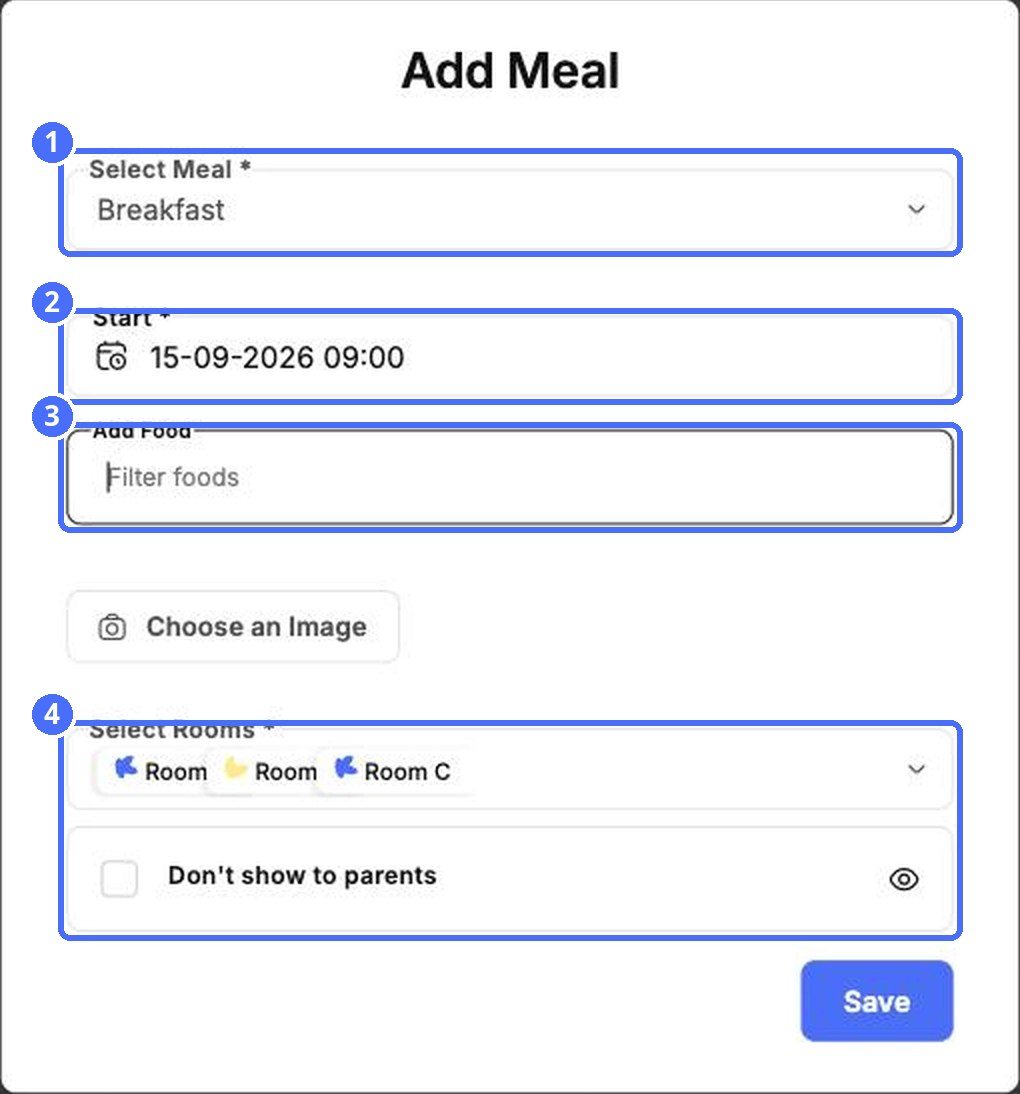
- Under Select Meal, choose the meal. Its usual time fills in automatically. Click Add New to create another meal.
- Check the Start date and time.
- Under Add Food, type to find the foods and add them.
- Add an image if you like, and check the rooms under Select Rooms.
- Tick Don't show to parents to keep the meal for staff only.
- Click Save.
- Print prints the week's menu, for example for the notice board.
- Copy Meals copies the menu to other weeks.
- Meal Times and Select Rooms choose what the grid shows.
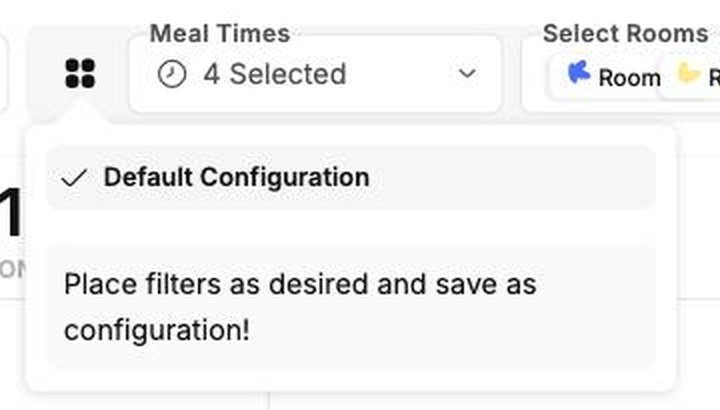
Save a view
Click the grid button next to Meal Times to switch between saved views. Set the filters the way you like and save them as a configuration, so you can return to them in one click.