
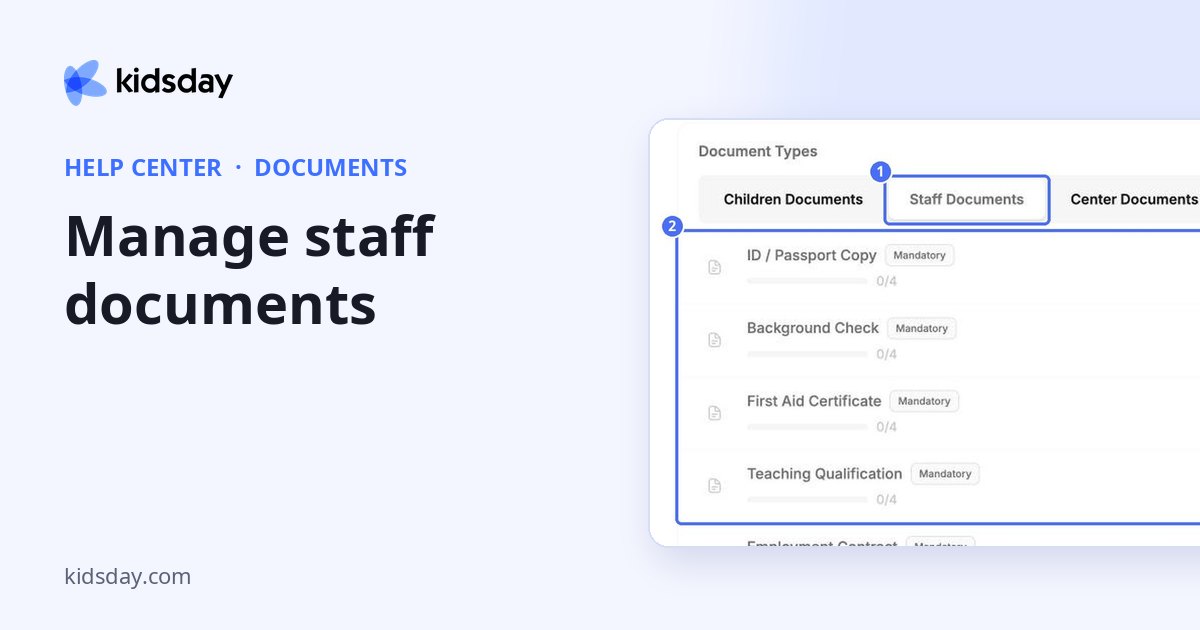
Staff documents keep track of the paperwork each team member needs, such as an ID / Passport Copy, a Background Check or a First Aid Certificate.
See which staff documents are missing
- In the left menu, click Documents.
- On the Overview tab, under Document Types, click Staff Documents.
- Each type shows how many staff members have a valid document (for example 0/4) and how many are missing.
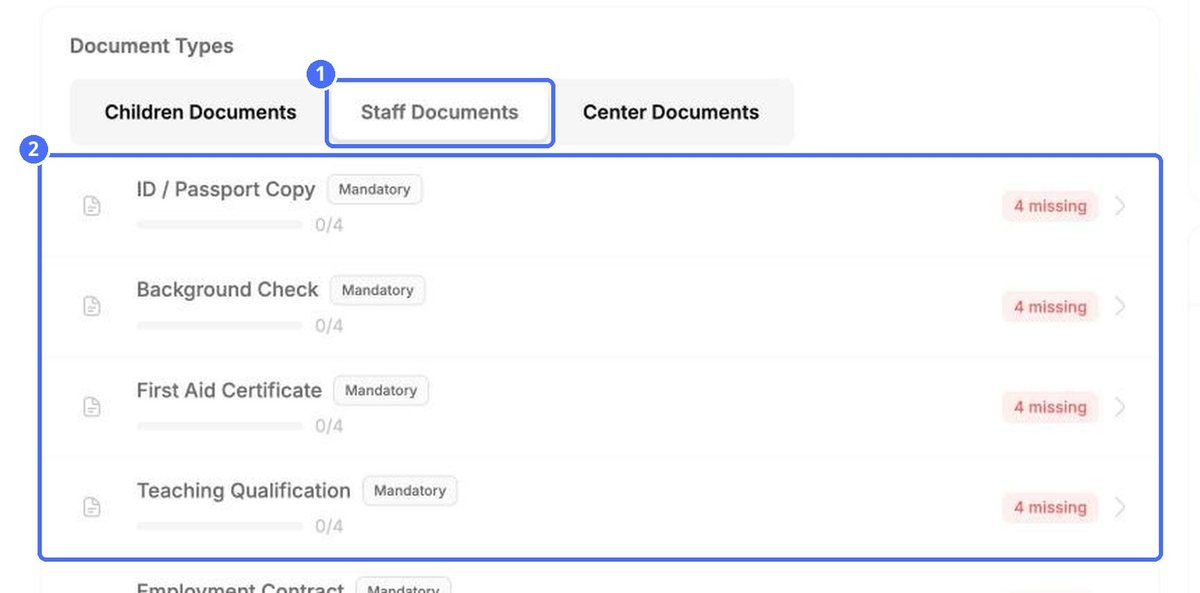
Click the arrow on a document type to see the status of every staff member for that type.
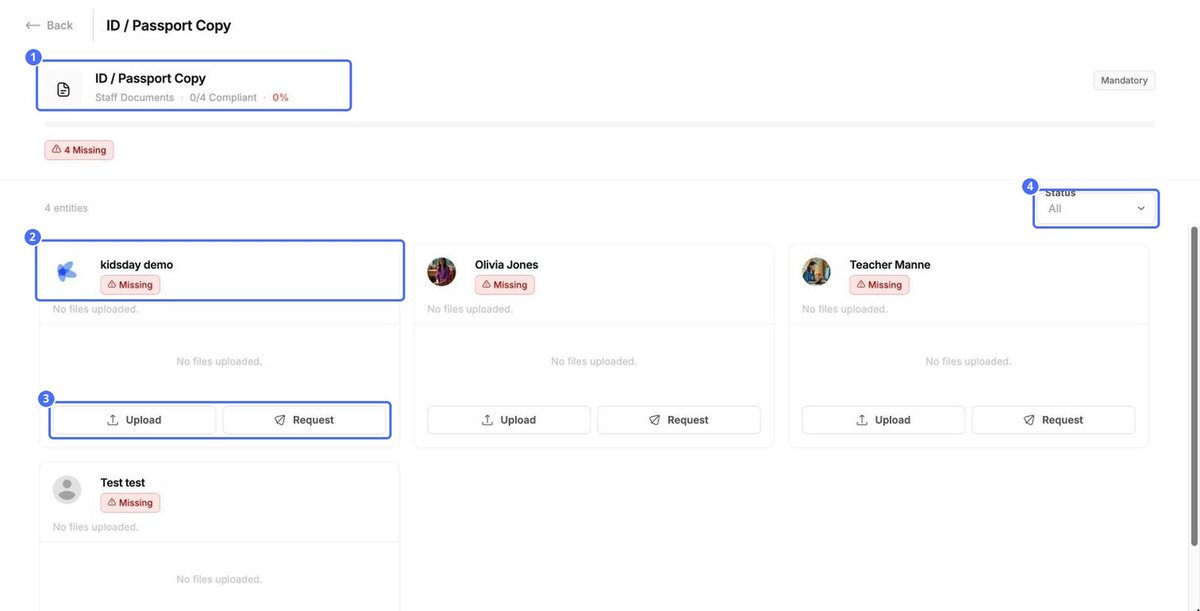
- Upload adds the file yourself.
- Request asks the staff member to upload the document.
- Use the Status filter to show only missing, expiring or pending documents.
Check a staff member's record
- Open the Records tab and click Staff Documents.
- Search by name or use the filters, for example Missing or Expiring Soon.
- Click a staff member's card to see all of their document types.
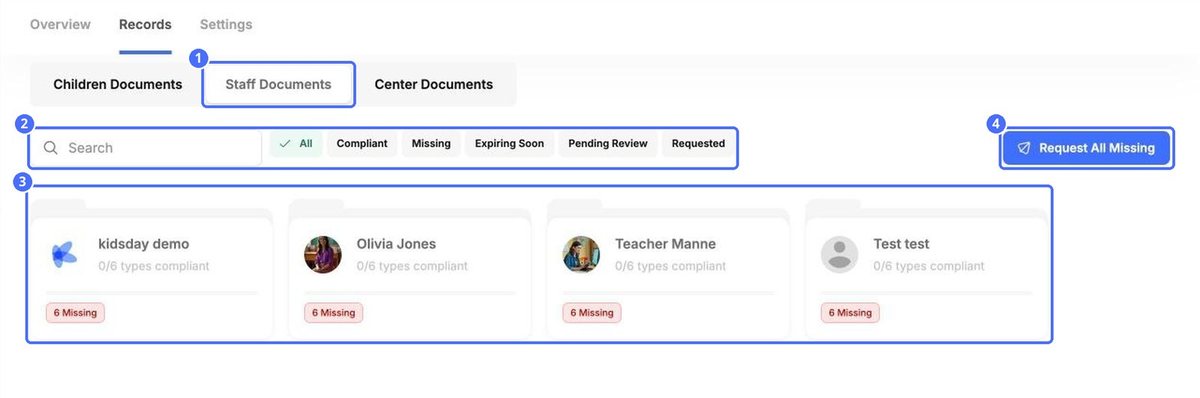
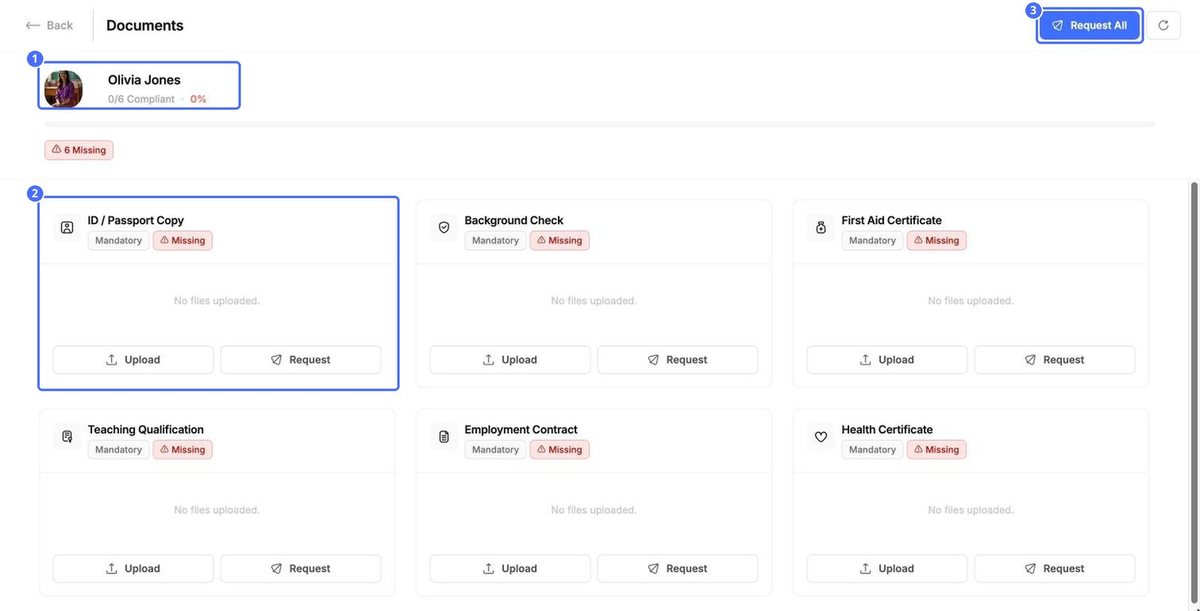
Request All asks the staff member for every missing document at once. On the list, Request All Missing does the same for your whole team.
Choose which documents your staff need
On the Settings tab, click Staff Documents. Switch a type on or off, mark it as Mandatory, check its Expiry and click the gear to edit it. For details, see “Set up document types, expiry and upload forms”.
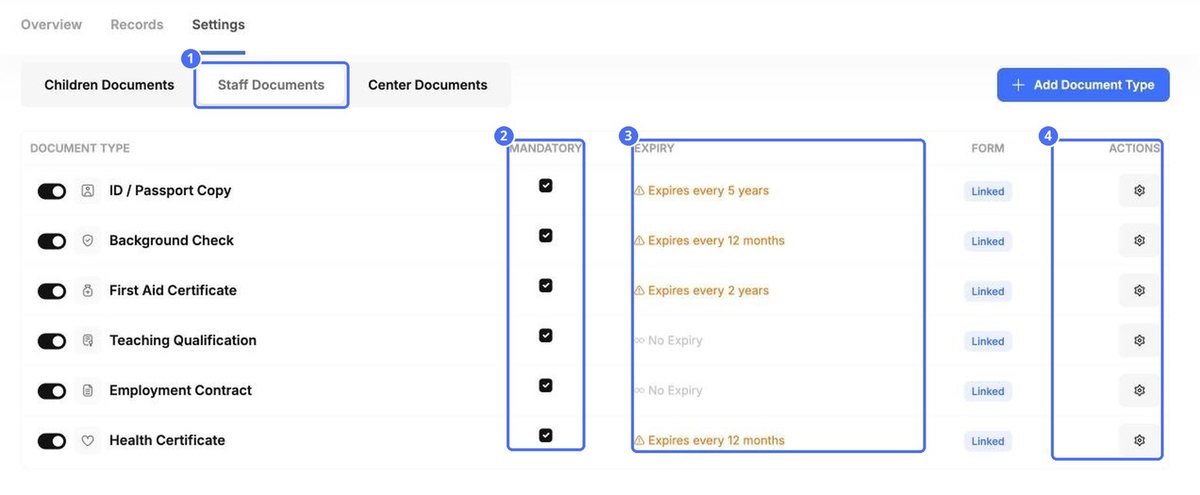
Tip: Documents with an expiry, such as Expires every 12 months, show up under Expiring Soon on the Overview before they run out, so you can ask for a new copy in time.


