
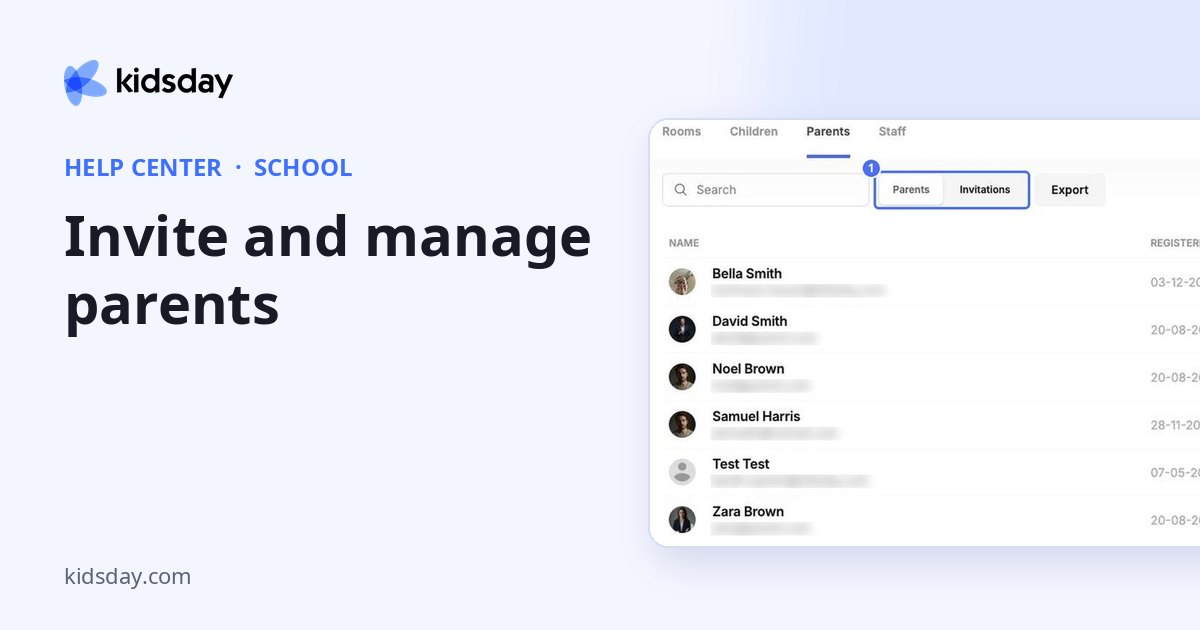
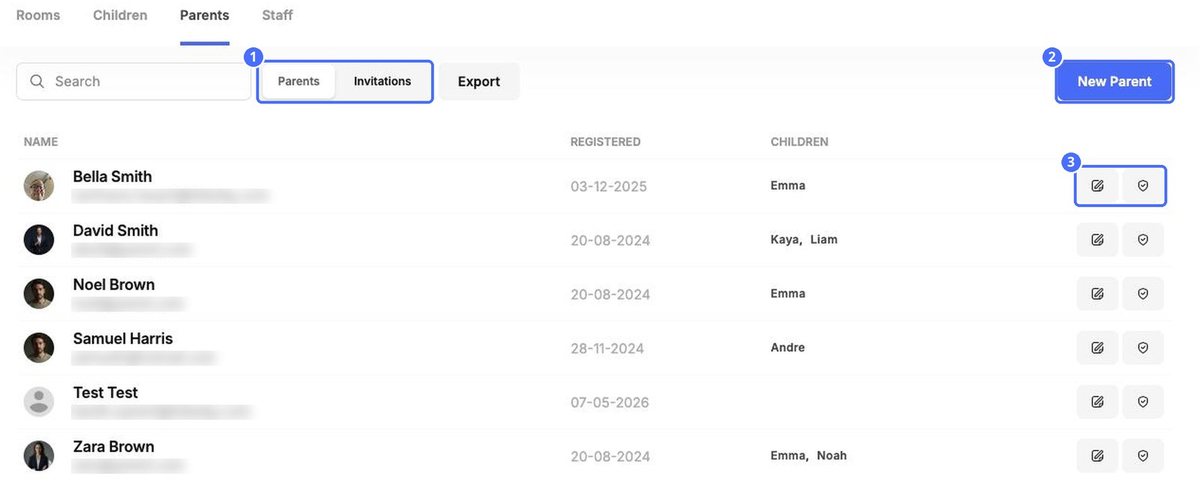
School › Parents lists every parent, guardian and relative with access to your center, when they registered and which children they're linked to.
Invite a parent
- Click New Parent.
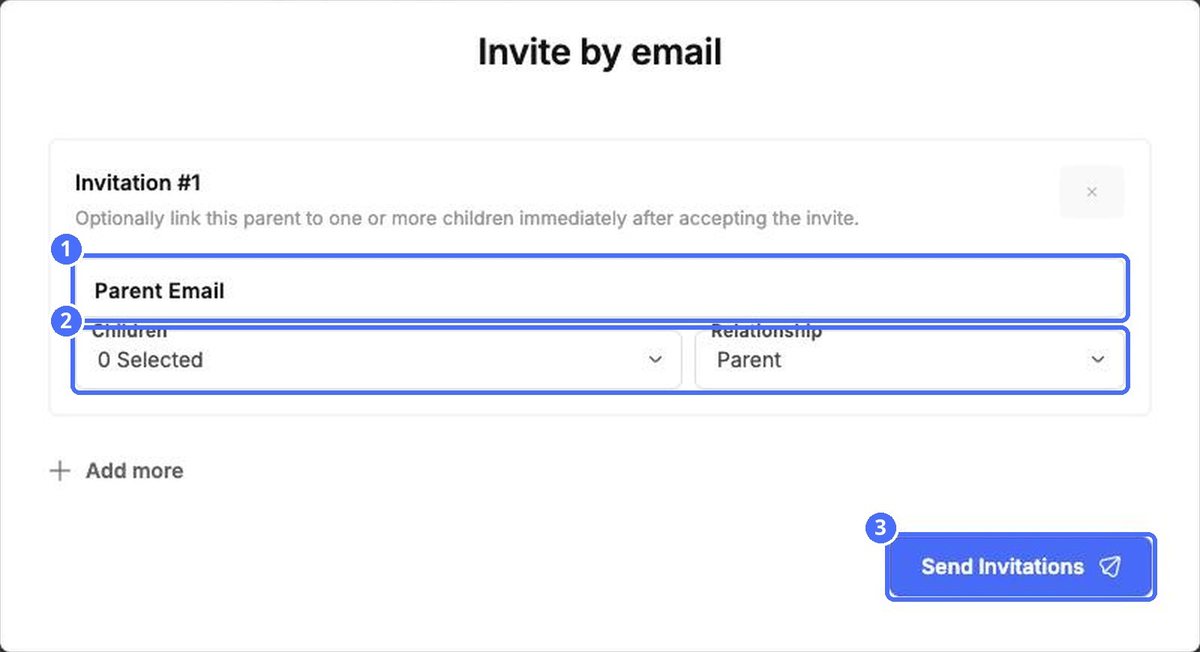
- Enter the Parent Email.
- Optionally choose the Children to link and the Relationship: Parent, Guardian or Relative. The link is made as soon as the invitation is accepted.
- Click Add more to invite several people at once, then Send Invitations.
Open the Invitations view to see invitations that haven't been accepted yet, and join requests from parents.
Link a parent to children
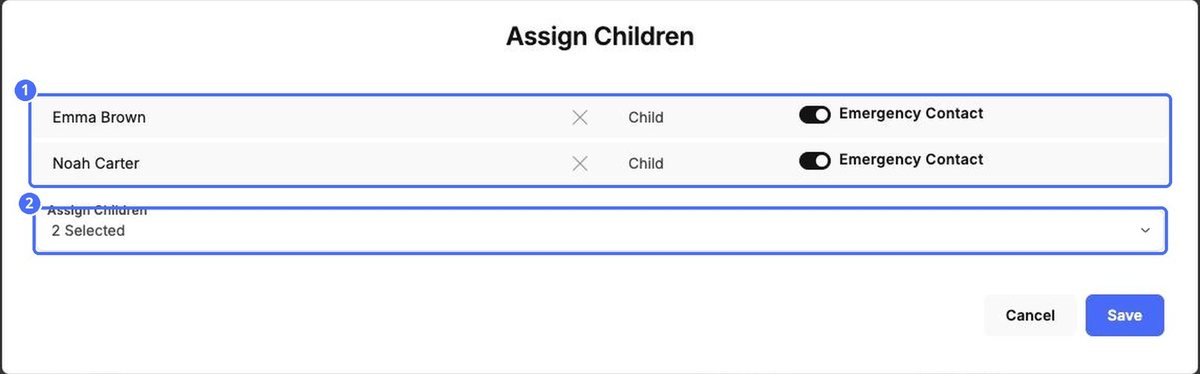
Click the Assign Children icon on a parent's row. Add or remove children, and use the Emergency Contact switch to mark whether this parent should be called for each child. Click Save.
Security and access
Click the Security icon on a parent's row.
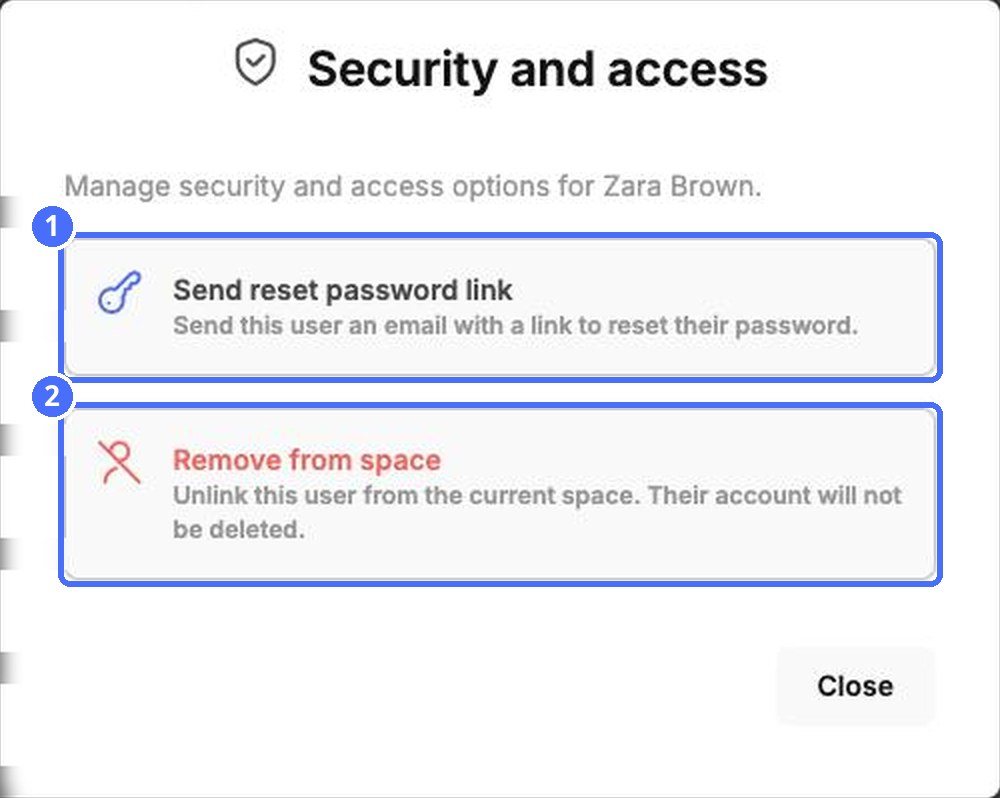
- Send reset password link emails the parent a link to choose a new password.
- Remove from space unlinks the parent from your center. Their kidsday account itself isn't deleted.


