Check a child in
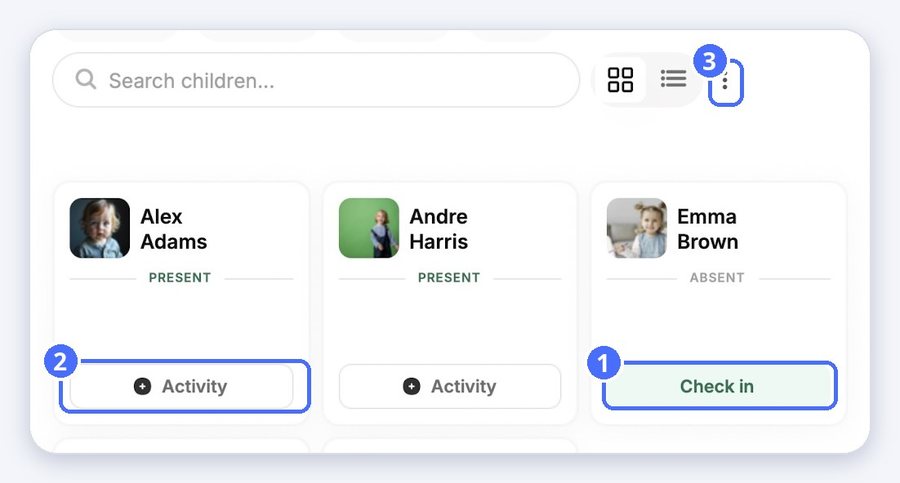
- On the Children screen, find the child. You can filter by Absent or Pending.
- Tap Check in on the child's card.
- A confirmation shows that the check-in was saved, and the child's status changes to Present.
Check all children in or out
- Tap the ⋮ menu next to the view buttons.
- Tap Check all in to mark the selected children as present, or Check all out to mark them as left.
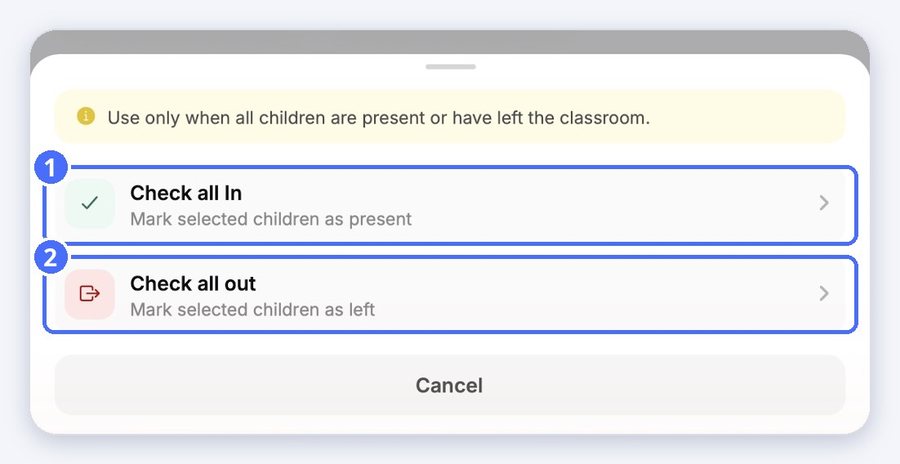
Tip: Use these only when all children are present or have left the classroom.
Check a child out
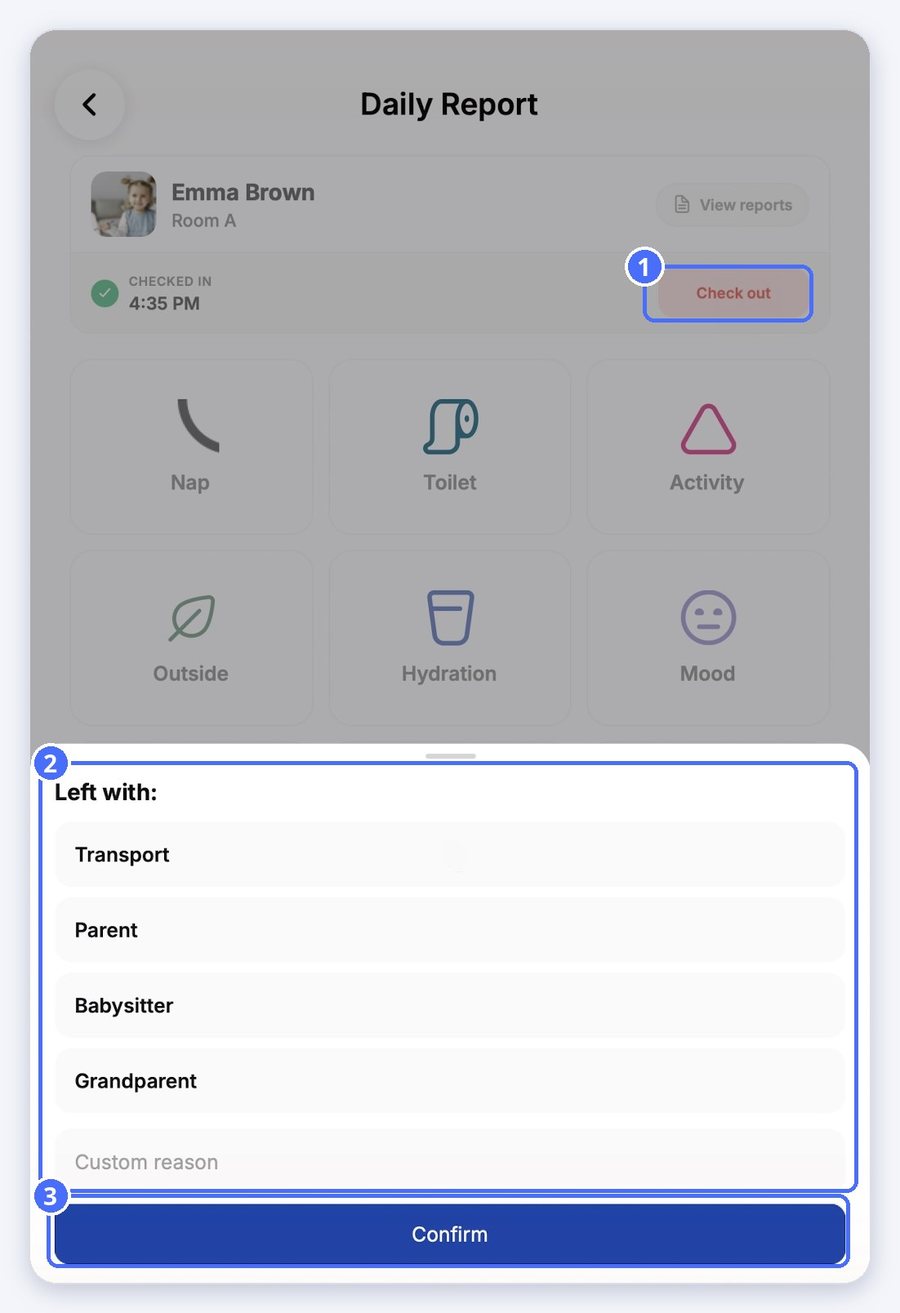
- Tap Activity on the child's card to open their daily report.
- Tap Check out.
- Under Left with, choose Transport, Parent, Babysitter or Grandparent, or type a custom reason.
- Tap Confirm.