
Selecting anyone in HR › Staff opens their profile. It answers the questions that come up about a single person: how much leave do they have left, what paperwork is outstanding, which rooms do they teach, and how are they doing.
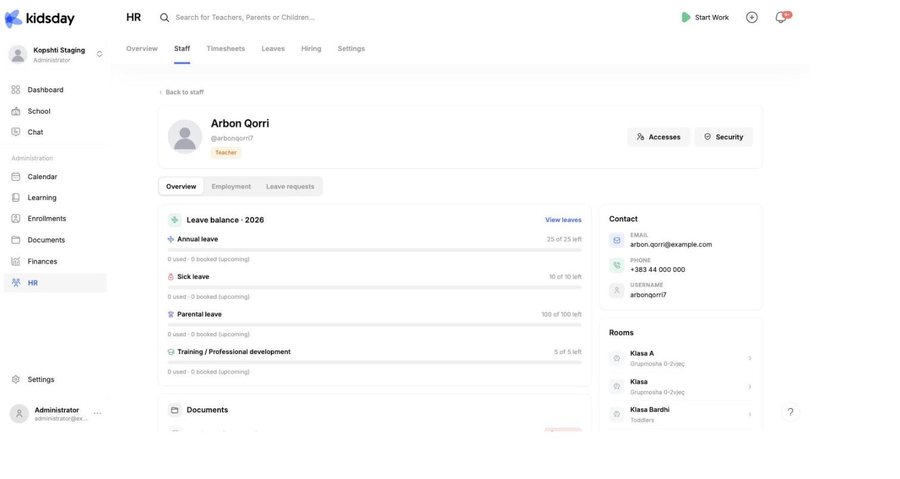
The header
The name, the username and the role badge, plus two buttons:
- Accesses — change what this person may see and do: their role, and the rooms it applies to.
- Security — the account side: login verification and sessions.
Leave balance
One row per leave type you have enabled, each with a bar: “25 of 25 left” above, and “0 used · 0 booked (upcoming)” below. Booked is leave that is already approved but has not happened yet — it is subtracted, so the number you see is what is genuinely still available. View leaves opens this person's history.
Note: A leave type with no allowance is unlimited and shows no bar — unpaid leave usually works this way.
Documents
The document types your center requires from staff, each with its status. Missing means it has never been uploaded; an expiry date that has passed is flagged too. Manage in Documents → opens the full record, where you can upload a file or request it from the person.
Actions & streaks
The activity card: a level, total points, the current and longest streak, and how much of this month's required work is done. Underneath, a last 30 days heatmap marks each day as On streak, Below target or Closed.
Tip: Read this as a prompt to have a conversation, not as a score. A run of Below target days usually means a room was short-staffed or someone was covering — the heatmap shows you where to ask.
The sidebar
- Contact — email, phone and username.
- Rooms — each room with its age group. Select one to open it.
- Employment — the contract terms, or No employment record yet with an Add details button. Administrators only.
- This week — hours logged so far, measured against the contracted hours if they are set.
The other two tabs
- Employment — the contract terms and the signature flow, visible to administrators only. See Employment records and contracts.
- Leave requests — everything this person has asked for, and what was decided.


