
Leave in kidsday always starts the same way, whoever books it: pick the person, pick the type, pick the dates. What happens next depends on the leave type — some need approval, some are approved automatically.
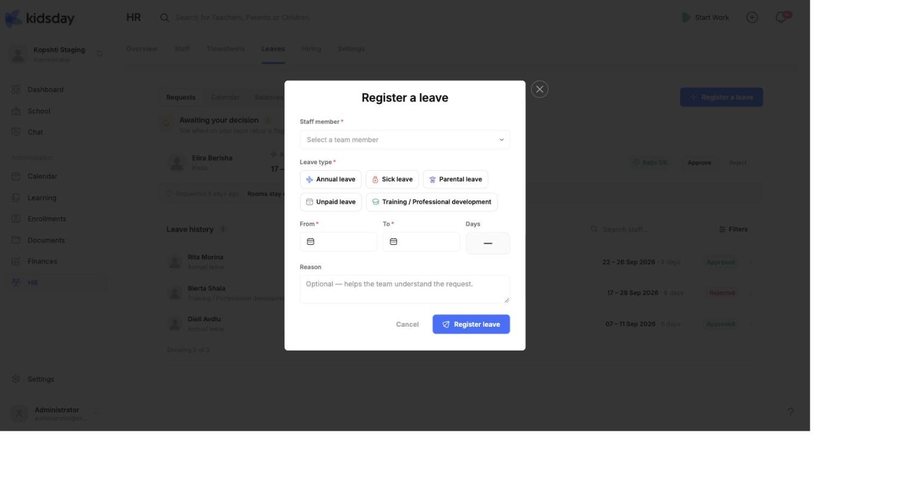
Register a leave for someone
- Go to HR › Leaves and select Register a leave. The same button sits on the Overview.
- Choose the staff member.
- Choose the leave type — the pills show every type you have enabled, each in its colour.
- Set From and To. The Days box works out the length for you.
- Add a Reason if it helps the team. It is optional.
- Select Register leave.
How days are counted
The Days figure is not simply the span between the two dates. kidsday skips the public holidays you have installed for that year, so a week that contains a bank holiday costs four days of the allowance rather than five. Setting those up is covered in Set up leave types, allowances and holidays.
When staff request their own leave
Teachers ask for leave from the staff app or from their own profile on the web. The request lands in the Requests queue in HR, and on the Overview as “… asked for leave” with a Review button. Until someone decides, it counts as pending.
Note: A pending request already appears on the leave calendar, marked PENDING. That is deliberate — you can see a clash coming before you approve anything.
Approved straight away, or waiting for a decision
- Leave types with Requires approval switched on go into the queue and wait.
- Types without it are approved the moment they are registered. Sick leave is often set up this way, so that nobody has to wait for a manager while they are ill.
Supporting documents
A leave type can require a supporting document — a medical note, for instance — either always, or only once the absence runs past a set number of days. The rule appears under the type's name in Settings, for example “Document required after 3 days”.
What the team sees
- Leaves › Calendar — who is away this week, as bars across a staff-by-day grid.
- Timesheets — the leave chip on the day, in place of hours.
- The staff profile — the balance drops, with the approved future days counted as booked.
Tip: Booking known absences early — school holidays, a planned operation, a training week — is what makes the ratio warnings useful. kidsday can only warn you about clashes it can see.


