
Every teacher has a personal kidsday account. You create it once, then use it in the kidsday for Staff app and on the web. Your center is added afterwards, either by joining it or through an invitation, so create the account first.
Register
- Install kidsday for Staff from the App Store or Google Play and open it.
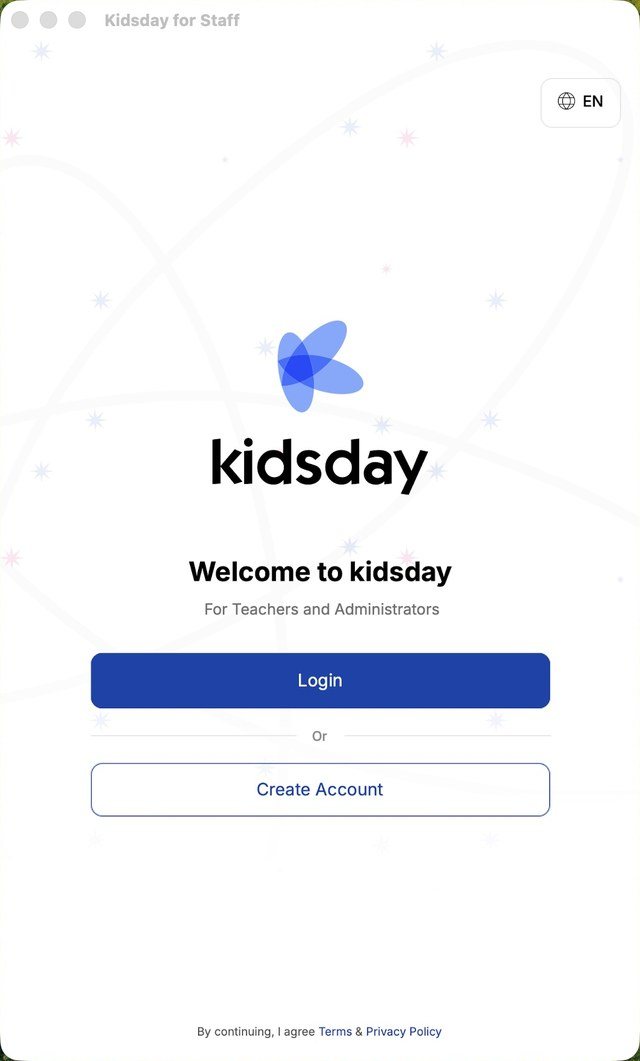
- On the welcome screen, tap Create Account. Tap Login instead if you already have a kidsday account.
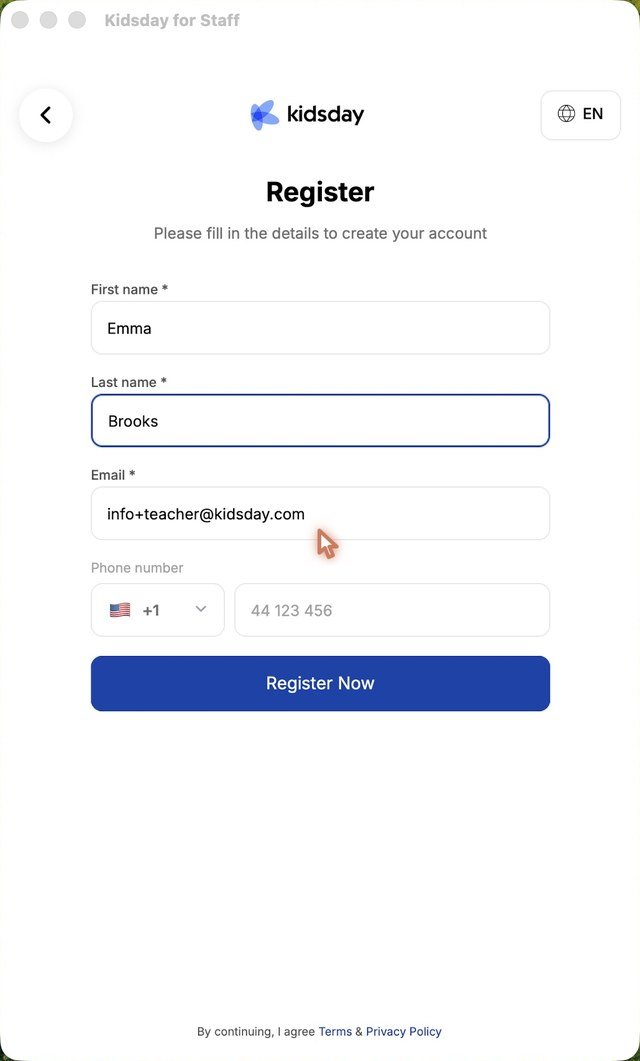
- Fill in your first name, last name and email address. The phone number is optional.
- Tap Register Now.
Tip: Use the email address your center knows you by. If your center invites you by email later, the invitation must be accepted with that same address.
Confirm your account
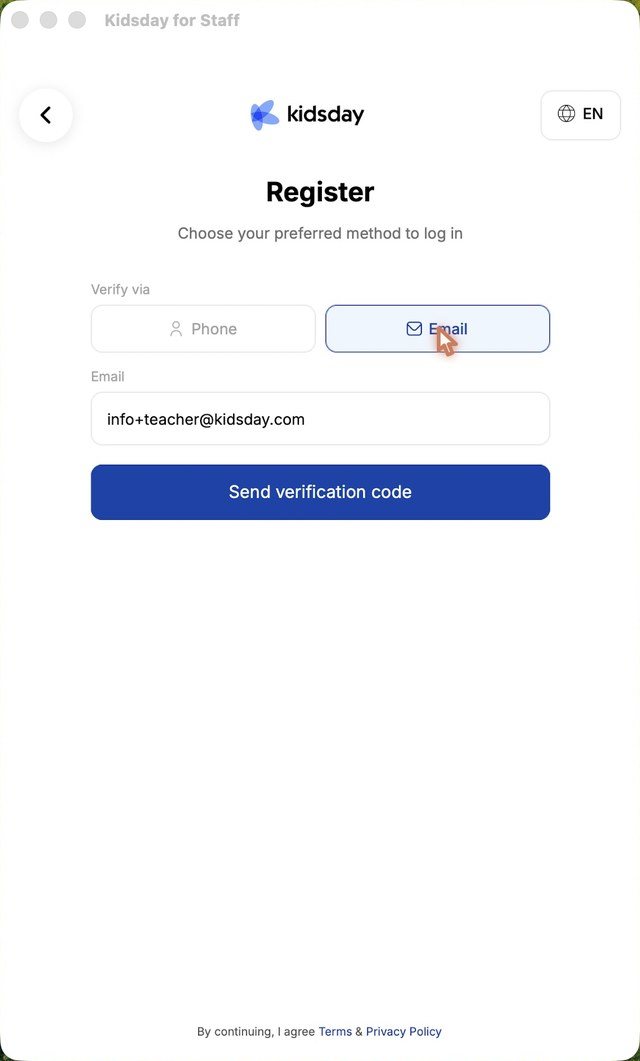
- Choose how you want to receive the code: Verify via Phone or Verify via Email.
- Tap Send verification code.
- Type the 6-digit code from the message. The app continues by itself once the code is complete.
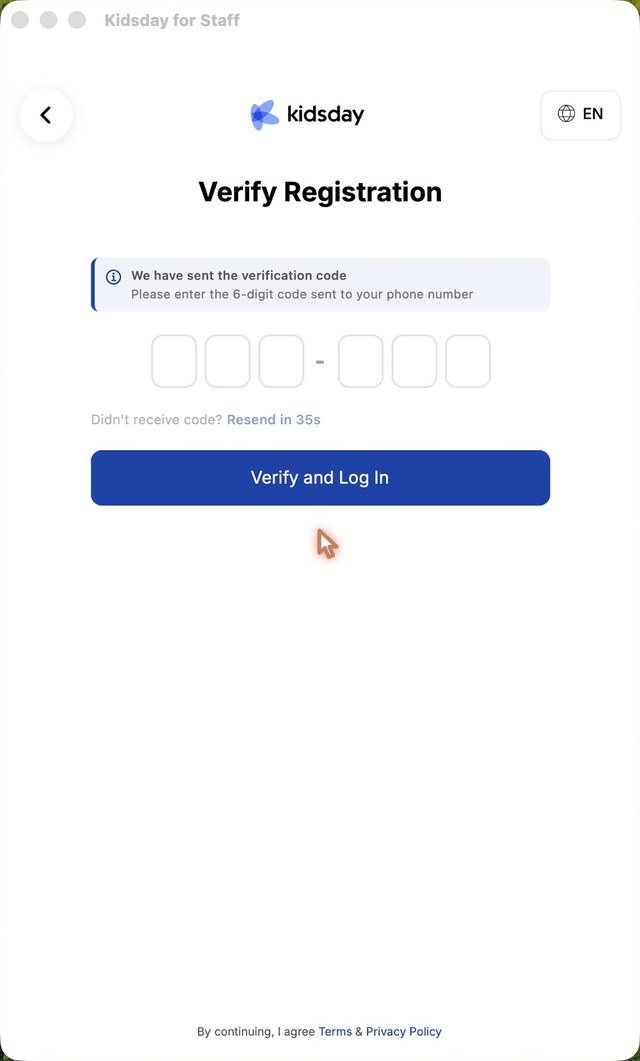
Note: The code expires after 5 minutes. If it doesn't arrive, check your spam folder and request a new one.
Set your password
- Enter a password of at least 6 characters, with letters and numbers.
- Repeat it in the second field and tap Continue.
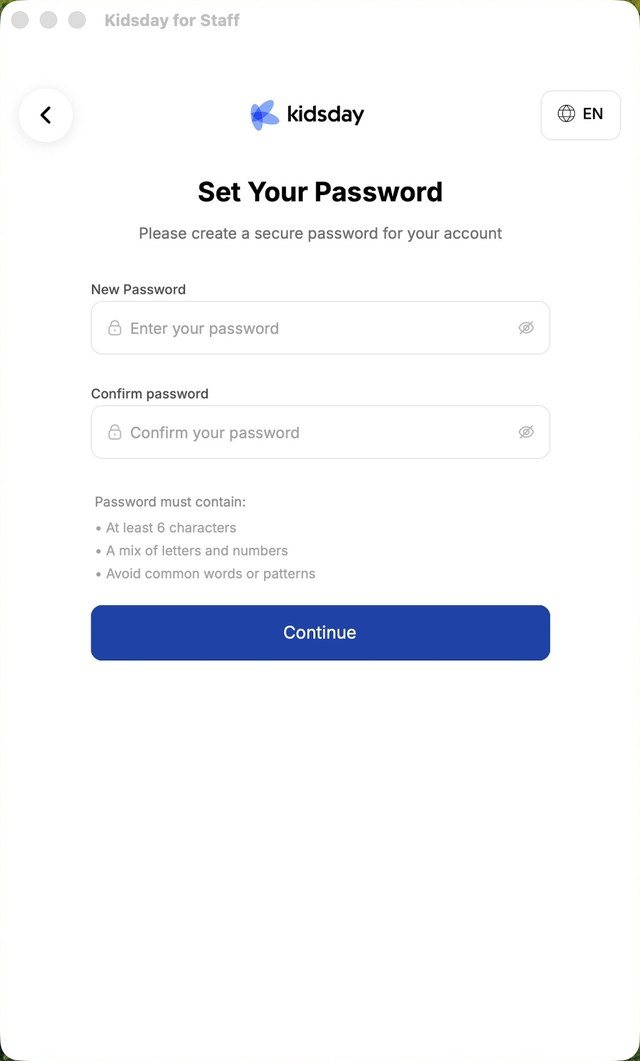
Your account is ready. The app then asks you to join an institution or set up your own, which the next topics cover.
Tip: You can log in without a password at any time with a code sent to your email or phone. See Log in without a password.


