Once your account exists, you connect it to the center you work at. There are two ways in: you find the center yourself, or your center invites you by email. Create your account and install the app first — both ways end in the app.
Note: If your center is not on kidsday yet, or you teach your own class, you can create your own space instead — see Set up kidsday for your own class (no school account).
Find your center
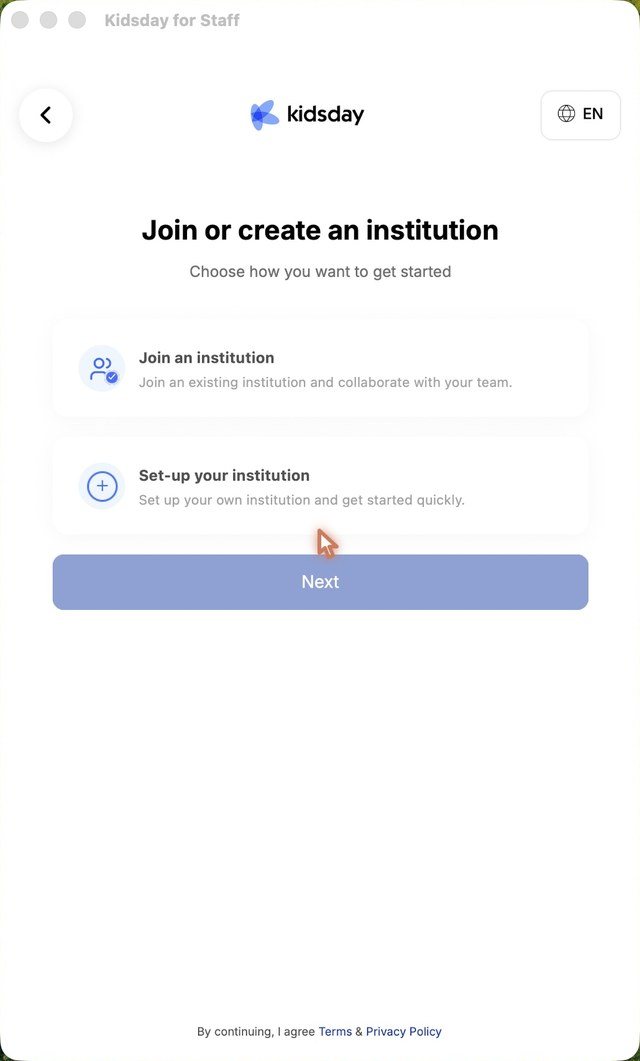
- On Join or create an institution, choose Join an institution and tap Next.
- Search for your center by name.
- Tap it, then confirm with Join.
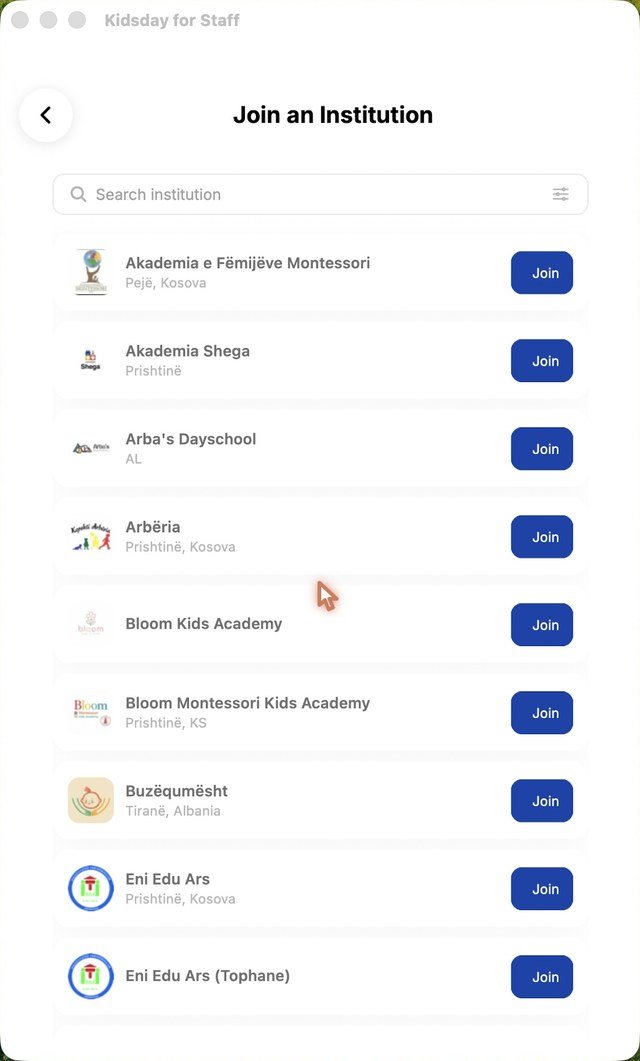
Note: Only centers that have turned on discovery appear here. If yours doesn't show up, ask them to invite you by email instead.
Accept an email invitation
- Your center sends the invitation to your email address. Open it and tap View Invitation.
- The invitation opens in your browser. Sign in with the invited email address, or create your account if you don't have one yet.
- Check the center and the role on the invitation, then tap Accept Invitation.
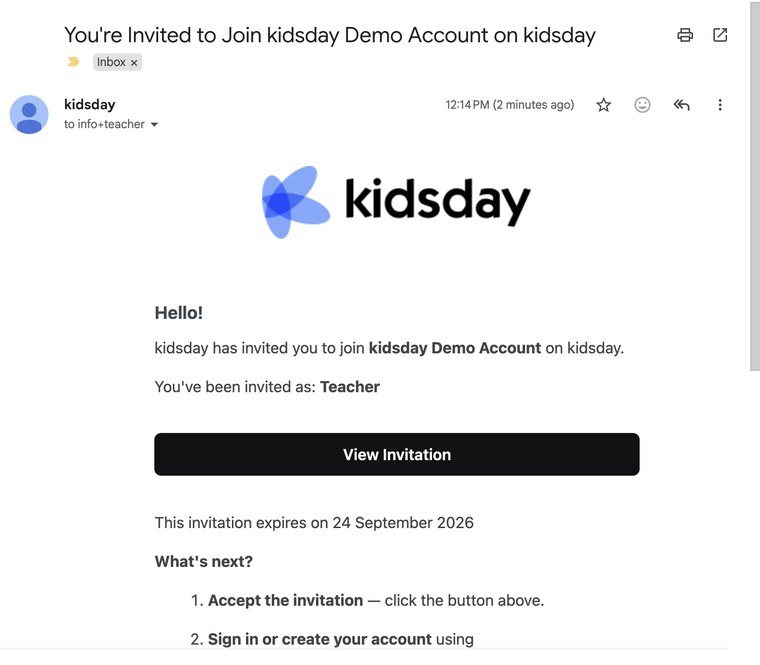
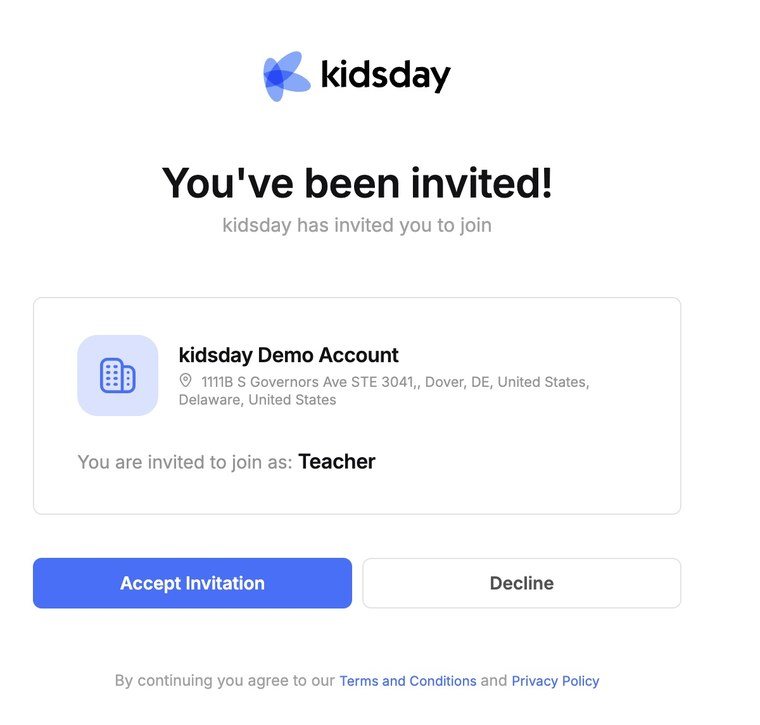
The staff app picks the change up by itself and opens your room. Your administrator decides your role and which rooms you see.
Tip: An invitation expires after 7 days and has to be accepted with the email address it was sent to. Your center can resend it from School › Staff › Invitations.
Working in more than one center
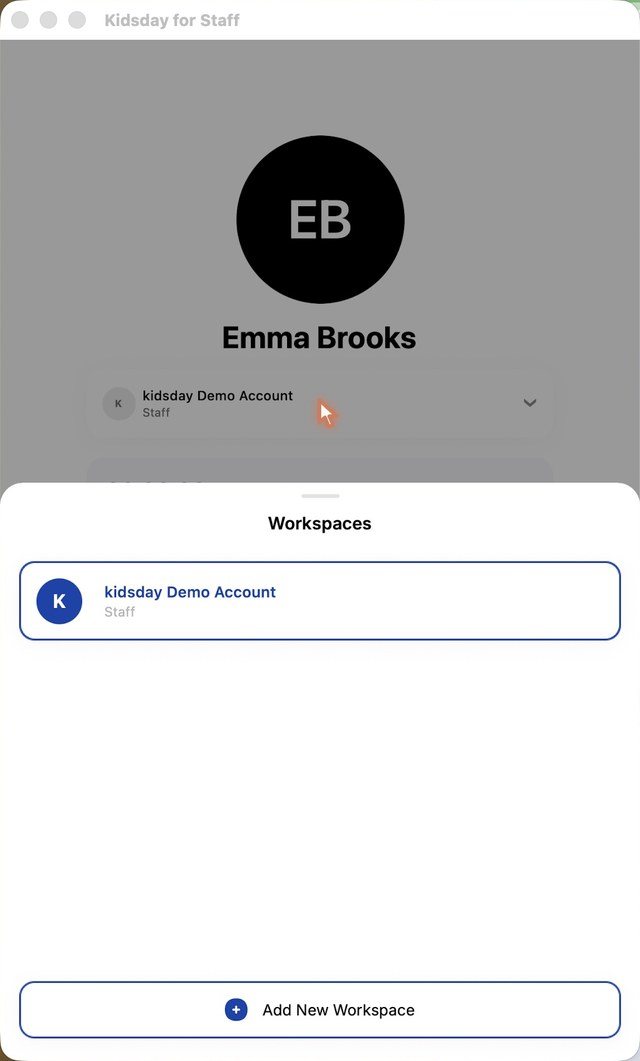
- Open Profile and tap the center card at the top to see your Workspaces.
- Tap another center to switch to it.
- Tap Add New Workspace to join or create another one.