
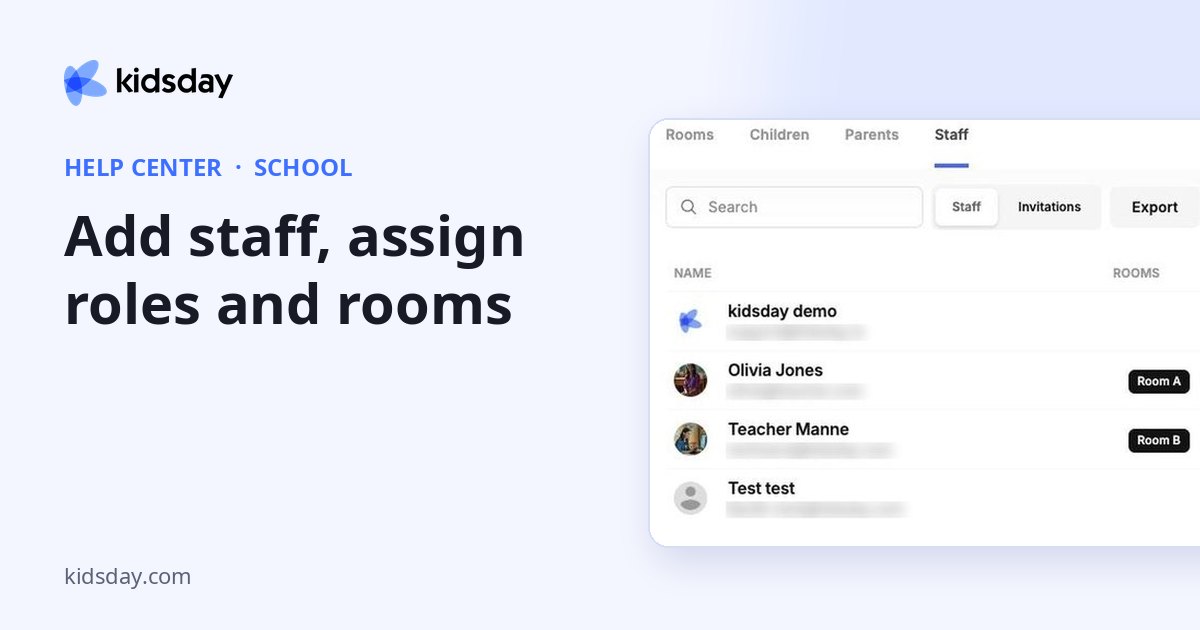
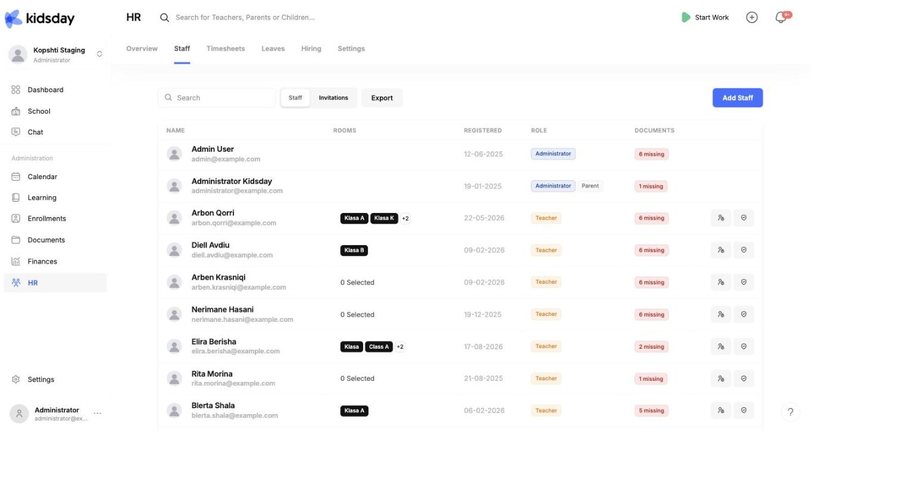
Your team used to live under School › Staff. It now lives under HR, a module that gathers everything about the people who work at your center — the staff list, their working hours, their leave, their employment records and your open job positions.
Note: This page is kept so that old links keep working. Everything it used to explain is covered by the HR topics below.
Where each part went
| What you want to do | Where it is now |
|---|---|
| See the staff list, roles and rooms | HR › Staff |
| Invite a colleague | HR › Staff › Add Staff |
| Change someone’s role, rooms or permissions | the staff profile, Accesses |
| See who is missing documents | the Documents column on HR › Staff |
| Record hours worked | HR › Timesheets |
| Approve leave | HR › Leaves |
| See which rooms are short-staffed today | the Room coverage today card on the HR Overview |
Start here
- Add staff, assign roles and rooms — inviting colleagues, roles, rooms and the Documents column.
- HR at a glance — a tour of the whole module.
- The staff profile: leave, documents and activity — everything about one person on one page.
Tip: What stayed in School is the children and the families: rooms, children, parents and age groups. Assigning teachers to a room is still done on the room itself.


