
Approving leave in a nursery is never only about the allowance. The real question is whether the room is still legally staffed that week. kidsday answers it on the request itself, before you decide.
Note: Approving and rejecting leave is administrator-only. Staff and lead teachers can request leave and see the calendar, but the decision sits with an administrator.
The Requests queue
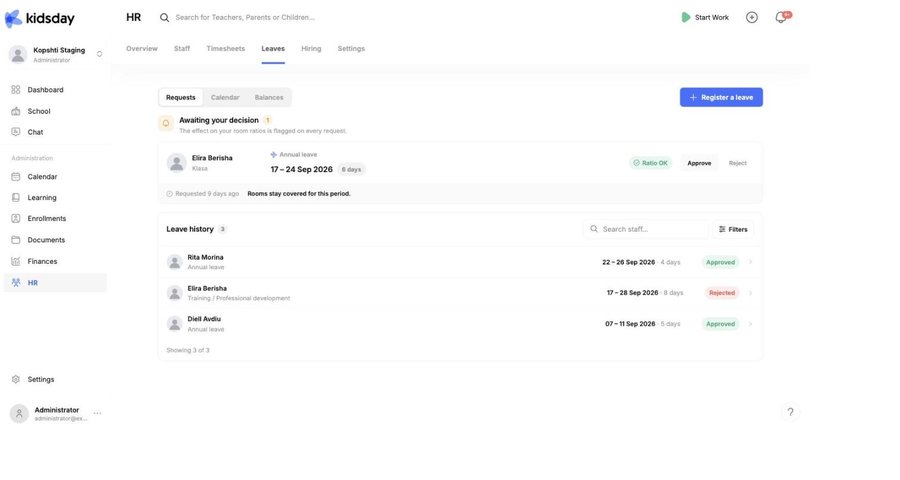
HR › Leaves › Requests opens on Awaiting your decision, with a note that “the effect on your room ratios is flagged on every request.” Each card shows the person, their room, the leave type, the dates, how many days it costs, and how long it has been waiting.
Reading the ratio badge
- Ratio OK — green, with “Rooms stay covered for this period.” Every room this person teaches keeps enough staff on every day of the request.
- A warning instead means at least one room would drop below its ratio on at least one day. kidsday names the room and the days.
- No badge means there is nothing to check — the person teaches no rooms, or those rooms' age groups have no ratio set.
Note: The check looks at every day in the range and at every room the person is assigned to, and it counts leave that is already approved for their colleagues. It is the whole picture, not just a headcount.
Decide
- Read the badge.
- Select Approve to grant the leave, or Reject to decline it.
A warning does not block you. Once you have arranged cover — a bank teacher, someone moving room for the week — approving still works. kidsday's job is to make sure you knew, not to make the decision for you.
Tip: If a warning surprises you, check the room's ratio first. An age group with an over-strict ratio produces warnings for absences that are genuinely fine.
The calendar view
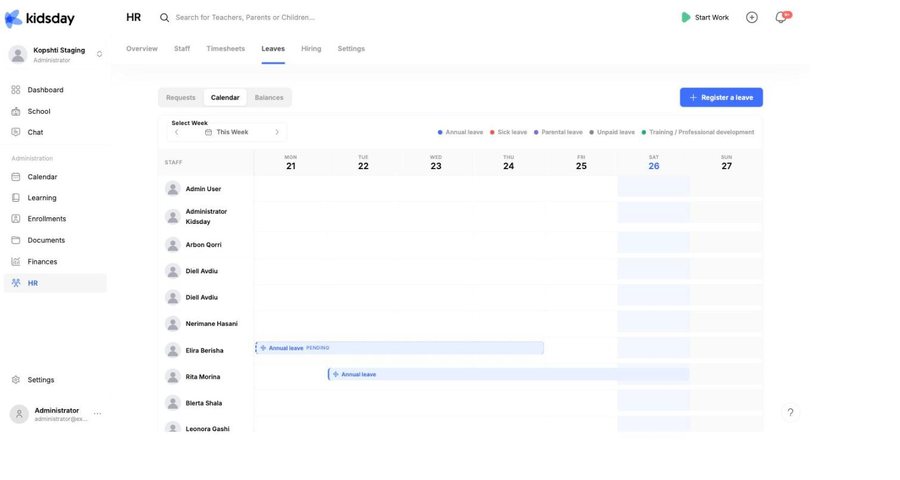
Calendar shows the selected week as a staff-by-day grid, with each absence drawn as a bar in its leave type's colour and a legend along the top. Requests that have not been decided yet are marked PENDING. This is the fastest way to spot two people asking for the same week.
The balances view
Balances is the year in a table: everyone down the side, your leave types across the top, and the days each person has left out of their entitlement. The year stepper moves between years.
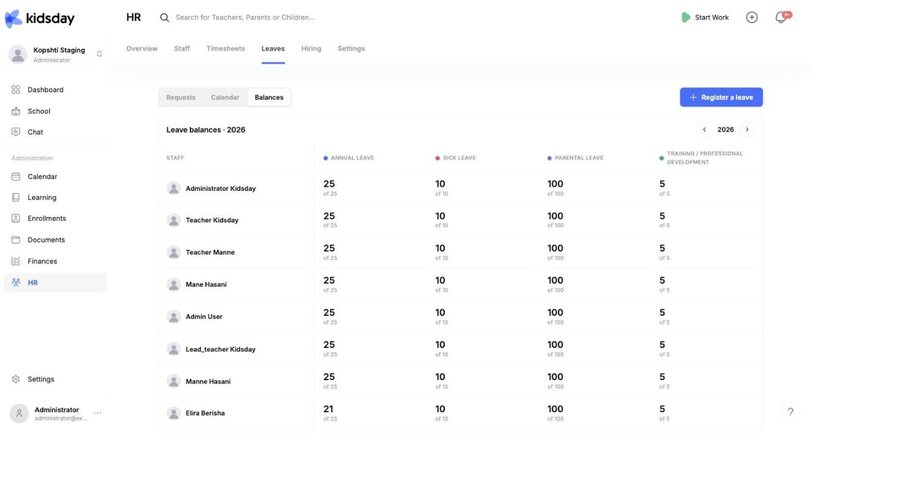
Tip: Look at Balances in the autumn. It shows you who still has most of their allowance, so you can encourage people to book it before any carry-over cap bites.
Leave history
Under the queue, Leave history lists everything already decided, with an Approved or Rejected badge. Search by name or use Filters to narrow it down when somebody asks what happened to a request.


