
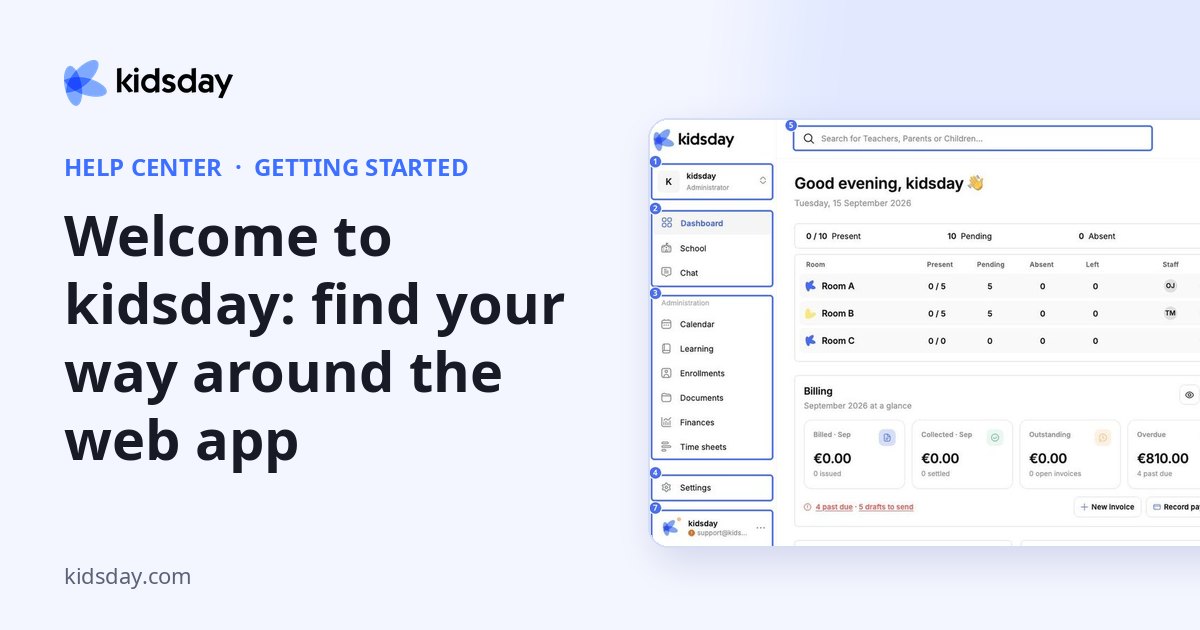
kidsday brings everything a childcare center runs on into one place: rooms and attendance, daily reports, chat with families, planning, enrollments, documents, billing and time sheets. This topic shows you how the web app is organized so you can find each of these quickly.
The layout at a glance
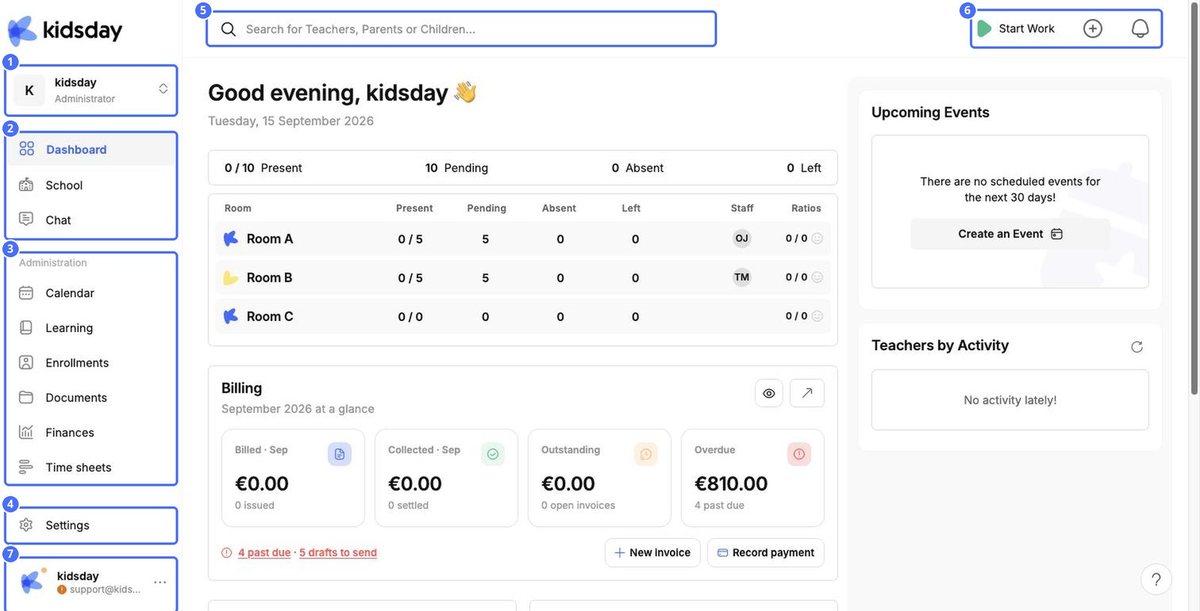
- 1 – Center switcher. Shows the center you're working in and your role (for example Administrator).
- 2 – Main menu. Dashboard, School and Chat: the pages you use every day.
- 3 – Administration. Calendar, Learning, Enrollments, Documents, Finances and Time sheets.
- 4 – Settings. Your center's profile, schedule, messaging rules, invitations and subscription.
- 5 – Search. Find any teacher, parent or child by name.
- 6 – Top bar. Start Work (clock in), the + quick actions menu and the notifications bell.
- 7 – Your account. Your name and email, with a menu for your profile and logging out.
What each menu item is for
| Menu item | What you do there |
|---|---|
| Dashboard | Today's attendance per room, a billing snapshot, upcoming events, new enrollment submissions and document compliance. |
| School | Rooms, children, parents and staff. Check children in and out and write daily reports. |
| Chat | Conversations with staff, families, rooms and custom groups. |
| Calendar | Events, appointments and meetings (Calendar tab) and the weekly menu (Meals tab). |
| Learning | Weekly activity planning, observation forms, the activity library and home activities. |
| Enrollments | Your enrollment form and the pipeline from invitation to enrolled child. |
| Documents | Required documents for children, staff and the center, with compliance tracking. |
| Finances | Billing plans, invoices, payments, balances, expenses and reports (see the Finances topics). |
| Time sheets | Children and staff attendance records, with export. |
| Settings | Center profile, working days and attendance tracking, messages, invitations and subscription. |
Tip: The panel icon next to the kidsday logo hides the sidebar when you need more room, for example in Chat.


