
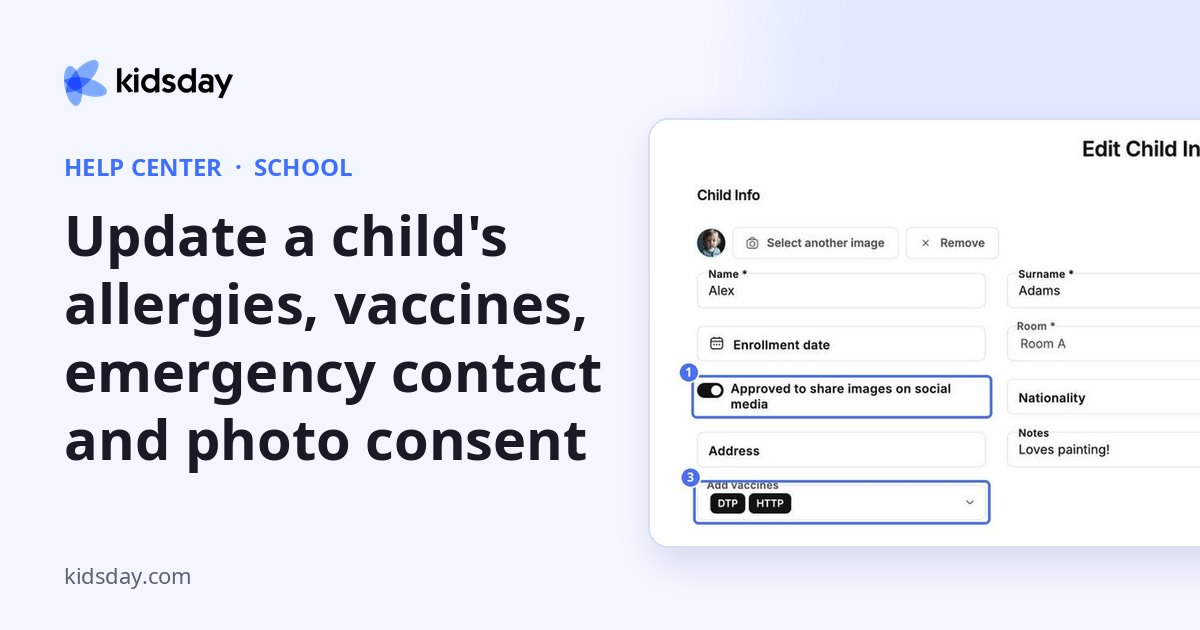
Keep each child's important details up to date so your team always has the right information.
- Go to School › Children.
- Click the pencil next to the child. Edit Child Info opens.
- Make your changes and click Save at the bottom.
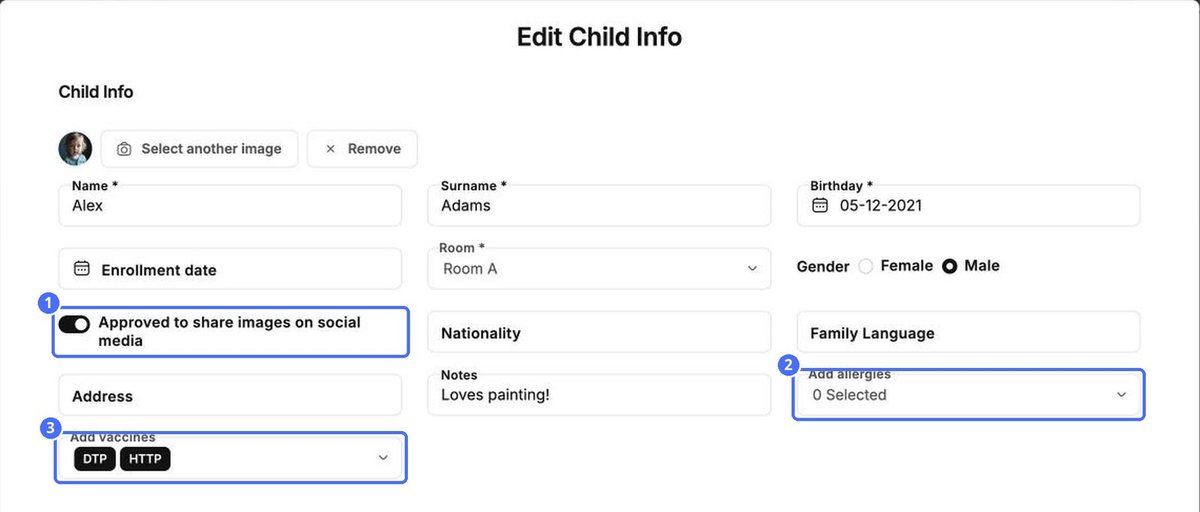
Photo consent
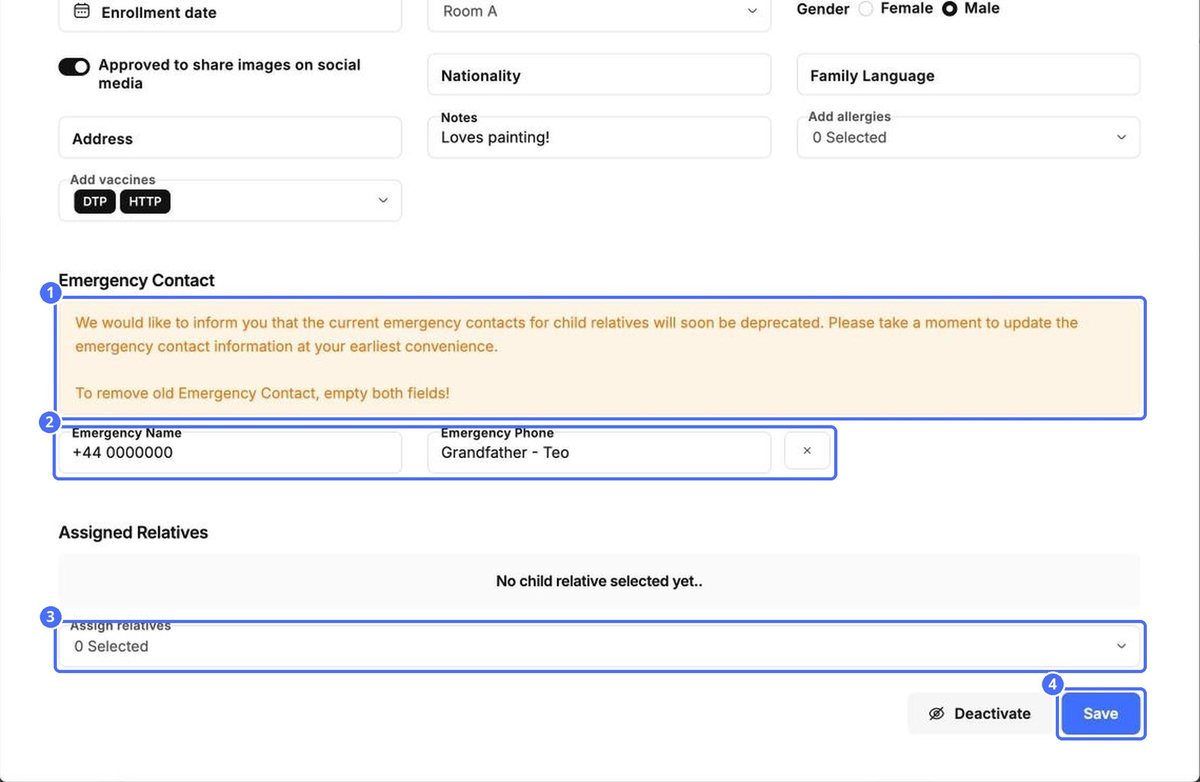
Switch on Approved to share images on social media only if the parents have agreed that photos of their child can be shared.
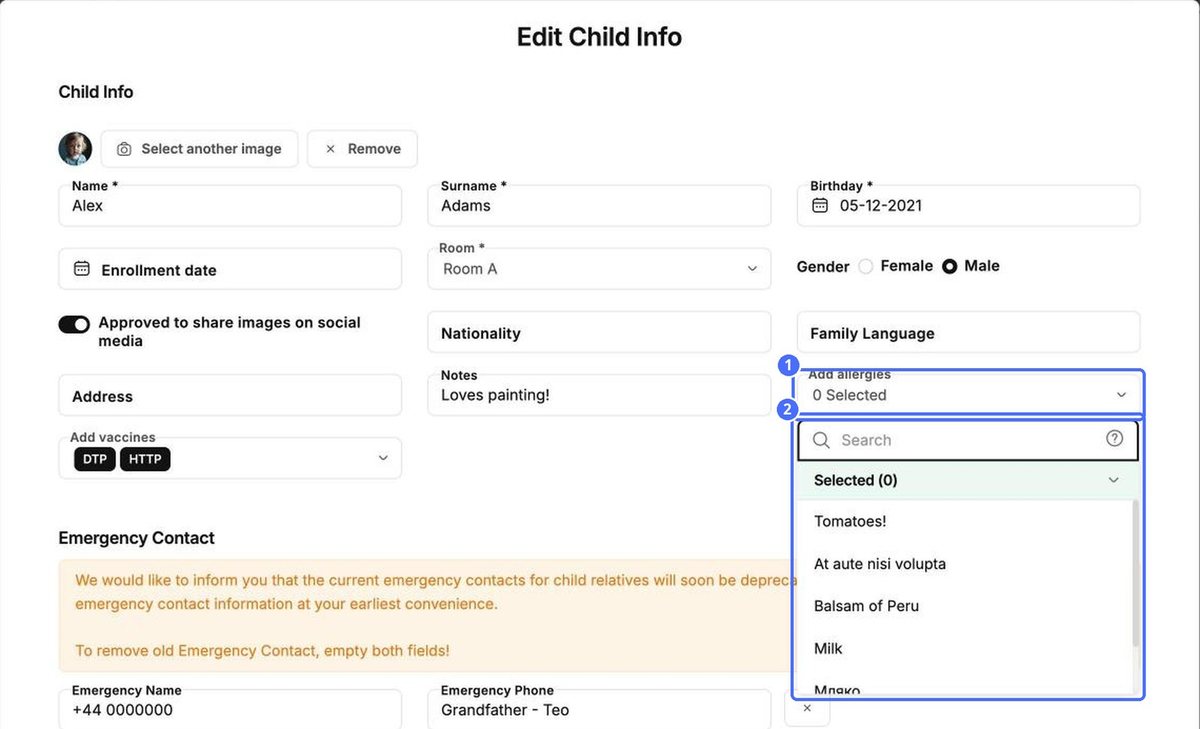
Allergies
Click Add allergies, search for the allergy and tick it. Selected shows how many you have chosen.
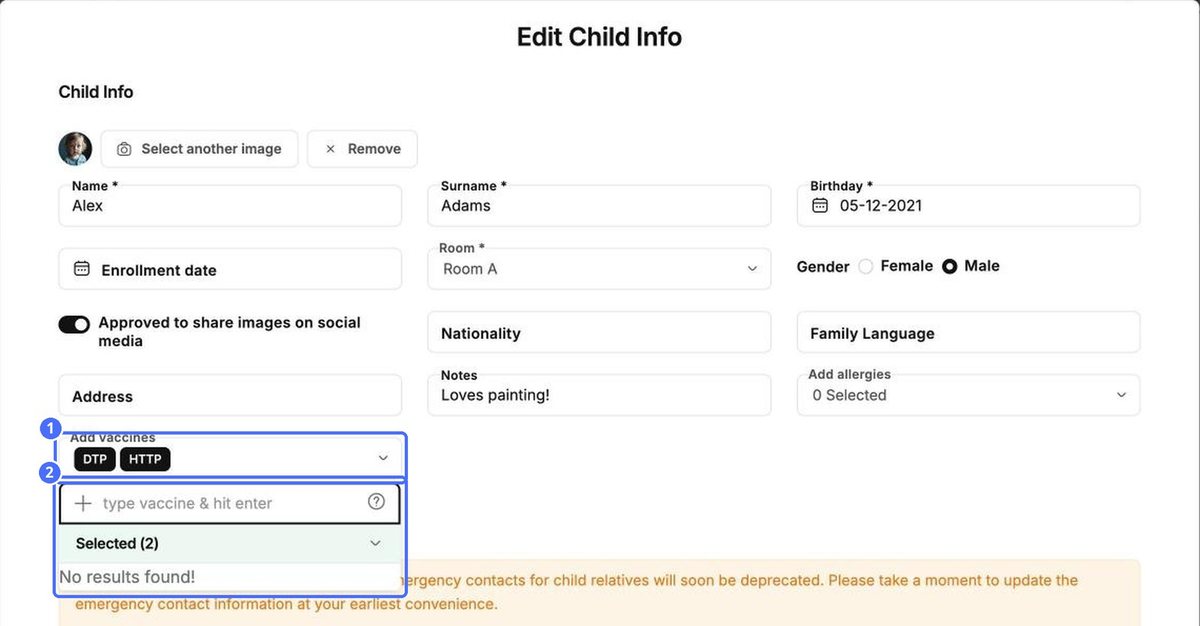
Vaccines
Click Add vaccines, type the name of the vaccine and press Enter. Each vaccine appears as a tag, such as DTP.
Emergency contact and relatives
Scroll down to Emergency Contact. kidsday is moving emergency contacts to the child's relatives, so add the people who can be contacted under Assign relatives. The older Emergency Name and Emergency Phone fields still work; to remove them, empty both fields.
Tip: Allergies and the emergency contact also appear on the child's Overview tab, so teachers can find them quickly.


