
The Payments tab lists every payment received with its child, date, method, status and net amount.
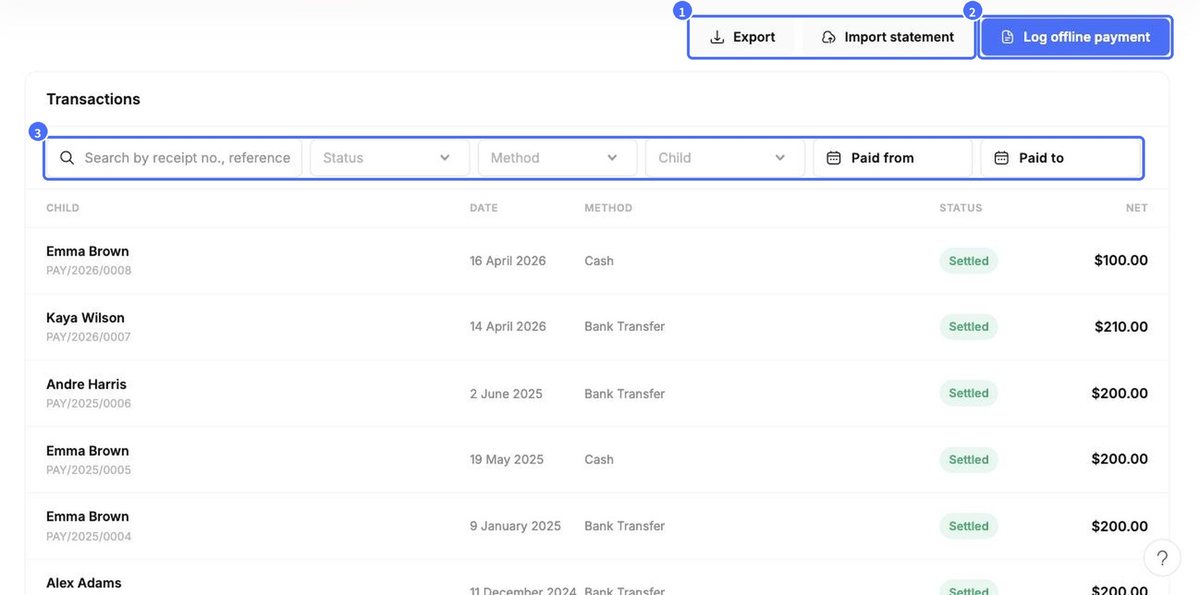
- Filter by Status, Method, Child or payment date.
- Import statement – upload a bank statement to match transfers to invoices.
- Export – download your payments.
Record a cash, bank transfer or cheque payment
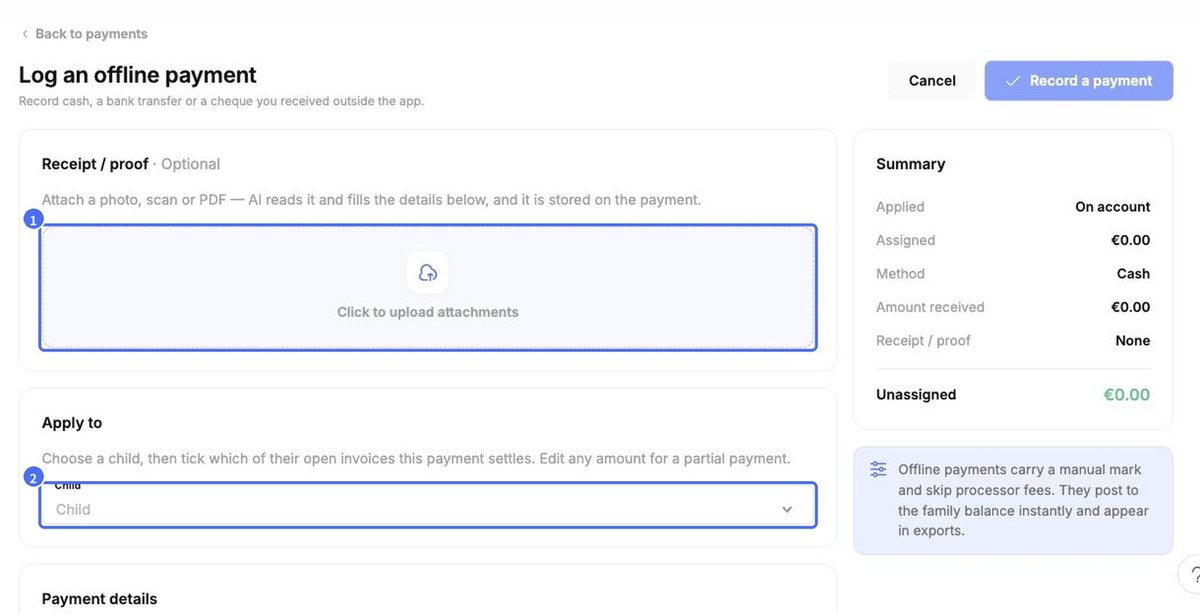
- Click Log offline payment.
- (Optional) Under Receipt / proof, upload a photo, scan or PDF. kidsday’s AI reads it and fills in the details, and the file is stored with the payment.
- Under Apply to, select the Child.
- Tick the open invoice(s) this payment settles. The amount is filled in automatically – edit it for a partial payment. If nothing is ticked, the payment is recorded as on-account credit.
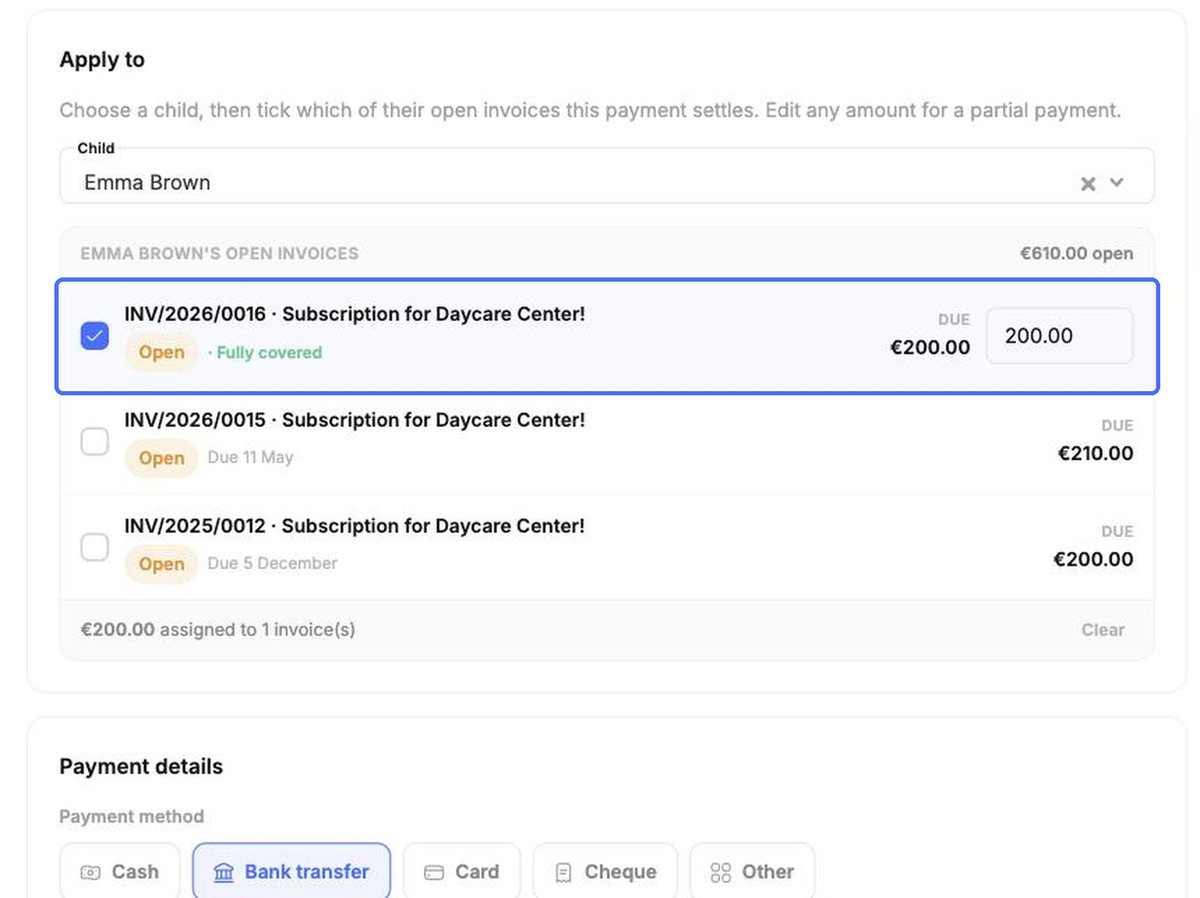
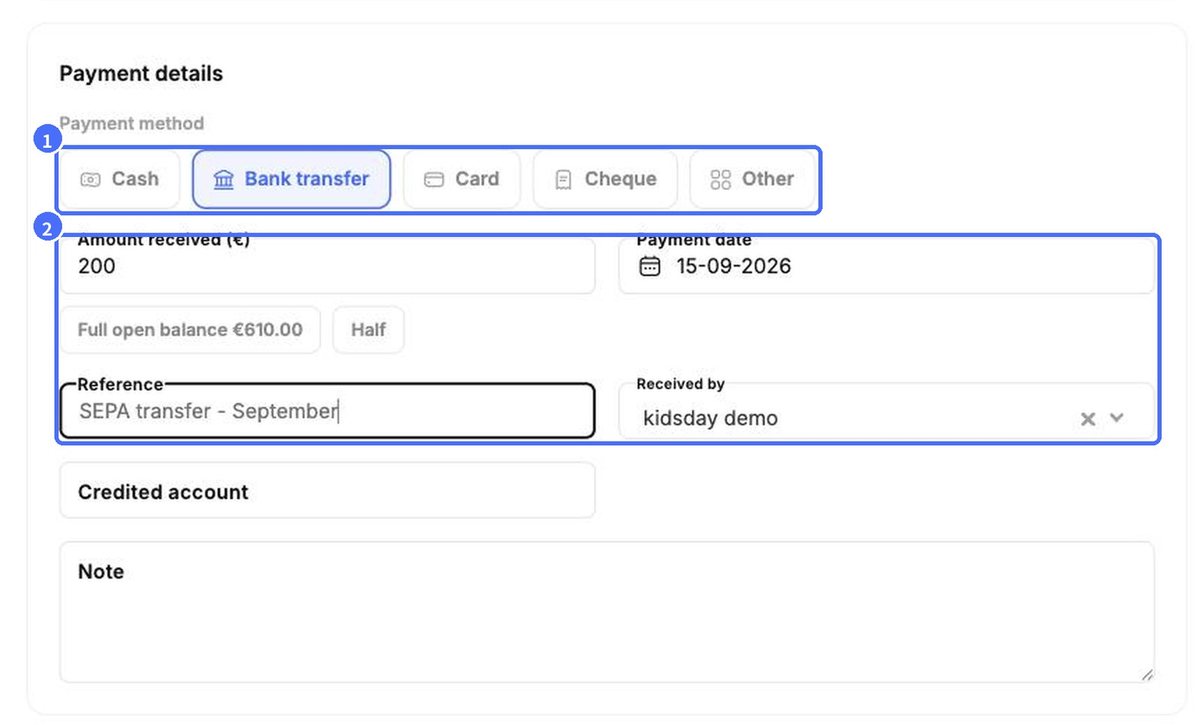
- Under Payment details, choose the Payment method (Cash, Bank transfer, Card, Cheque, Other), enter the Amount received (or use Full open balance / Half), the Payment date and a Reference. Optionally add the credited account and a note.
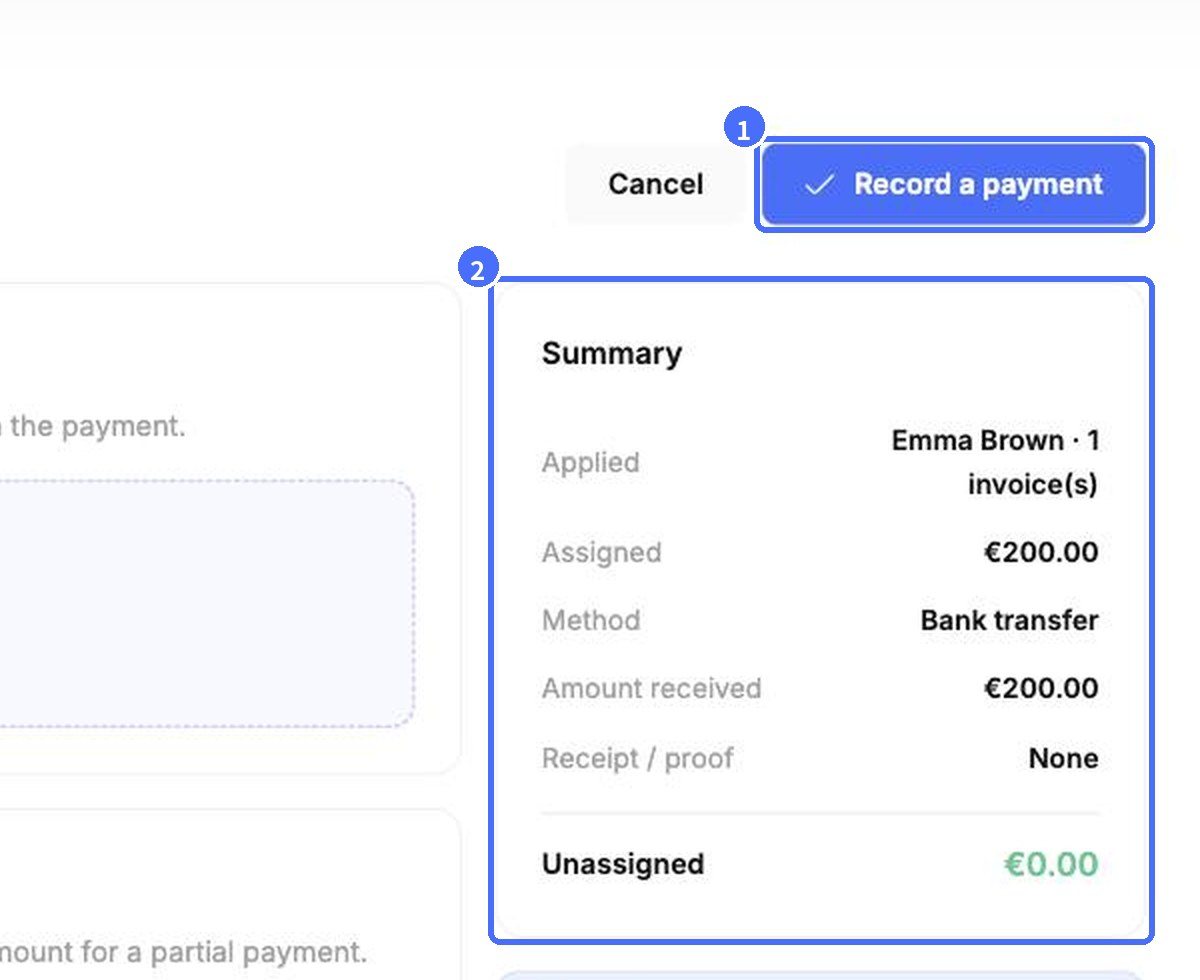
- Check the Summary – Unassigned should be €0.00 – and click Record a payment.
Note: Offline payments carry a manual mark and skip processor fees. They post to the family balance instantly and appear in exports.


