
HR is where everything about the people who work at your center lives: the staff list, their working hours, their leave, their employment records and your open job positions. It sits in the left menu under Administration, below Finances.
Note: If you have used kidsday before, the staff list used to sit under School and working hours under Time sheets. Both moved into HR. Rooms, children and parents stay under School.
The six tabs
- Overview — the dashboard: headline numbers, what needs your decision today, and whether your rooms are covered.
- Staff — everyone who works at the center, their roles, rooms and documents.
- Timesheets — the weekly hours grid, with leave shown inline.
- Leaves — requests waiting for a decision, a calendar of who is away, and everyone's remaining balance.
- Hiring — job positions, their public application forms and the applicants.
- Settings — leave types, public holidays, and age groups with their staff-to-child ratios.
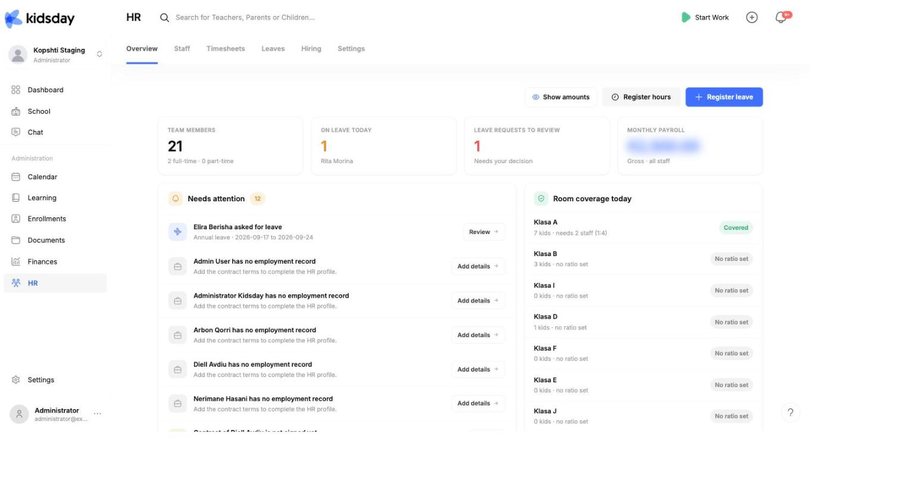
The four cards
- Team members — how many people work here, split into full-time and part-time from their employment records.
- On leave today — who is away right now, by name.
- Leave requests to review — how many requests are waiting for your decision.
- Monthly payroll — the gross total across all staff, from the salaries on their employment records.
Tip: Payroll is hidden behind the Show amounts toggle at the top right. Turn it off before you share your screen or project the dashboard in a staff meeting.
Needs attention
This is the administrator's queue. It mixes everything waiting on a decision, each row with the one button that resolves it:
- someone asked for leave — Review takes you to the request.
- someone has no employment record — Add details opens the employment form.
- a contract is not signed yet — Send sends it for signature.
- someone's documents need attention — Open profile shows what is missing or expired.
The list empties as you work through it, so an empty Needs attention card means the admin side of HR is up to date.
Room coverage today
For every room, this card compares the children expected today against the staff assigned and the room's ratio: “7 kids · needs 2 staff (1:4)” followed by Covered. A room whose age group has no ratio set shows No ratio set instead — nothing is being checked for it. Setting those up is covered in Staff-to-child ratios and the ratio guard.
Quick actions
At the bottom of the Overview are shortcuts to the four things administrators do most: invite a staff member, review leave requests, configure leave types and register working hours. The two buttons in the header, Register hours and Register leave, do the same without leaving the page.


