
An employment record holds the terms somebody works under. kidsday uses it in three places: the full-time and part-time split on the Overview, the monthly payroll figure, and the contracted hours that timesheets are measured against. Until it exists, that person shows up in Needs attention.
Note: Only administrators can open employment records. Salaries, IBANs and contract terms are never visible to teachers or lead teachers.
Add the record
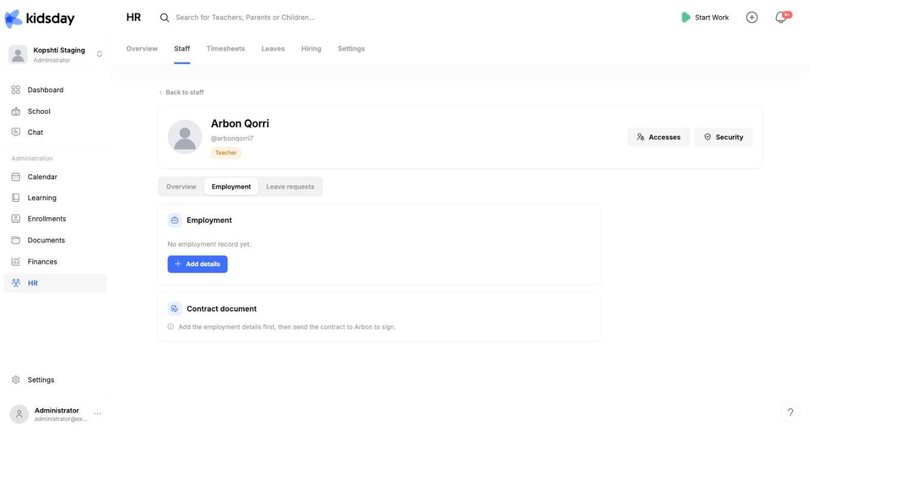
- Open the person from HR › Staff and select the Employment tab. You can also use Add details on the Needs attention row, which brings you straight here.
- Select Add details.
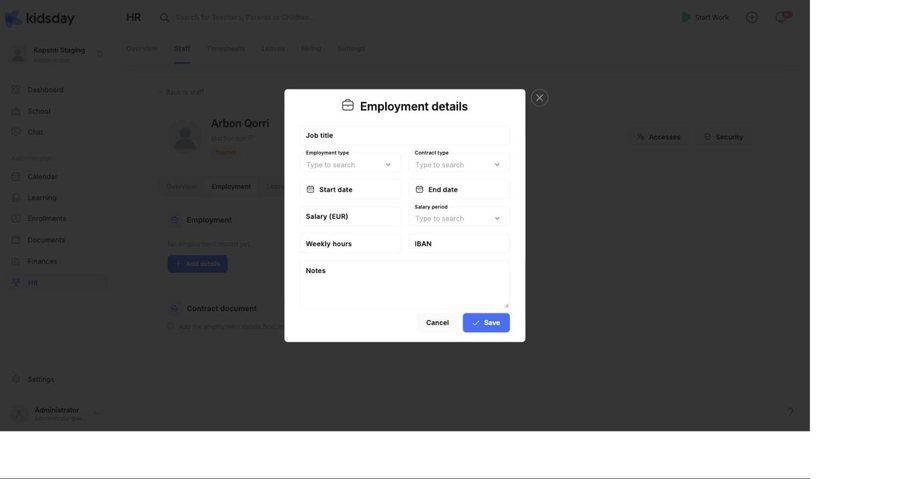
- Fill in the terms and select Save.
The fields
- Job title — what they are called on the contract, for example Room Leader. Separate from their kidsday role.
- Employment type — full-time or part-time. This drives the split on the Overview card.
- Contract type — permanent, fixed-term and so on.
- Start date and End date — leave the end date empty for a permanent contract.
- Salary (EUR) and Salary period — per month or per year. The monthly payroll total is built from these.
- Weekly hours — the contracted hours. Timesheets compare logged hours against this number.
- IBAN — for payroll, if you run it from here.
- Notes — anything that does not fit above: a probation end, an allowance, a review date.
Tip: If you only fill in the job title, employment type, start date and weekly hours, the dashboard and the timesheets already work. Salary can wait until you are ready to use the payroll figure.
Send the contract for signature
The Contract document card stays locked until the terms are saved — it reads “Add the employment details first, then send the contract to … to sign.” Once the record exists, the card lets you send the contract to that person to sign, and shows you where it has got to.
Unsigned contracts appear on the Overview as “Contract of … is not signed yet” with a Send button, so nothing quietly sits unsigned.
When terms change
Open the Employment tab and edit the record. A raise, a change from part-time to full-time or a new weekly hours figure all take effect from the moment you save — the payroll total and the timesheet comparison follow immediately.


