Start a conversation, group or class group

Message a family or a colleague, create a staff group, or start a class group chat for everyone connected to a room.

Start a conversation, group or class group
  1. Click Compose.
  2. Pick a child to open their Child group chat, or pick a staff member to send them a direct message.
  3. Write your message and send it.

For a group conversation, use New group or New class group instead (see below).
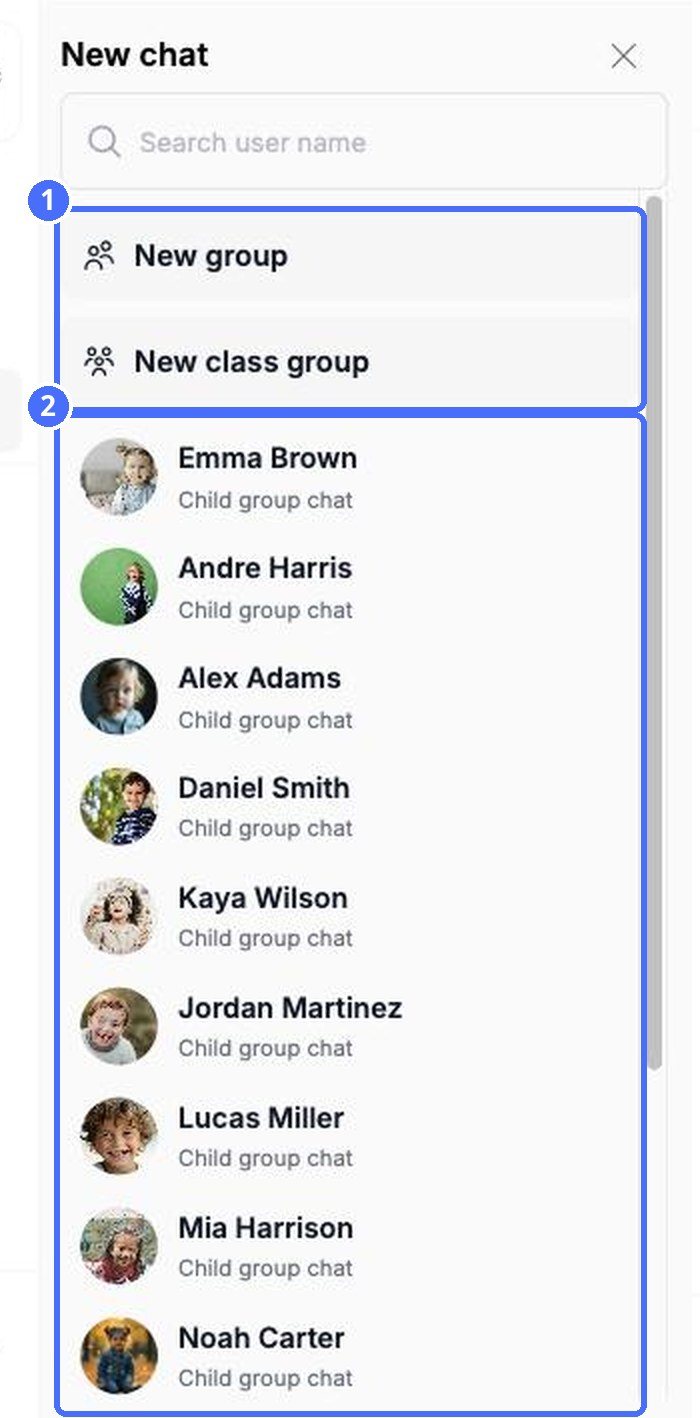
(1) New group and New class group, (2) children and staff you can message

Tip: You can also start a direct message from any page: click + in the top bar and choose Send a Message, then pick a staff member.
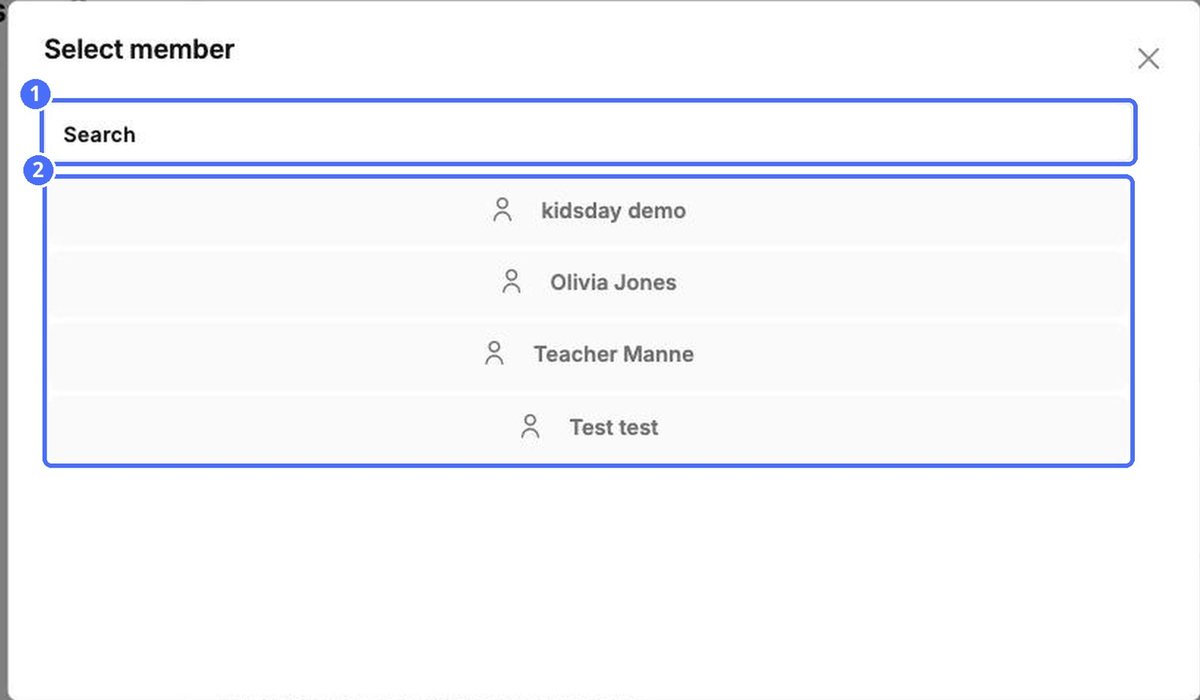
Send a Message: (1) search, (2) choose a staff member

Create a custom group

  1. Click Compose, then New group.
  2. Tick the staff members you want to add. They appear under Selected.
  3. Click Compose.
  4. Write your first message and send it. The group is created when the first message is sent.
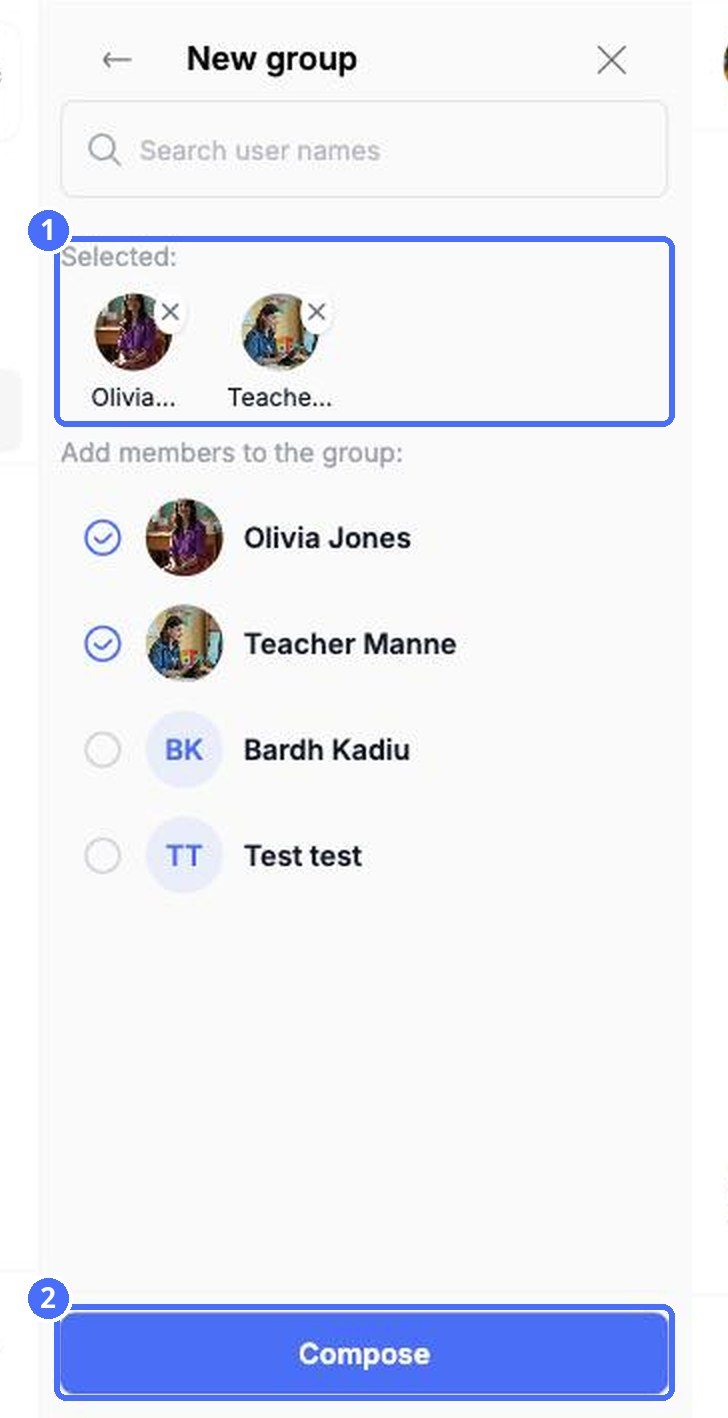
(1) Selected members, (2) Compose
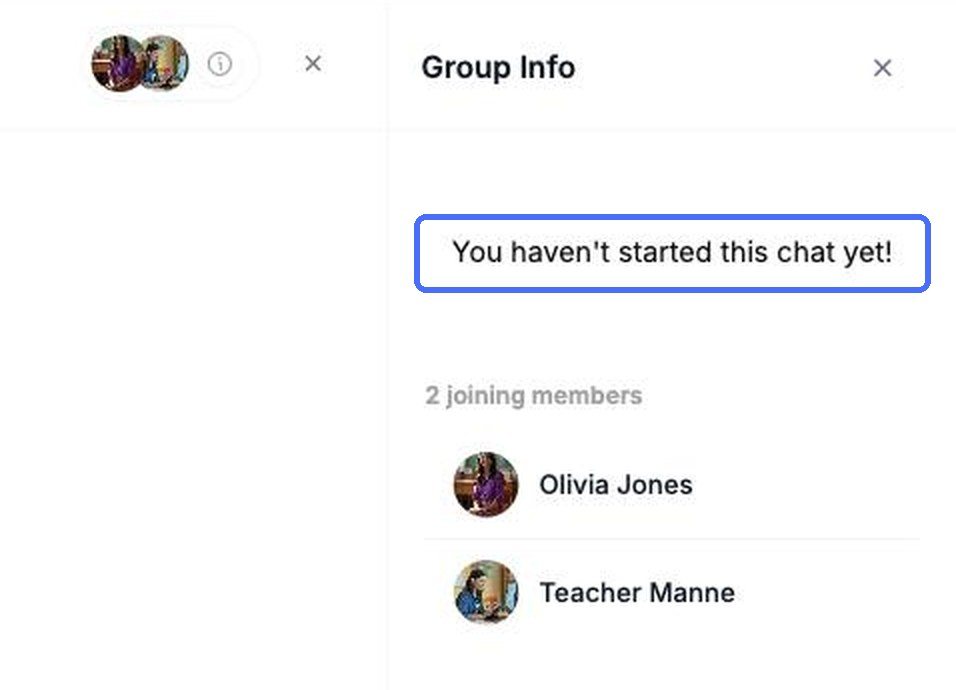
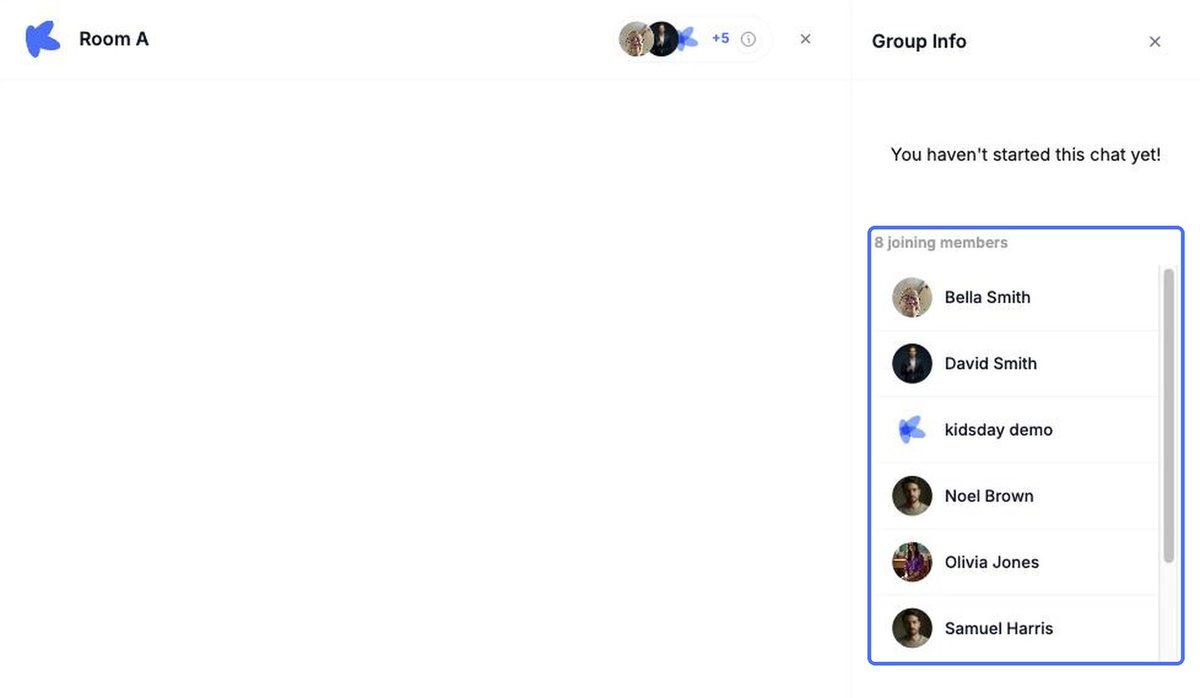
Until the first message is sent, Group Info shows the members who will join

Message a whole room

  1. Click Compose, then New class group.
  2. Choose the room.
  3. Open Group Info to check who will receive your messages, then write your first message.
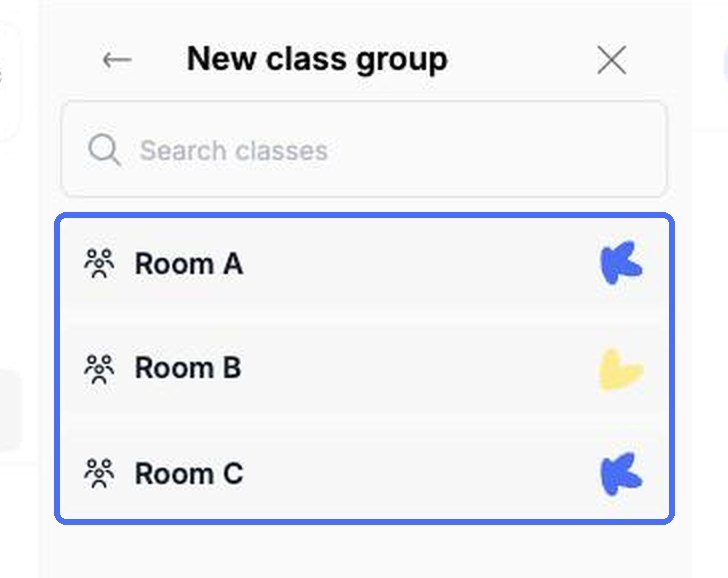
Choose the room for a class group
Everyone linked to the room joins the class group

Tip: By default parents can read class group chats but not reply, which makes them a good channel for announcements. You can change this under Settings › Messages.

Related topics

Empower your center, your team, and your children