
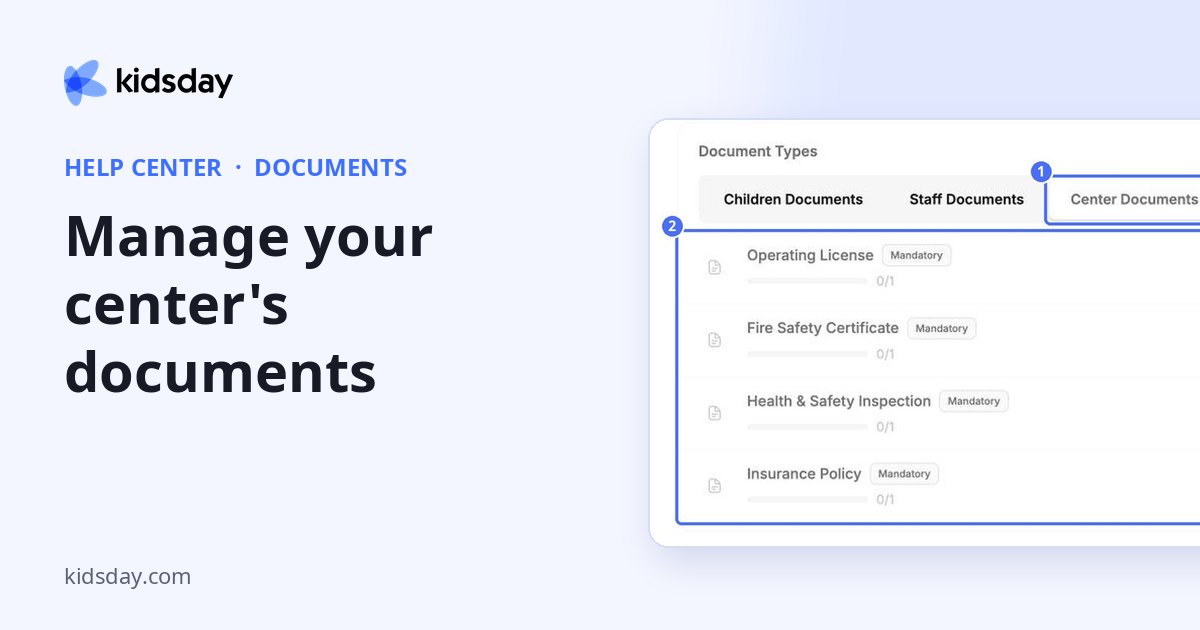
Center documents belong to your center rather than to a child or staff member: for example your Operating License, Fire Safety Certificate, Health & Safety Inspection and Insurance Policy.
- In the left menu, click Documents.
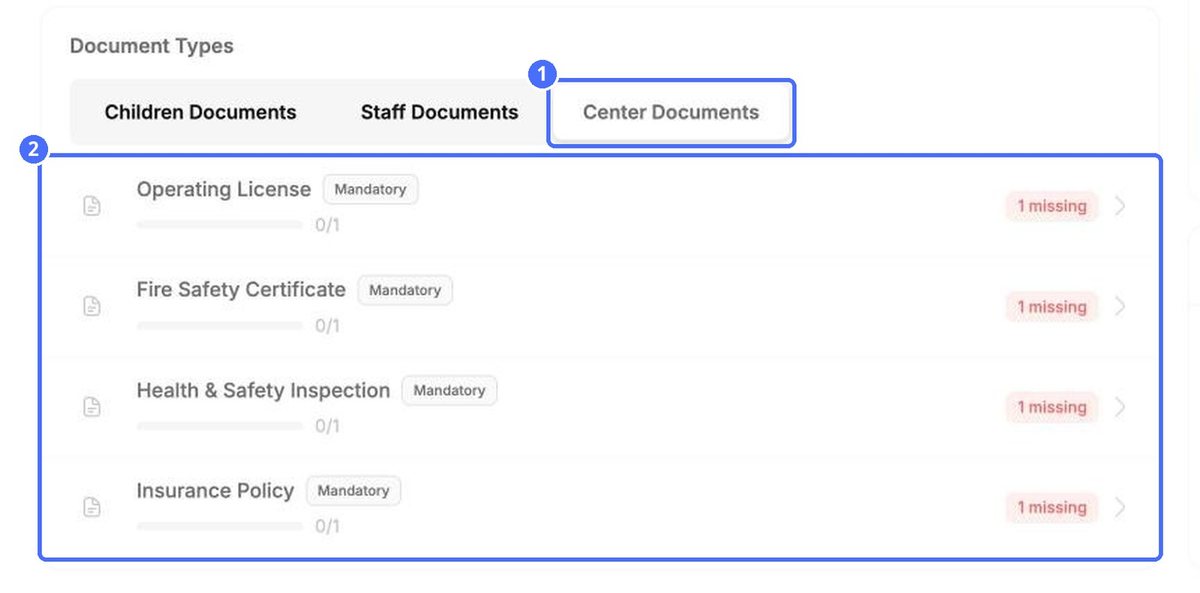
- On the Overview tab, under Document Types, click Center Documents to see which ones are still missing.
Upload a center document
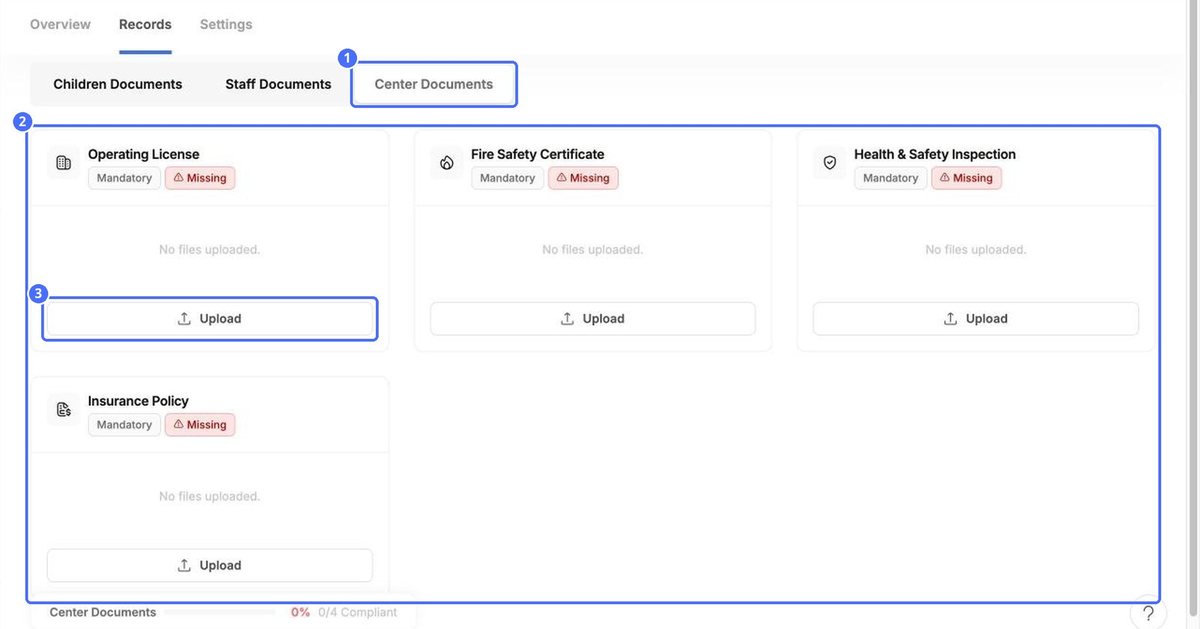
- Open the Records tab and click Center Documents. Each document type has its own card and status.
- On the card, click Upload.
- Click the upload area and choose the file.
- Check Expires On. kidsday fills it in from the document type's validity period, for example 12 months.
- Add Notes if needed, then click Upload.
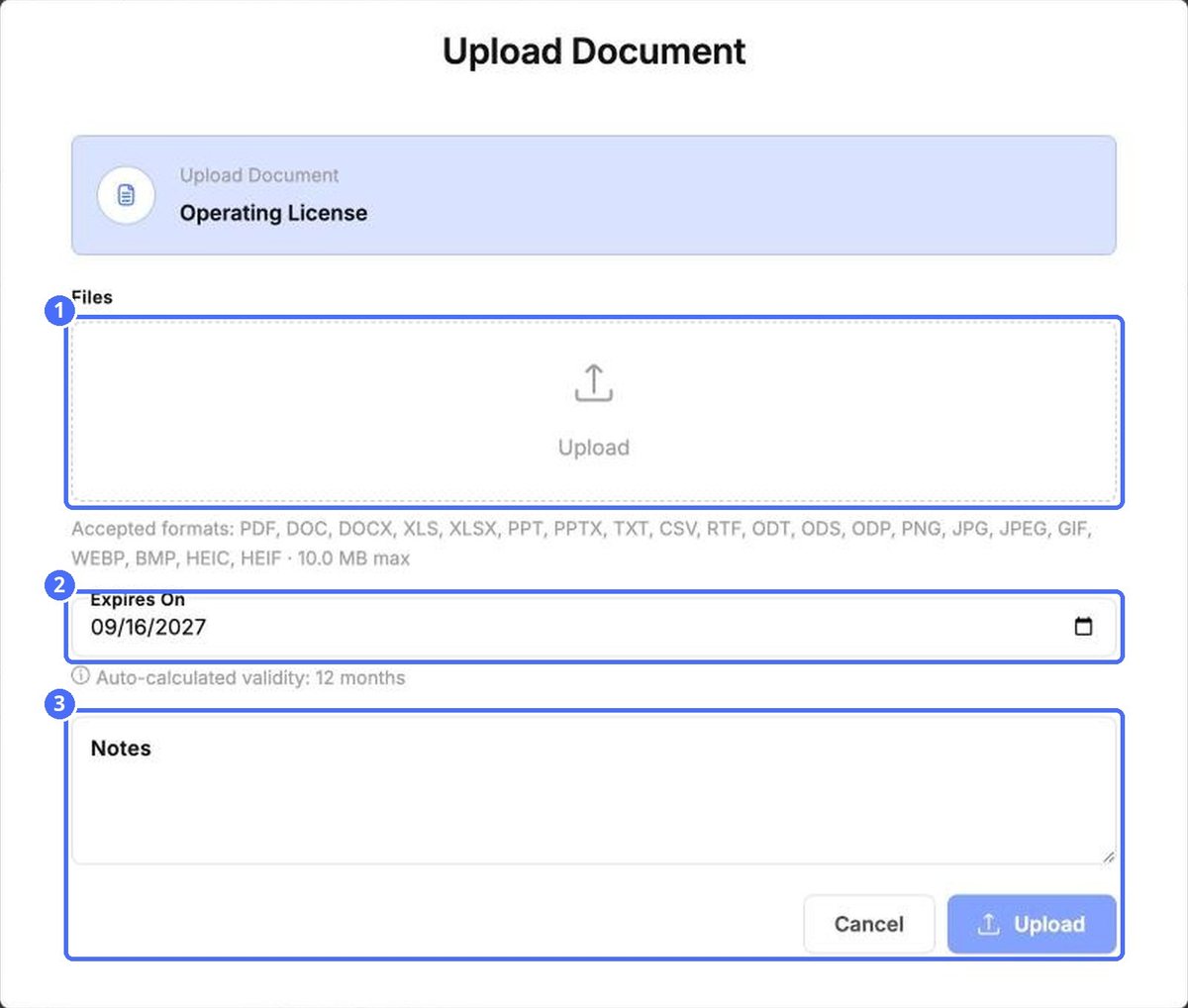
Note: You can upload PDF, Word, Excel, PowerPoint, text and image files of up to 10 MB.
Set up your center's document types
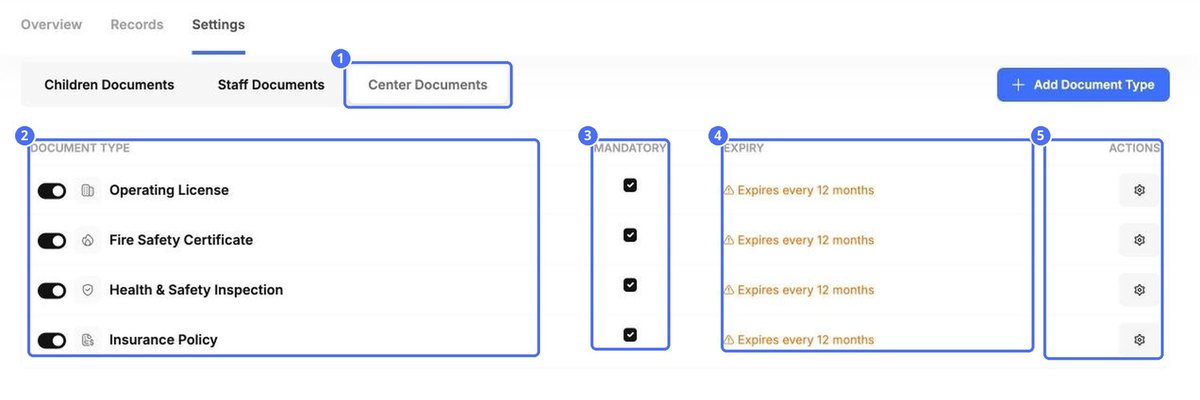
On the Settings tab, click Center Documents. Here you can switch a type on or off, make it Mandatory, check its Expiry and click the gear to edit it or change its validity period.
Tip: When a license or certificate is close to its expiry date, it appears under Expiring Soon on the Overview, so you can renew it before an inspection.


