
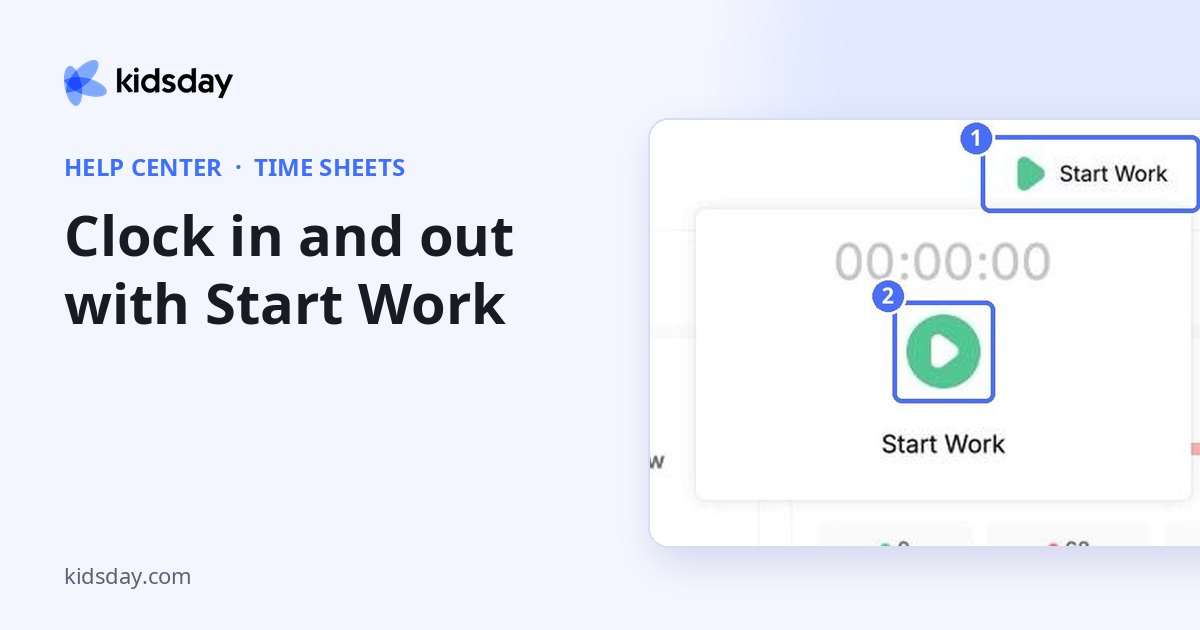
When attendance tracking is switched on, staff can record their own working time with Start Work in the top bar of the web app.
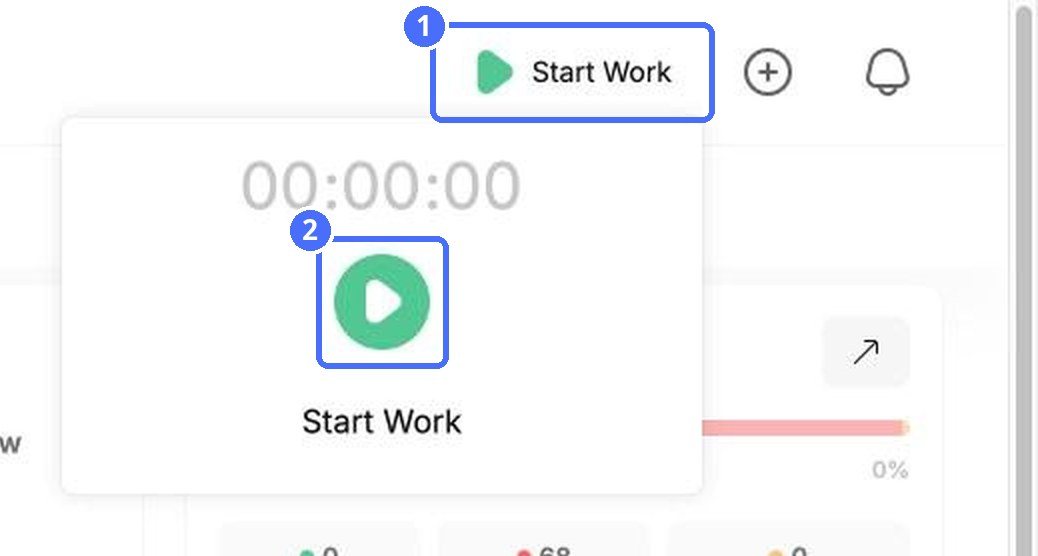
- At the top of the page, click Start Work.
- In the panel that opens, click the green button to start the timer.
- The timer shows how long you have been working.
- When you finish your shift, open the panel again and stop the timer.
Where your hours appear
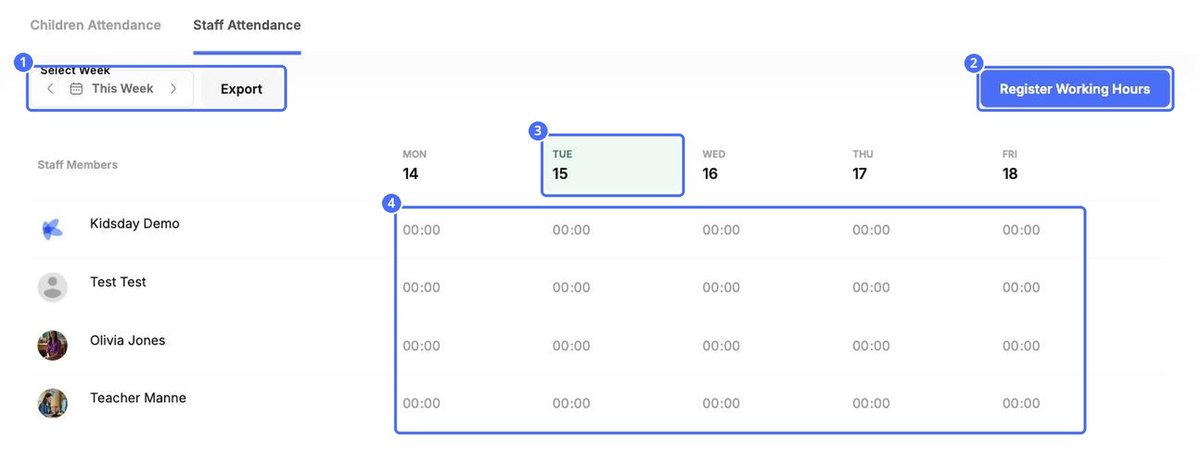
Recorded time appears in Time sheets › Staff Attendance, with the hours for each day of the week. Administrators can add or correct hours there with Register Working Hours. See “Staff attendance and working hours”.
Note: If you don't see Start Work, attendance tracking may be switched off. An administrator can switch on Enable Attendance Tracking in Settings › Schedule.
Tip: Forgot to clock in? Ask an administrator to add the hours with Register Working Hours.


