
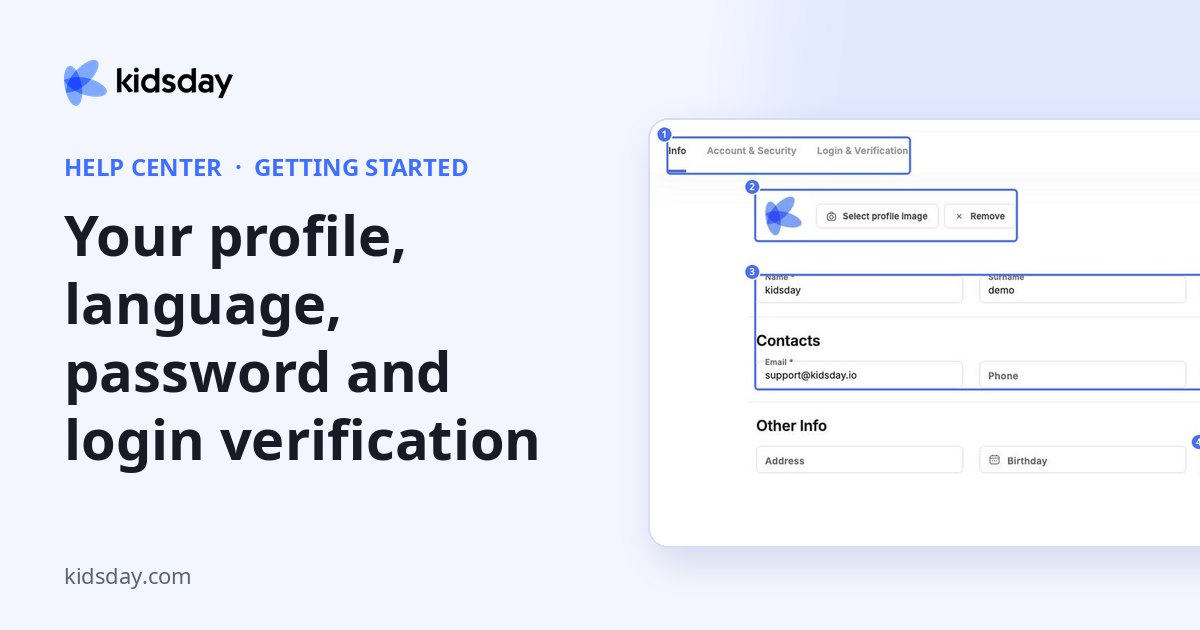
Open My Profile from the account menu. The profile has three tabs: Info, Account & Security and Login & Verification.
Update your details and language
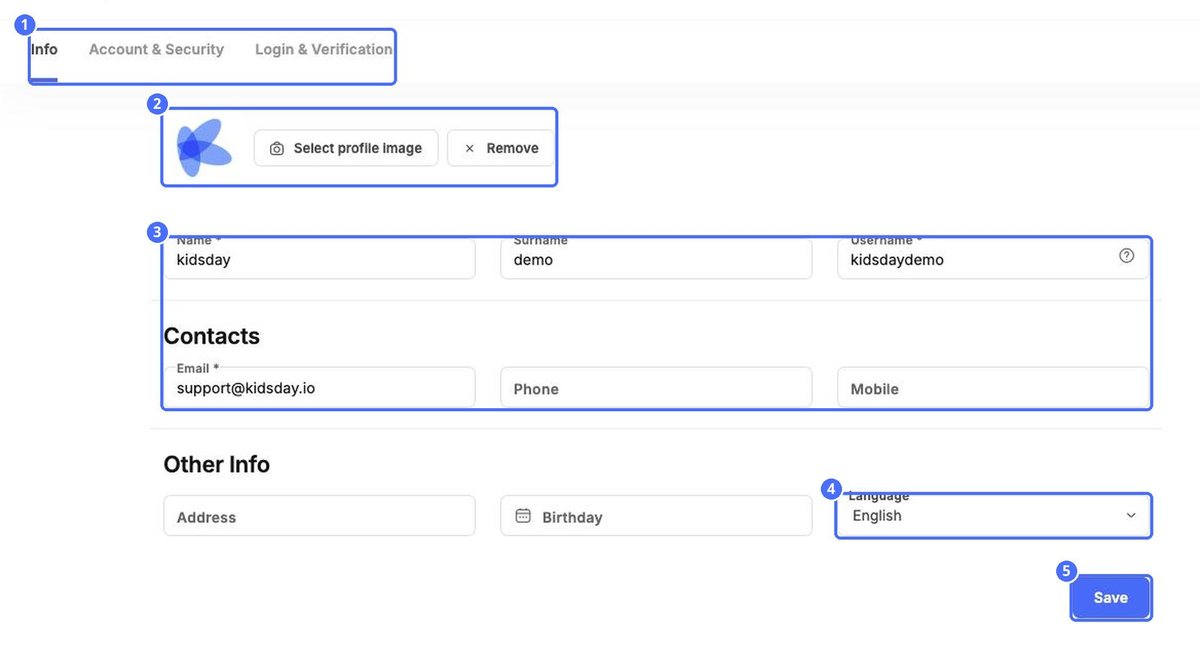
- On the Info tab, use Select profile image to add a photo, or Remove to delete it.
- Update your Name, Surname, Username and contact details (Email, Phone, Mobile).
- Under Other Info, add your Address and Birthday, and choose your Language.
- Click Save.
Note: Language changes the language kidsday is shown in for you only. Other people keep their own language. The center's language is set separately in Settings › School.
Password and devices
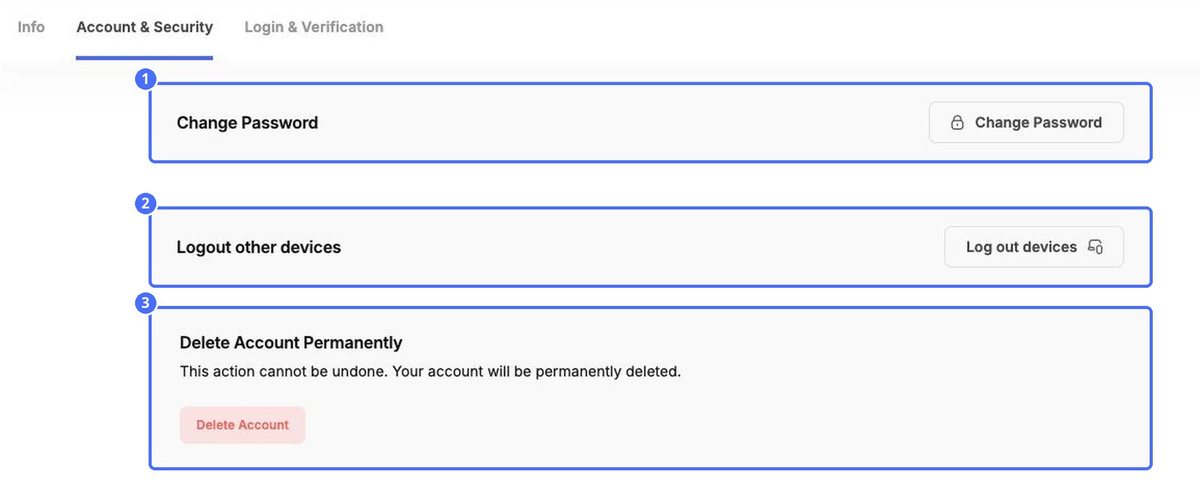
- Change Password – set a new password.
- Log out devices – signs you out everywhere else, for example if you used a shared computer.
- Delete Account – permanently deletes your account. This can't be undone.
Passwordless login
On Login & Verification, confirm your email address or phone number to sign in with a one-time code instead of a password.
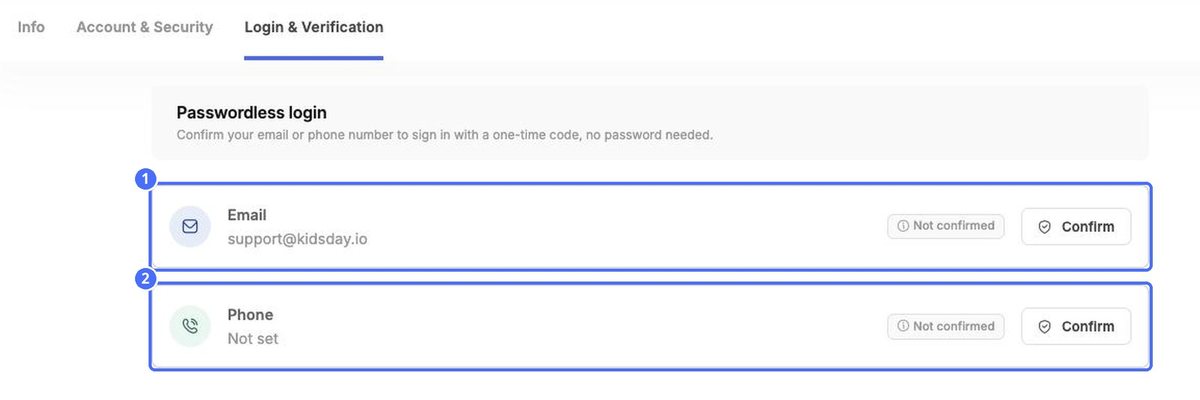
- Next to Email or Phone, click Confirm.
- Enter the code kidsday sends you. The status changes from Not confirmed to confirmed.
Tip: Add your mobile number on the Info tab first if Phone shows Not set.


