
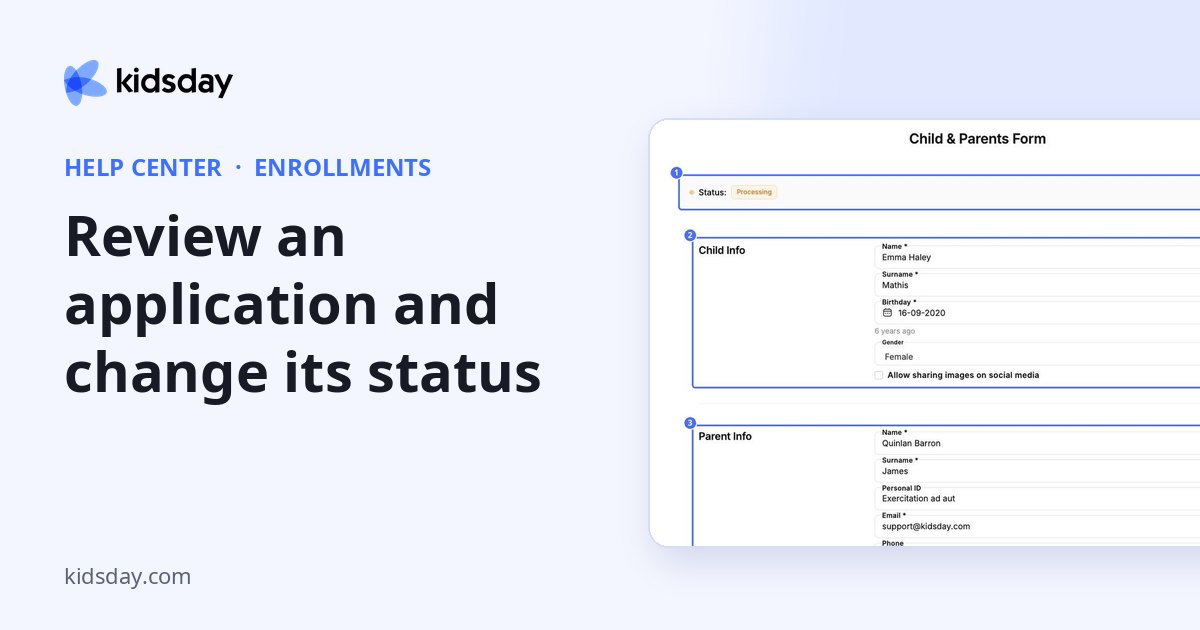
Click a card to open the family's Child & Parents Form. The status at the top shows where the application stands.
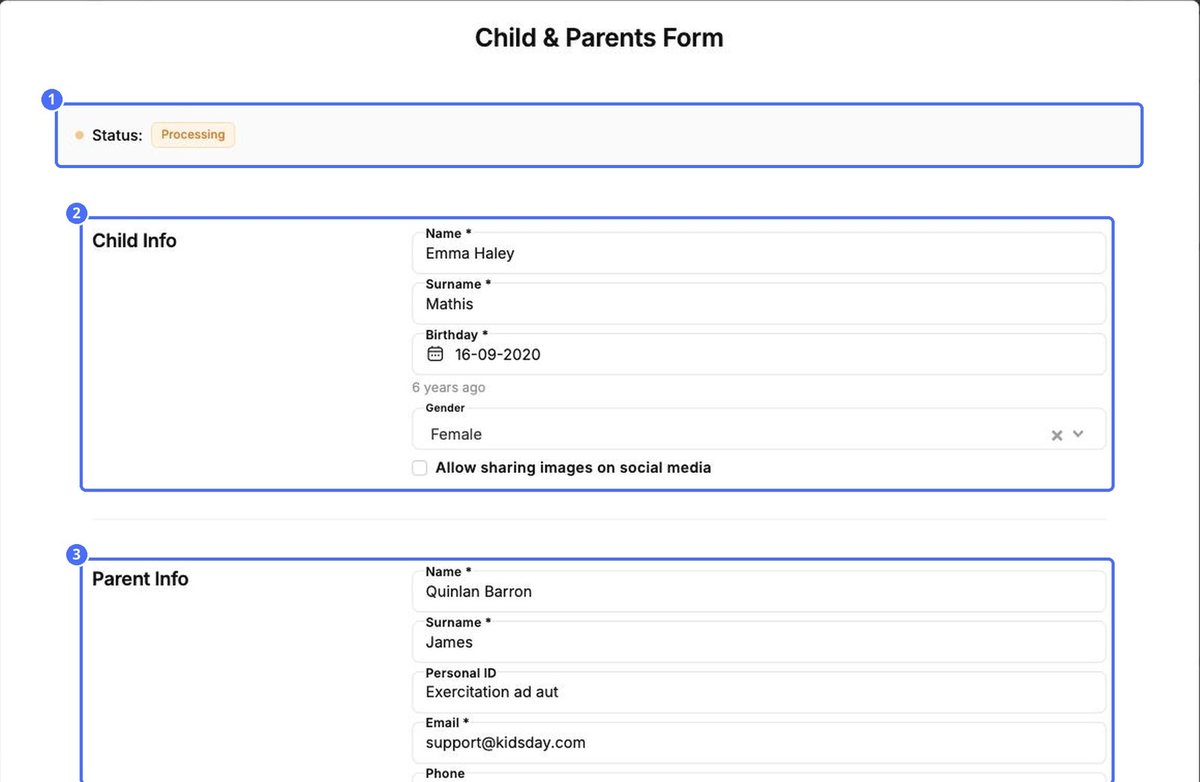
The form is split into sections:
- Child Info: name, surname, birthday, gender and whether images of the child may be shared on social media.
- Parent Info: the details of each parent or guardian, such as name, personal ID, email and phone.
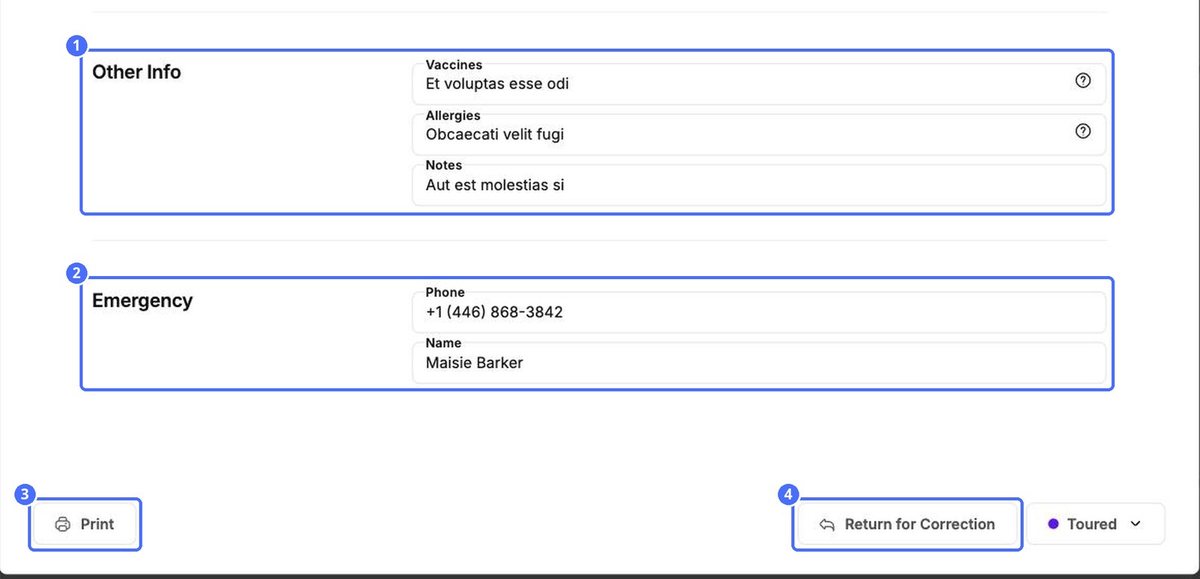
- Other Info: vaccines, allergies and notes.
- Emergency: the name and phone number of the emergency contact.
Act on the application
| Button | What it does |
|---|---|
| Prints the form, for example for your paper files. | |
| Return for Correction | Sends the form back to the family so they can fix or complete it. |
| Status button | Moves the application to another column. |
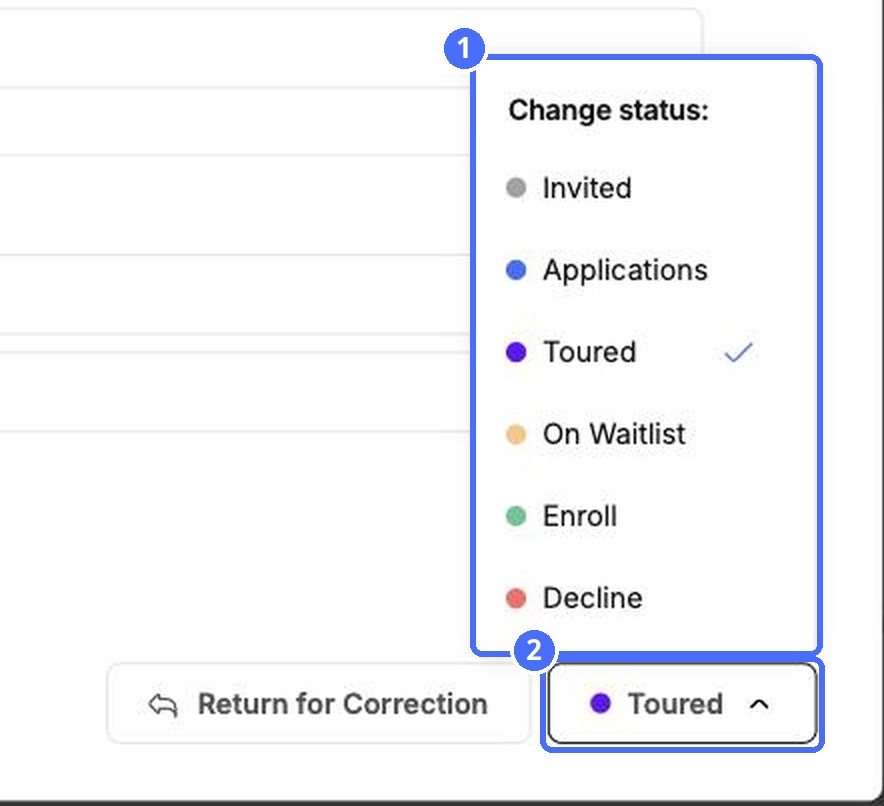
- Click the status button at the bottom right.
- Under Change status, choose Invited, Applications, Toured, On Waitlist, Enroll or Decline.
- The card moves to the matching column on the board.
Tip: The status button and dragging a card on the board do the same thing. Use whichever is quicker.


