
Message families from the staff app

Start conversations with parents, share photos, documents and voice messages, and let AI polish your text.

Message families from the staff app

Your conversations

Tap Messages in the bottom bar. Use All, Groups and Unread to filter the list.
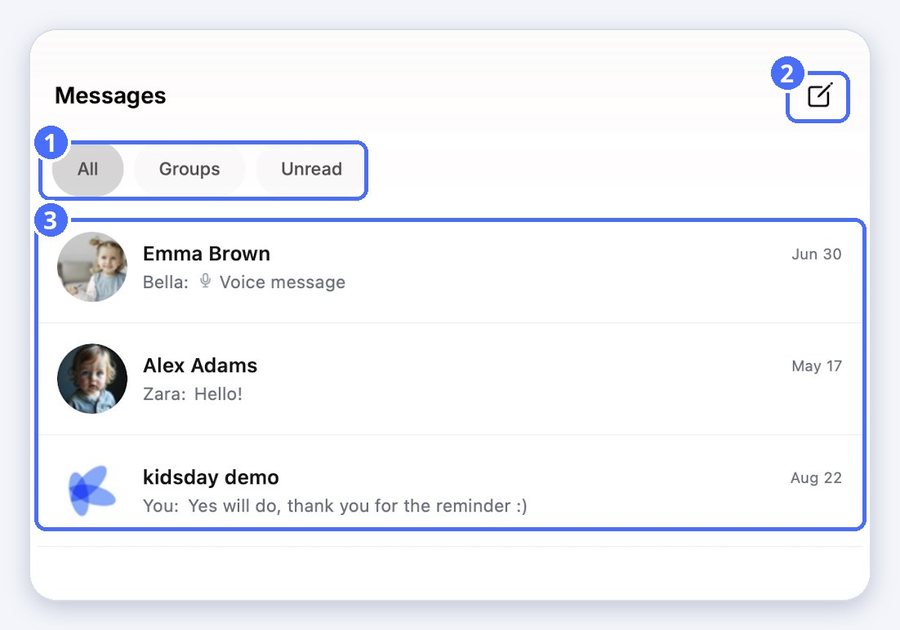
(1) Filters, (2) new conversation, (3) your conversations

Start a conversation

  1. Tap the pencil at the top right.
  2. Search for the parent by name and tap them.
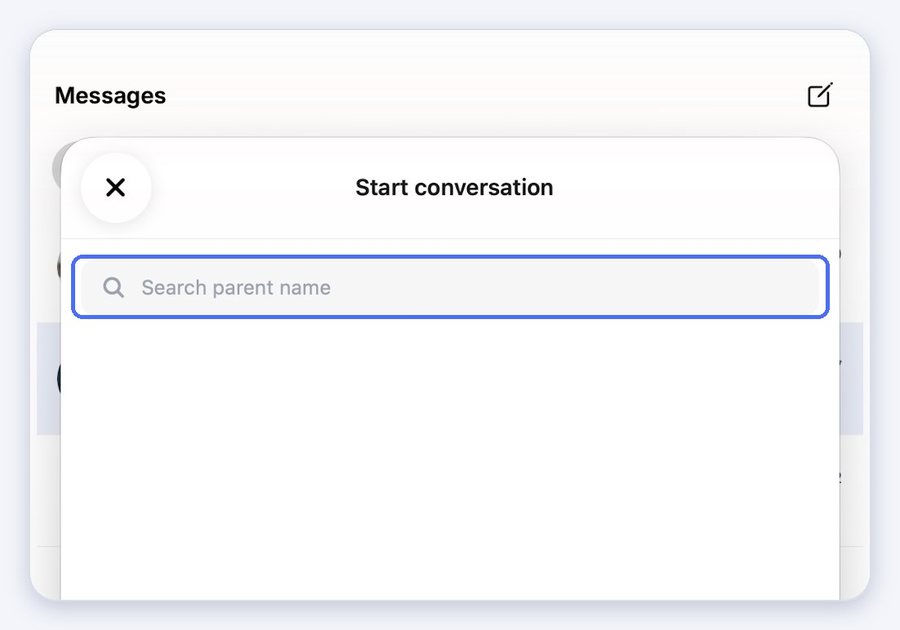
(1) Search for a parent

Send messages, photos and voice messages
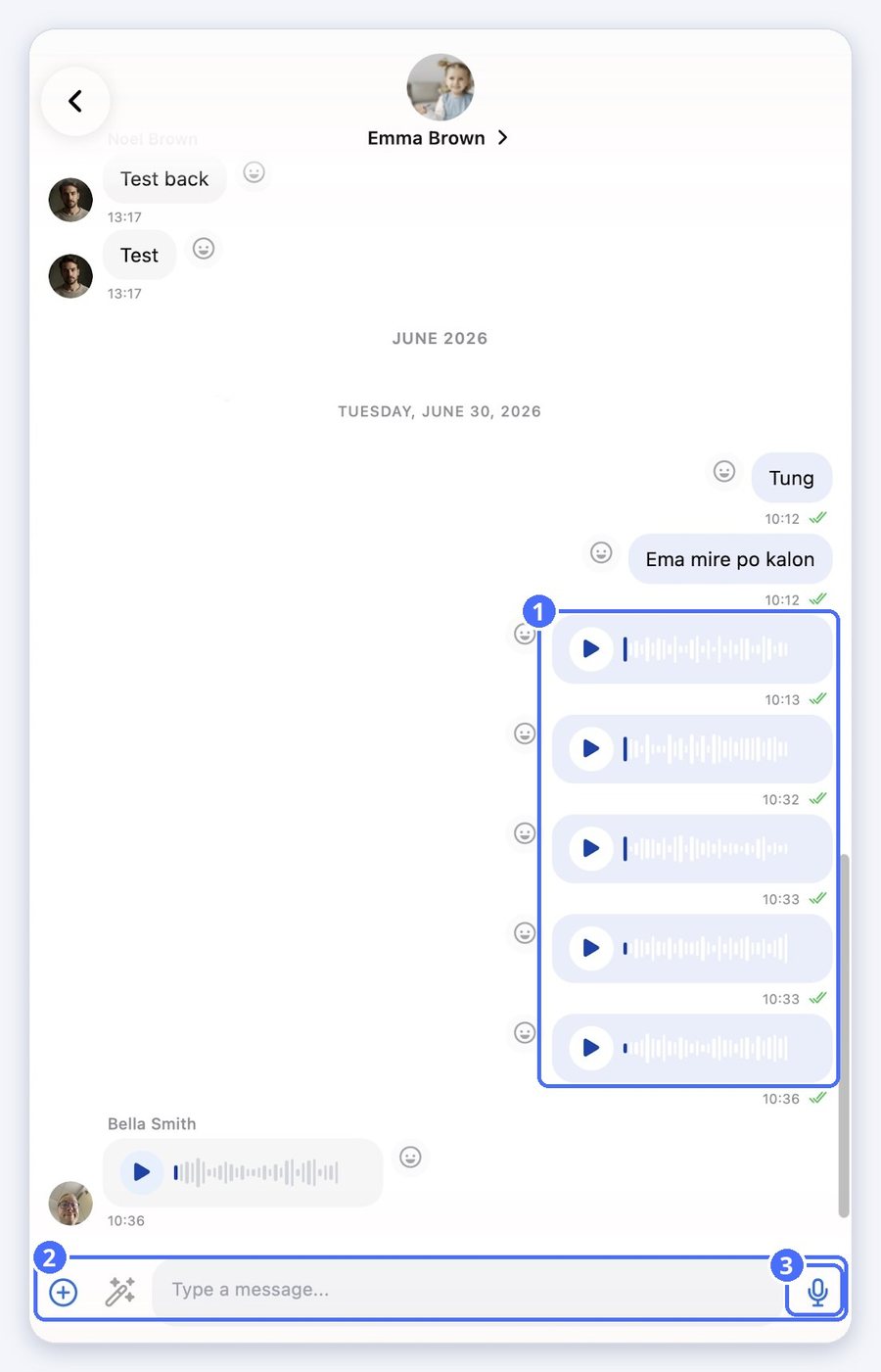
(1) Voice messages in the conversation, (2) the message box, (3) the microphone
  • Type your message in the message box.
  • Tap the microphone to record a voice message.
  • Tap plus to send a photo from your library, take a photo, or share a document.
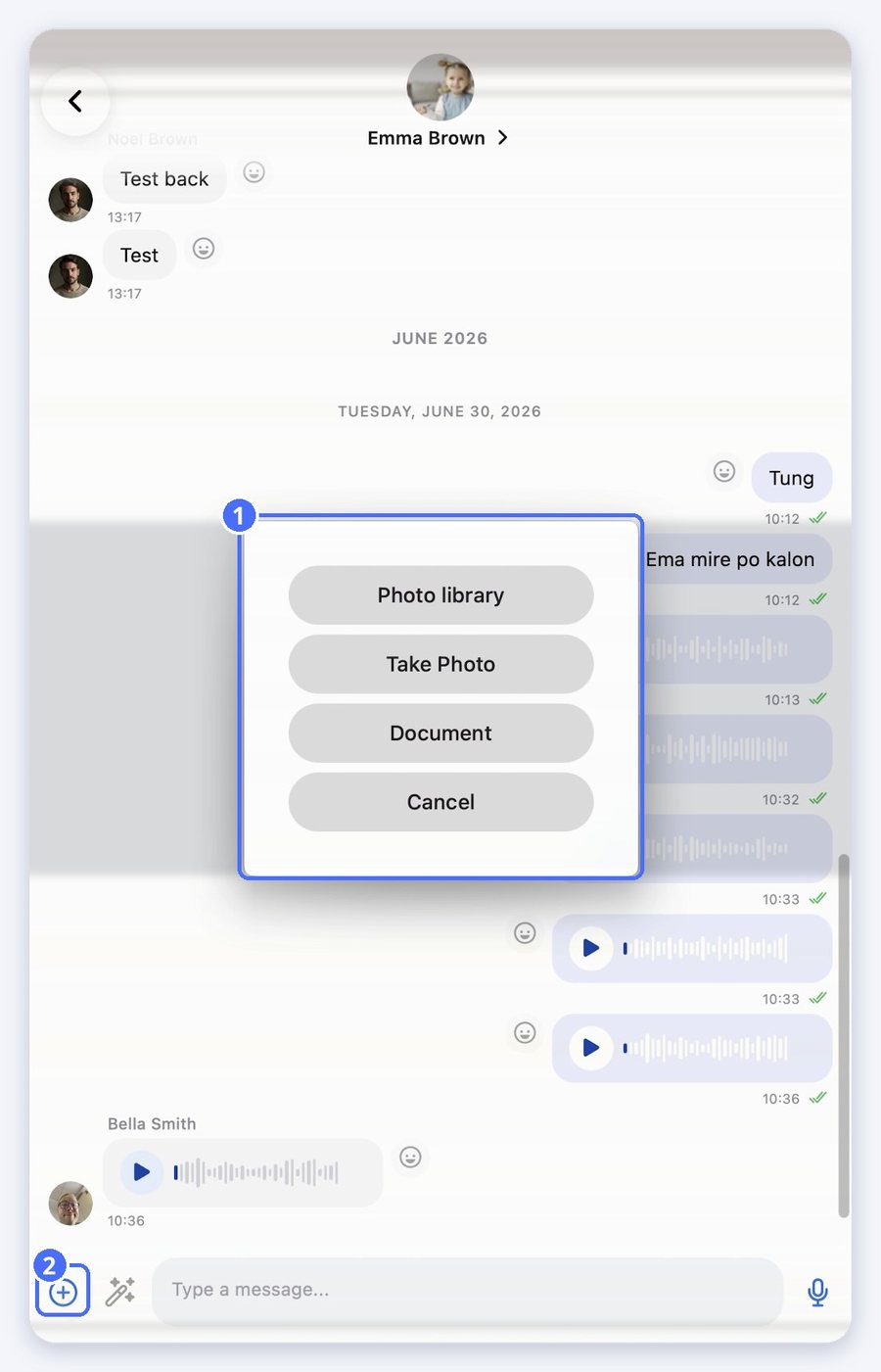
(1) Photo library, Take Photo or Document, (2) the plus button

Improve your message with AI

  1. Type your message.
  2. Tap the magic wand next to the plus button.
  3. Choose Correct the text to fix grammar and spelling, or Rewrite Better to make it clearer and more professional.
  4. Check the new text in the message box, then send it.
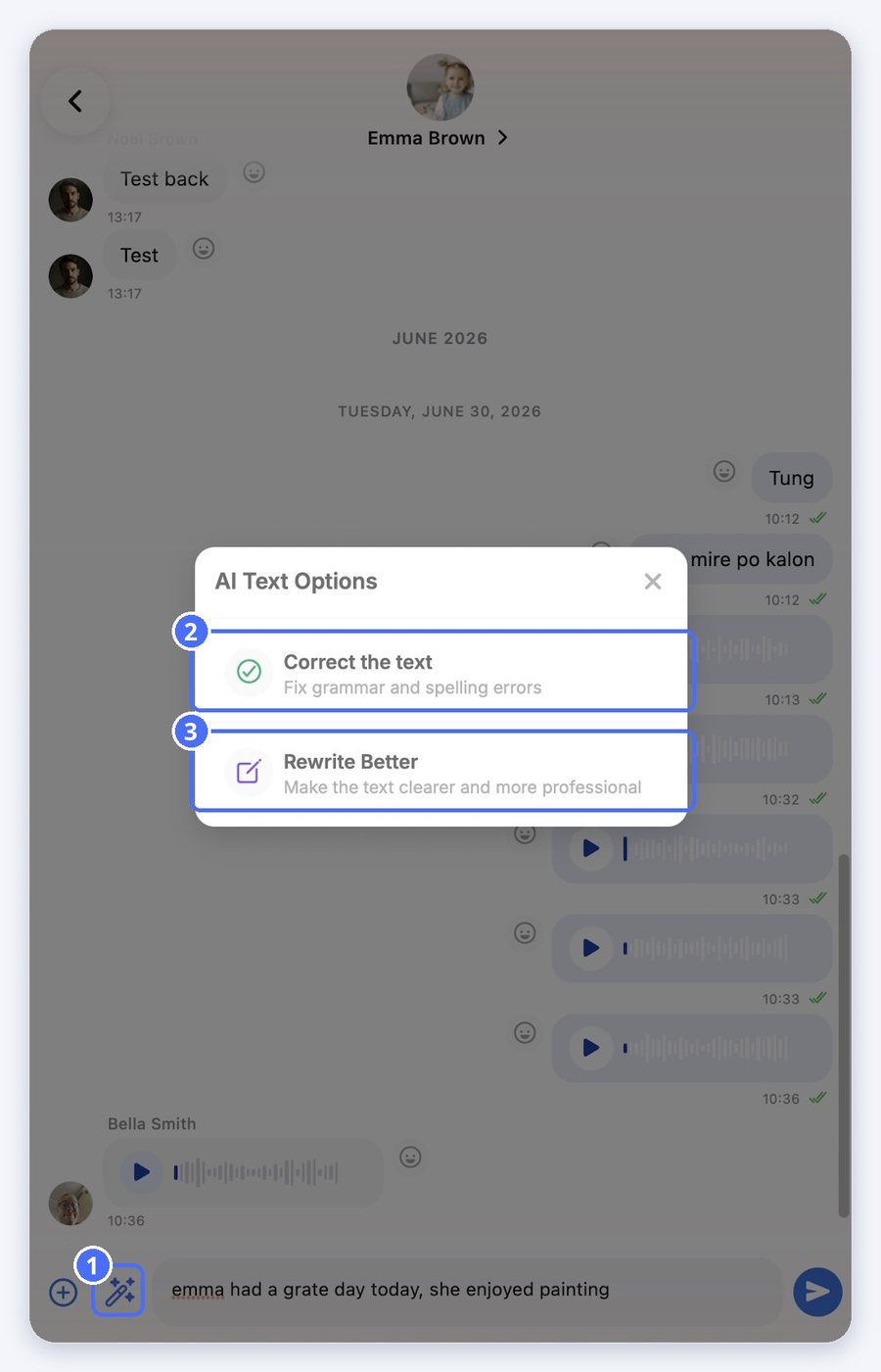
(1) The magic wand, (2) Correct the text, (3) Rewrite Better

Tip: The AI only changes the text in your message box. Nothing is sent until you tap send.

Related topics

Empower your center, your team, and your children