
When a family is ready to join, enroll the child from their application. kidsday then creates the child record for you.
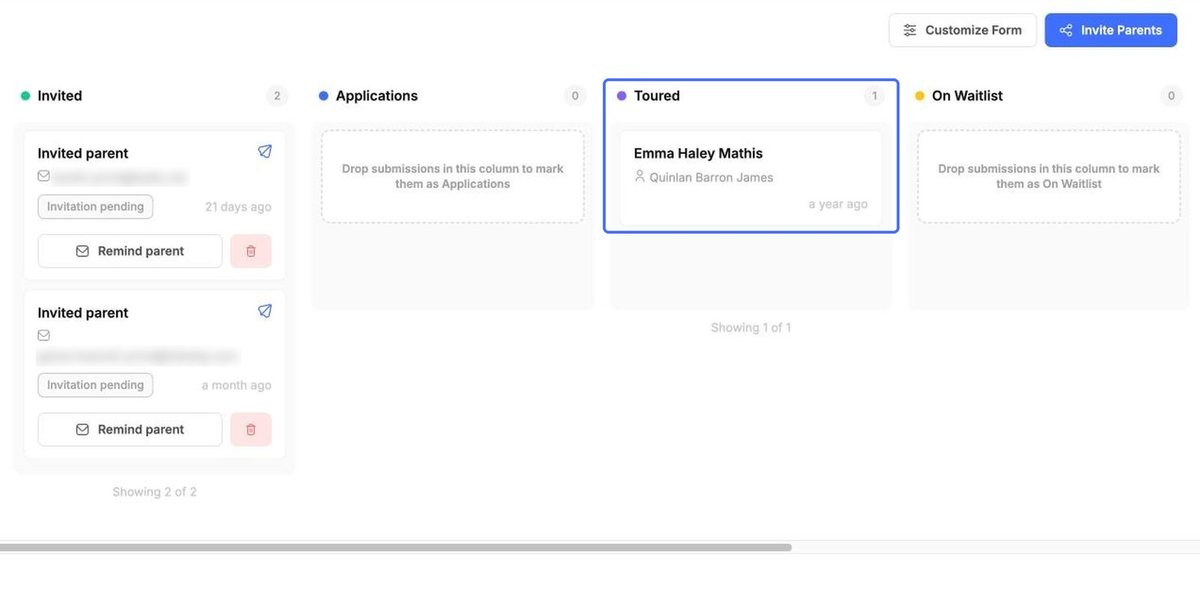
- In the left menu, click Enrollments.
- Click the family's card, for example in Toured or On Waitlist.
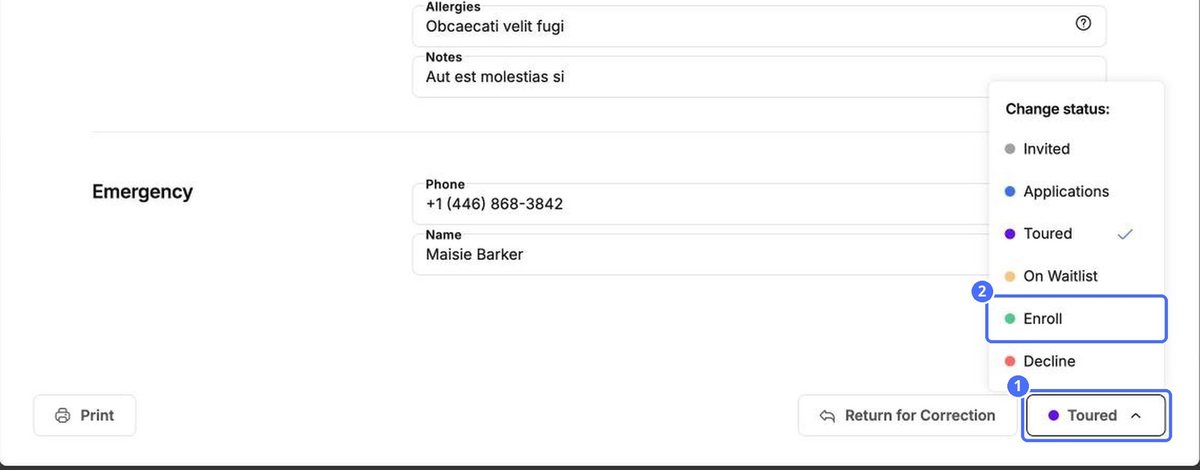
- Check the Child & Parents Form.
- At the bottom, click the status button (it shows the current status) and choose Enroll.
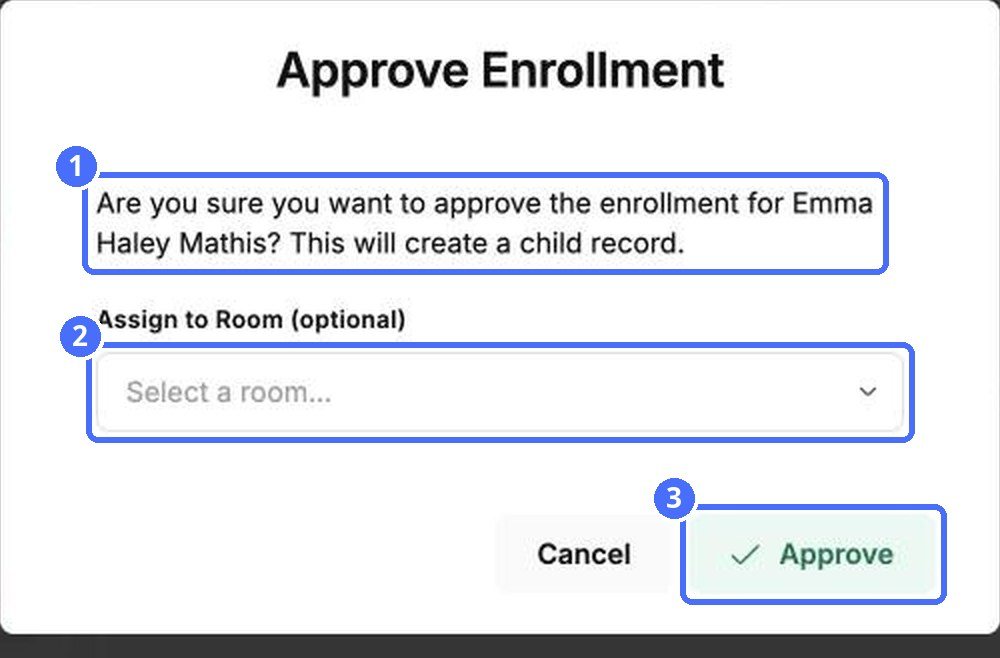
- In Approve Enrollment, choose a room under Assign to Room (optional) if you like.
- Click Approve.
What happens next
- The child is added to School › Children, and to the room if you chose one.
- The application moves to Enrolled on the board.
- The family receives an email saying that their child has been enrolled.
Note: If something in the form needs fixing first, click Return for Correction. To turn the application down, choose Decline. See “Review an application and change its status”.
Tip: If you don't choose a room now, you can set it later: go to School › Children and click the pencil next to the child.


