Create a room
- Go to School › Rooms and click Create Room.
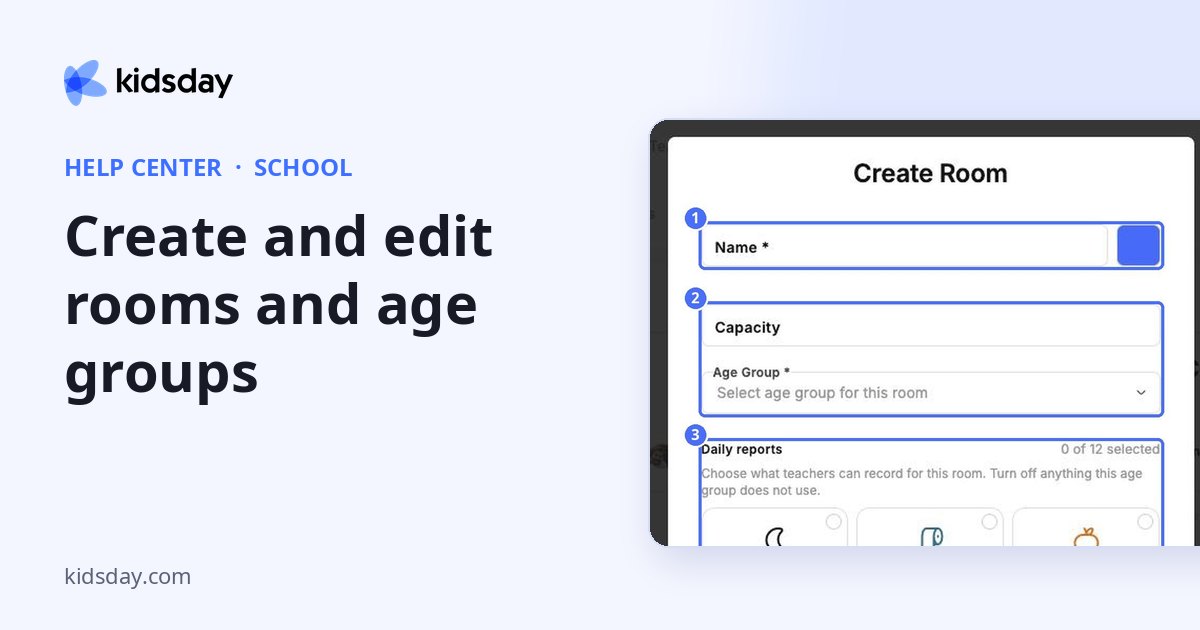
- Enter the room Name, and optionally its Capacity.
- Choose the Age Group the room is for.
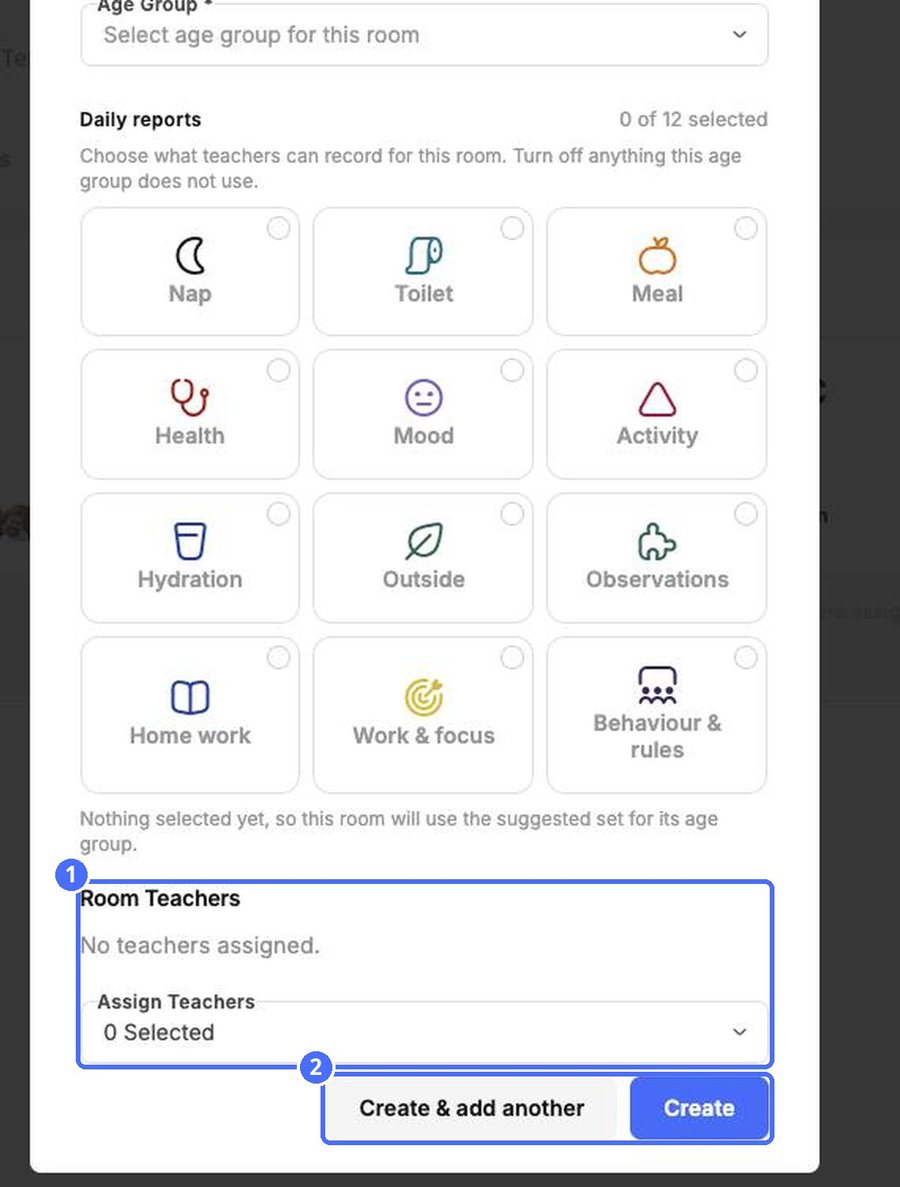
- Under Daily reports, tick the report types teachers can record in this room. If you leave them all unticked, the room uses the suggested set for its age group.
- Under Teachers, select the staff who work in the room.
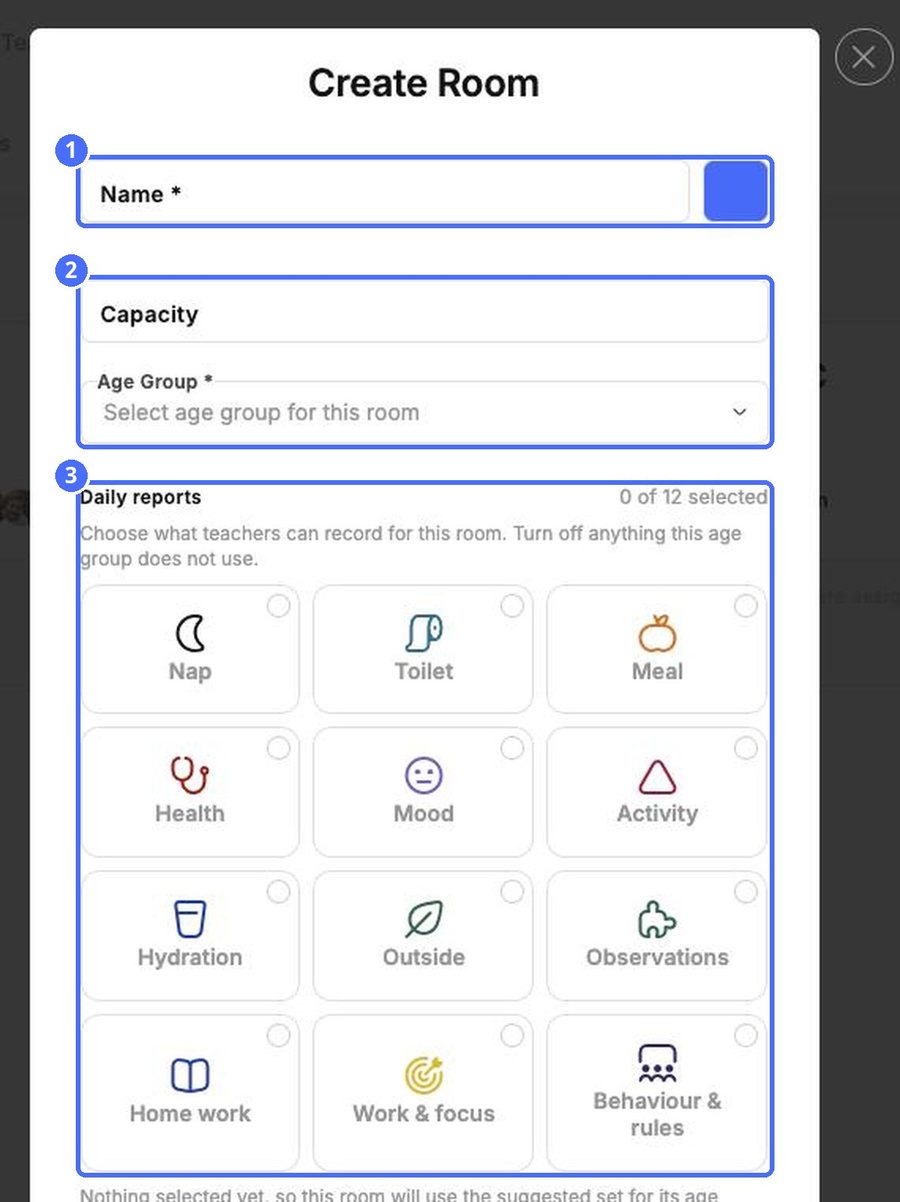
There are 12 daily report types to choose from: Nap, Toilet, Meal, Health, Mood, Activity, Hydration, Outside, Observation, Incident, Medication and Note.
Edit a room
Open the room and click Room Settings. You can change everything you set when you created it, including the report types and the teachers.
Manage age groups
Age groups decide which rooms a child fits into and which report types are suggested. Click Settings on the Rooms tab to open Manage Age Groups.
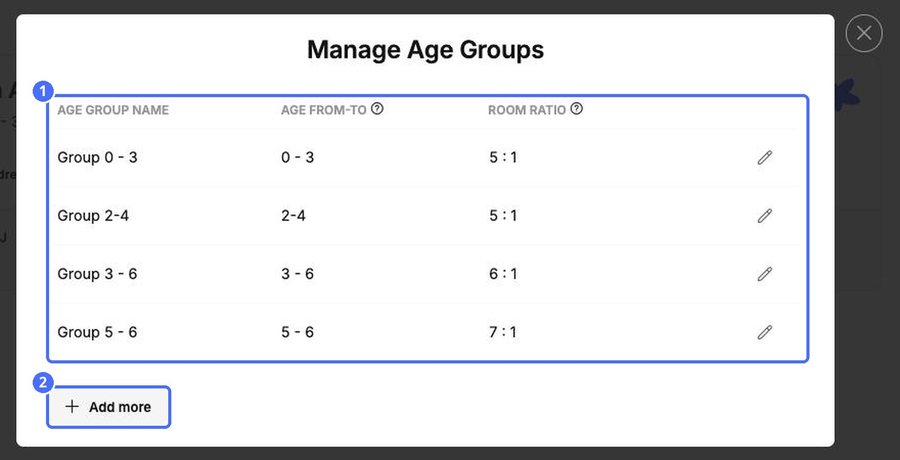
- Click the pencil icon to rename a group, change its age range (From – To) and set its Room ratio.
- Click Add more to create a new age group.
Tip: Assigning teachers to a room is what puts it into those coverage checks. A room with no teachers assigned cannot be measured against its ratio.
Note: The room ratio is the number of children per member of staff, for example 4 : 1. Check it against the rules that apply to your center.
What the ratio is used for
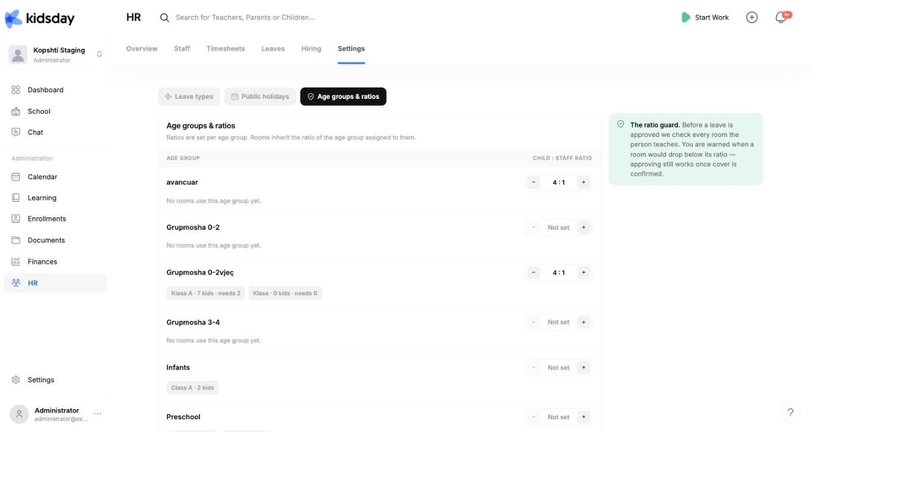
Every room inherits the ratio of its age group, and kidsday checks it in two places in HR: the Room coverage today card on the HR Overview reports each room as covered or short, and every leave request is checked before you approve it. HR › Settings › Age groups & ratios lists the same age groups with their ratios and the rooms using each one.