
- Click Add, or click an empty time in the grid.
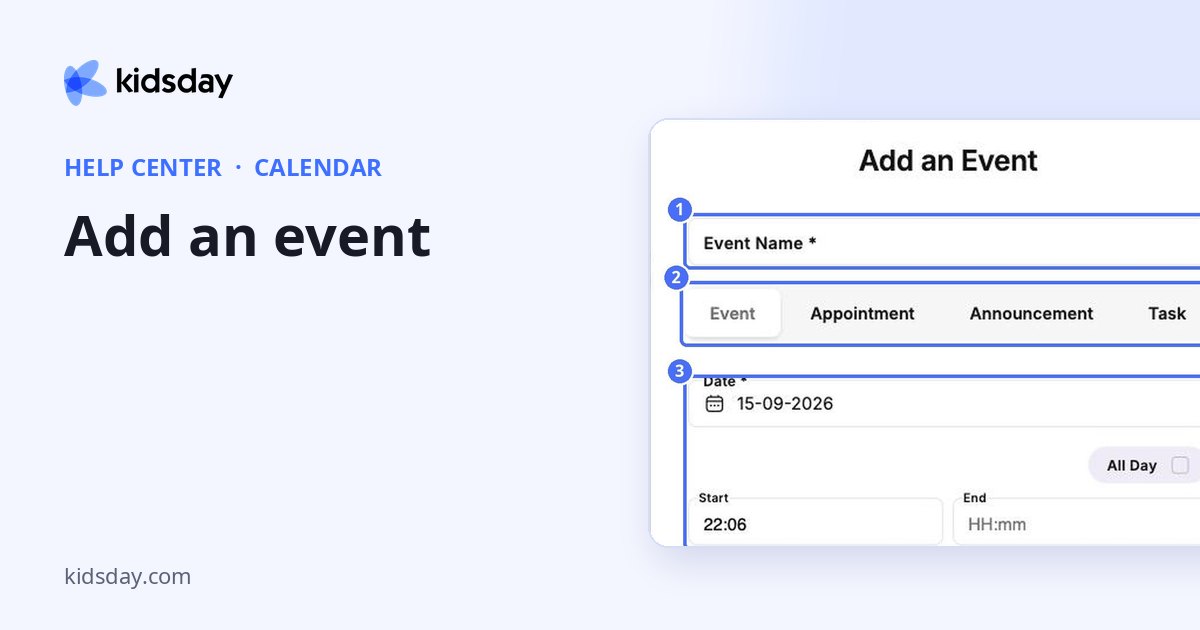
- Enter the Event Name. Event is selected at the top.
- Choose the Date. Keep All Day ticked, or untick it to set a Start and End time.
- Write a Description.
- Click Choose an Image to add a picture.
- Under Select users, choose who should see the event.
- Click Save.
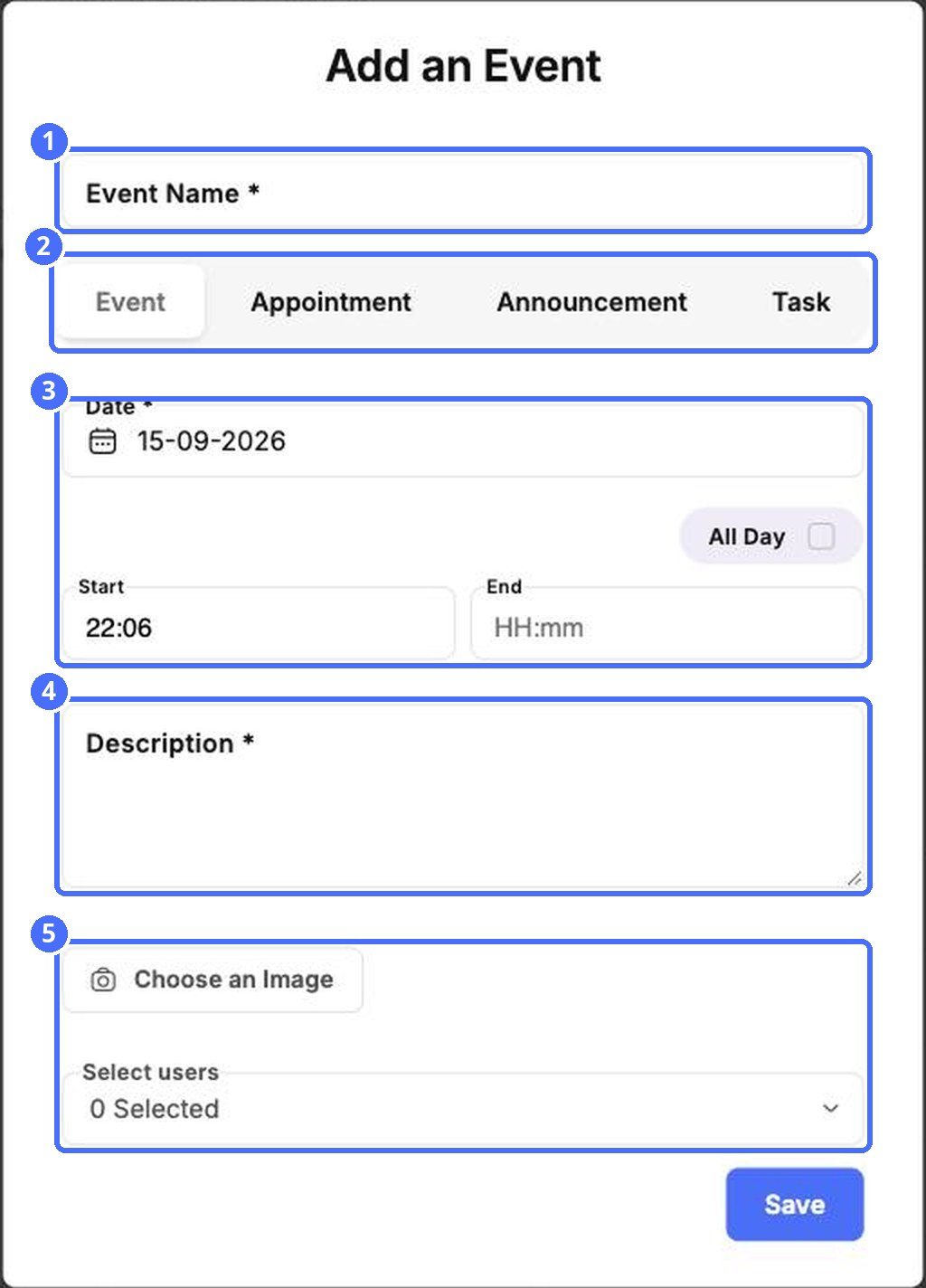
Tip: Use the tabs at the top of the window to switch to an appointment, announcement or task without closing it.


